Do you want to make collecting information from your website visitors easy?
You might have heard of Google Forms. Many people use Google Forms to ask questions, get feedback, or collect leads. It’s simple, even if you are not a tech expert. You can embed Google Forms into a website without trouble.
But what if you want every answer to go right into other tools? Maybe you want to send form data to your CRM, Telegram, or an email list. Copying by hand is slow. With Google Forms automation, you can save lots of time. You can automate Google Form responses to go wherever you need.
This guide is for you if you want to embed Google Forms into a website and automate Google Forms at the same time. Let’s go step by step. This way, you can follow along, even if you have never done this before.
Yes, anyone can embed a Google Form into a website with just a few steps. Google gives you an embed code. It’s called an <iframe>. You copy this code and put it into your website. It works on WordPress, Shopify, or even a simple HTML site. When you embed Google Forms into a website, people can fill out your form right there. They won’t have to leave your site.
This makes things better for your visitors. Your website feels easier to use. When you use embed Google Forms, more people finish your forms.
There are different ways to embed a Google Form into a website with WordPress. It’s not hard, and you don’t need any coding skills.
First, open your Google Form. Click the “Three Dot” button at the top. Choose the tab that shows < > Embed HTML.
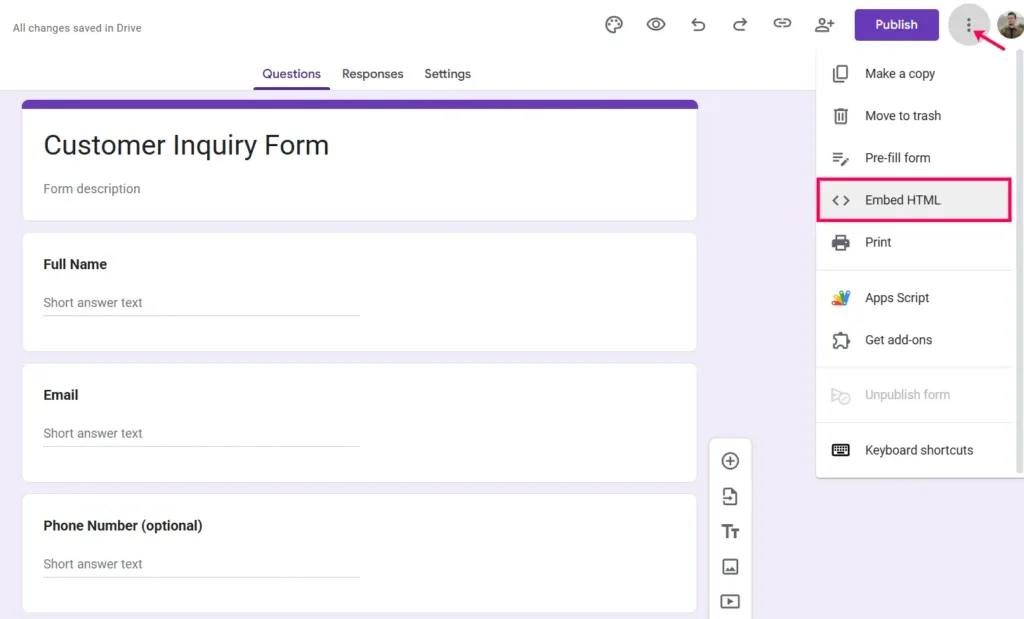
Google will give you an HTML code. Copy this code. You can change the height and width from here to make it fit without your website page/layout.

Go to the page you want on WordPress. Add a “Custom HTML” block to your page.
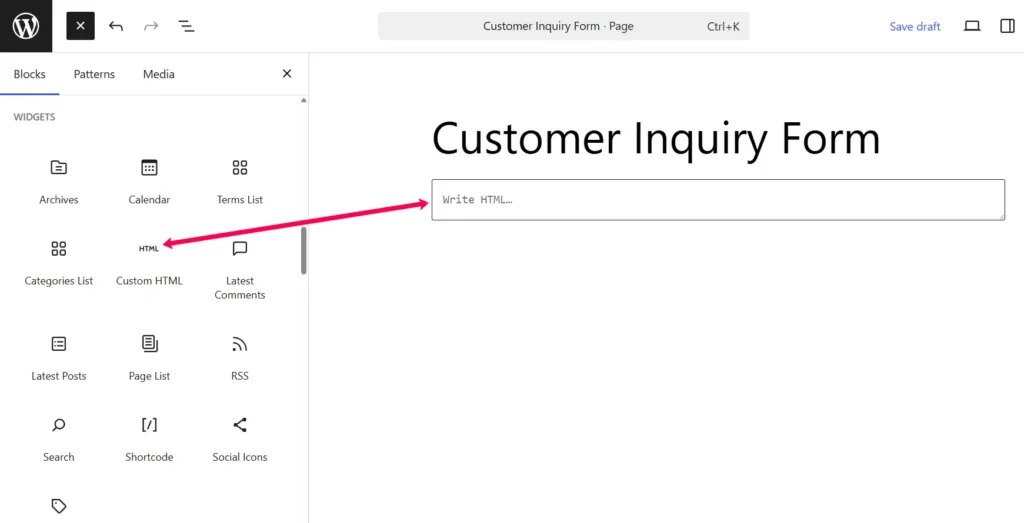
Paste in the code you copied. Save or publish the page. Done! You just learned how to embed a Google Form in WordPress.

Now, publish or update the page and review it. Here is the Google Form that I have added to the website.

Make sure that you have published the form by clicking on the Publish button.
Maybe you use Elementor or another page builder. No problem. Copy the embed code from your Google Form. Then, open your page in Elementor. Drag the “HTML” widget onto the page.
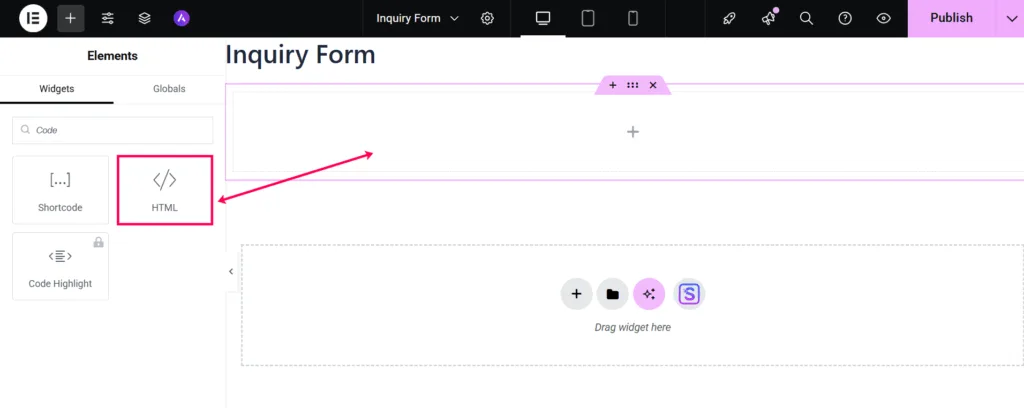
Paste your code into the widget box. Change the size or style if you wish. This way, you embed Google Forms into a website built with drag-and-drop tools.

How can you get the best out of your embedded Google Form? Here are a few important tips:
When you follow these tips, you give your visitors a better experience, and more of them will complete your form.
When you use Google Forms, by default, results go to Google Sheets. But what if you want to send them somewhere else, like your CRM or Telegram? Most tools only check Google Sheets every few minutes. That can be slow. Bit Flows solves this problem using Google Forms automation. This kind of tool lets you automate Google Forms and get the data right away.
Let’s see how to set up Google Forms automation using Bit Flows.
Install and activate the Bit Flows plugin. Create a new workflow. Pick “Google Forms” as your trigger, then select “On Form Submit” event.
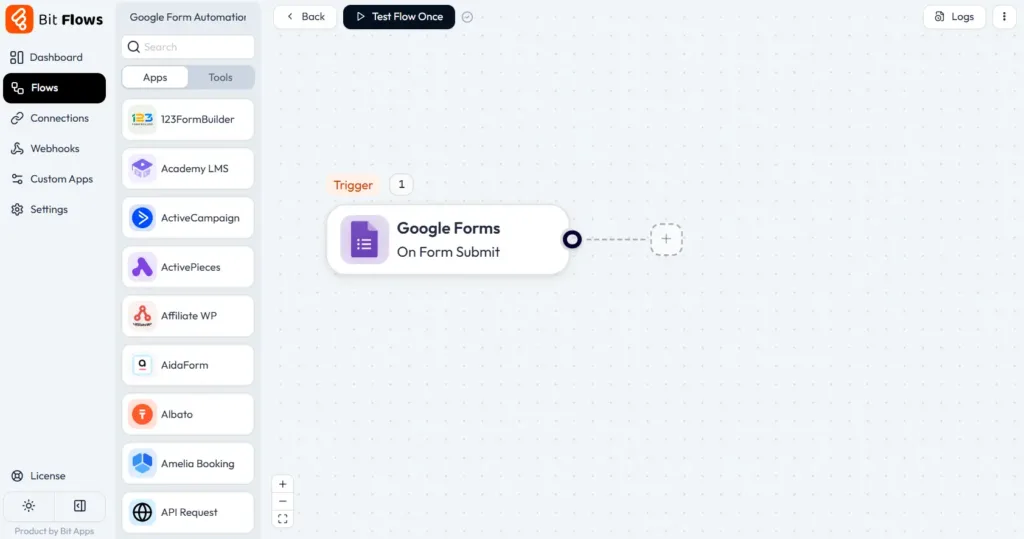
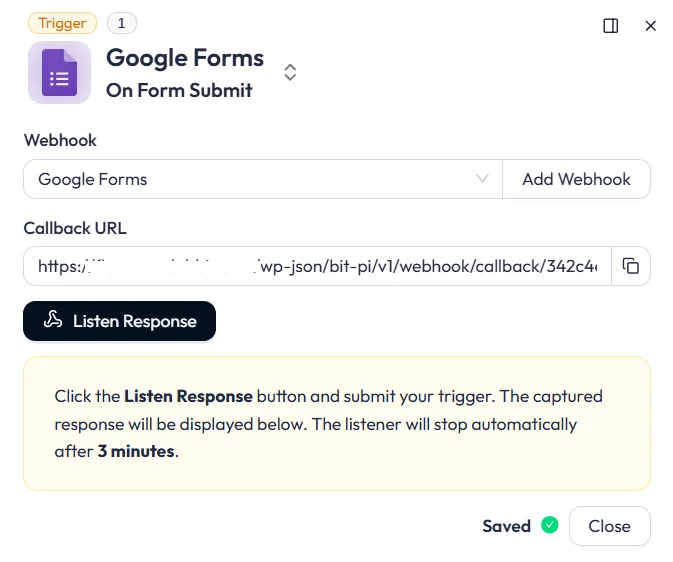
Then click on the add webhook button and give it a name. You get a special Callback URL. Copy this URL and keep it ready. You will use it soon.
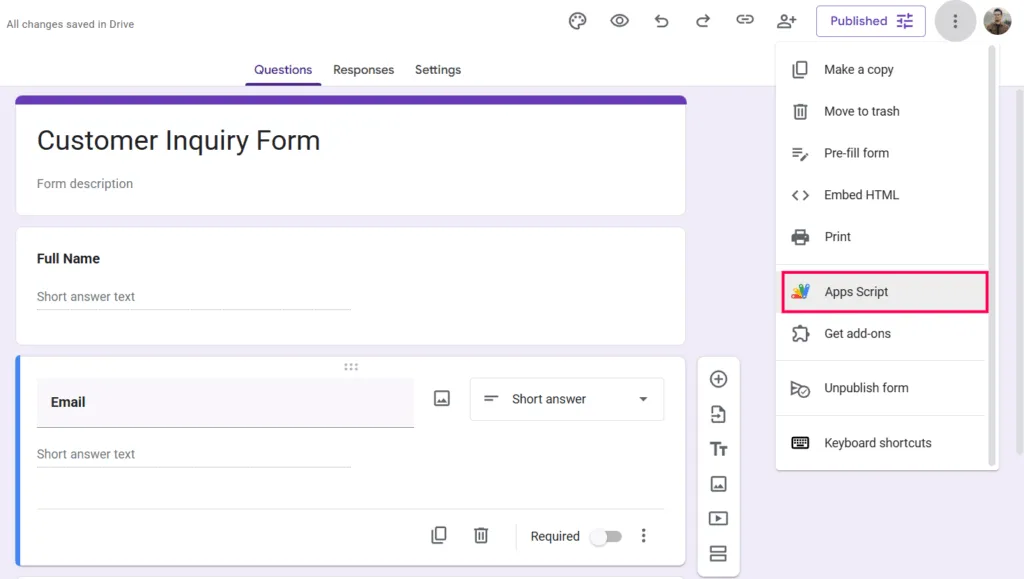
Open your Google Form. Click the three dots, then pick “Apps Script”
If you see any code, you can remove it. Paste this script:
var POST_URL = "YOUR_BIT_FLOWS_CALLBACK_URL";
function onSubmit(e) {
var form = FormApp.getActiveForm();
var allResponses = form.getResponses();
var latestResponse = allResponses[allResponses.length - 1];
var response = latestResponse.getItemResponses();
var payload = {};
for (var i = 0; i < response.length; i++) {
var question = response[i].getItem().getTitle();
var answer = response[i].getResponse();
payload[question] = answer;
}
var options = {
"method": "post",
"contentType": "application/json",
"payload": JSON.stringify(payload)
};
UrlFetchApp.fetch(POST_URL, options);
};Replace “YOUR_BIT_FLOWS_CALLBACK_URL” with the link Bit Flows gave you. Save your script.

Now you need to make sure the script runs every time your form is filled. Click the clock icon called “Triggers.” and then click on the “+ Add trigger” button.
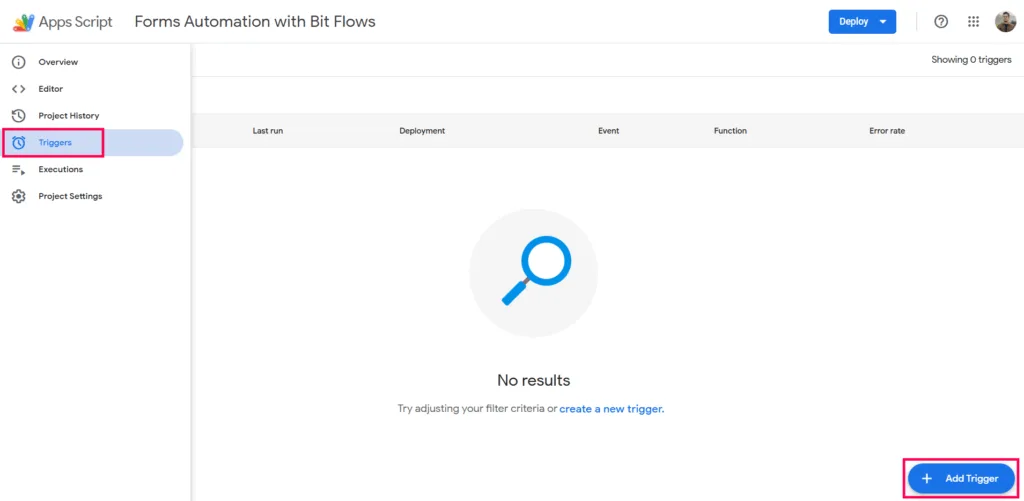
Set event type to On Form Submit function when someone submits the form.

Save the changes and give permission if Google asks. Now your Google Form is ready to send answers right away. Let’s test it. Navigate to the Bit Flows builder and click on the Listen Response button. And then submit a test form by using your Google Forms.

These will collect all of your Google forms fields and answer. Now you can map the field to do next step automation!
You can do even more with Bit Flows after setting up your Google Forms. For example, you can send data to many places at once. Just add a roter tool after the trigger and connect your apps.
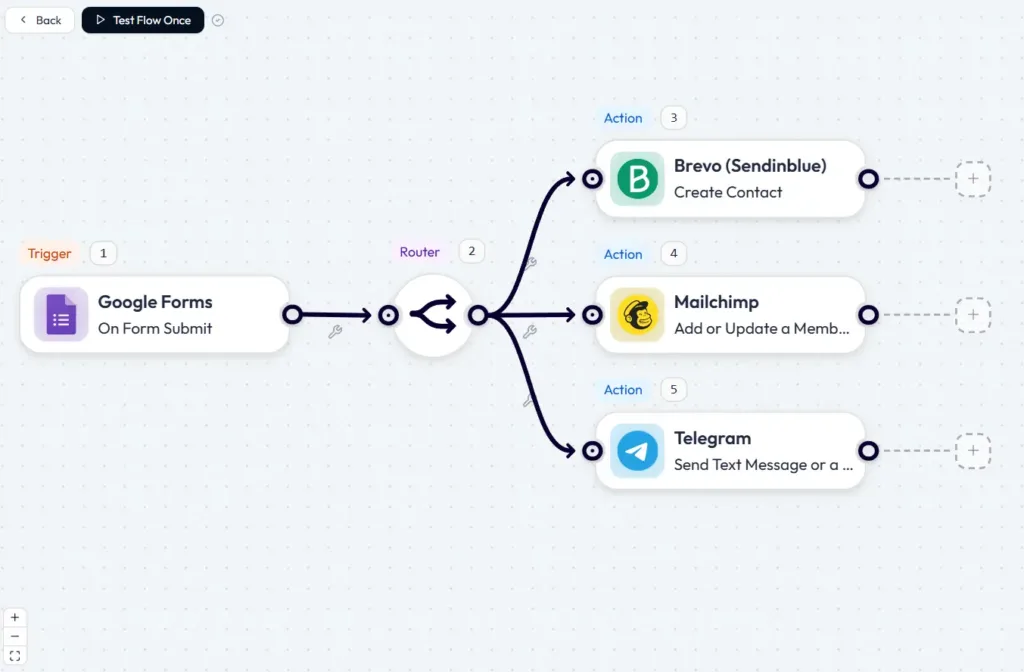
Here is an idea for a workflow:
With this setup, your whole team can know about new leads. Your email list updates right away. Leads are saved in your CRM, and you even get instant Telegram alerts. This is real automation for Google Forms.
You may ask why you should choose Bit Flows for Google Forms automation. Bit Flows is self-hosted. You own all your data. There are no hidden costs. You can run unlimited automations for Google Forms. Here are some key benefits:
When you automate Google Form responses with Bit Flows, you get a full system that saves time and helps you grow.
Here are some ways people like to use Google Forms combined with Bit Flows:
The main idea is simple. With Google Forms automation, you stop doing the same work again and again. You work smarter, not harder.
Google Forms works well when you only need to collect information, such as feedback, survey answers, event details, or lead data.
But if your form needs to collect payments, sell products, accept donations, or take event ticket orders, you may need a dedicated payment form instead. In that case, a tool like PaymentForm.io can be a better fit.
PaymentForm.io lets you create payment forms for donations, fundraising campaigns, product orders, event tickets, memberships, and service payments. You can share the form through a direct link, QR code, or embed it on your website, just like you would embed a Google Form.
To sum up, when you embed Google Forms into a website, you make it easy for people to answer your questions. But with automation for Google Forms, you can send this data anywhere you want. Bit Flows makes this very easy and lets you decide where your form answers should go. You can simplify complex workflows, save time, and keep your team in the loop.
If you want to start, pick any simple task. Set up a Google Form and connect it using Bit Flows. Try sending answers to your own email or Telegram. You will see how helpful Google Forms automation can be.
Yes, you can easily embed a Google Form in WordPress using Gutenberg, Elementor, or by pasting the iframe code. This lets visitors fill out the form without leaving your site.
The easiest way is to copy the embed code from Google Forms and paste it inside a Gutenberg HTML block or Elementor widget. It’s quick, responsive, and works on all devices.
Yes, Google Forms are responsive by default. To make them fit better on mobile, set the iframe width as per your layout when embedding.
Yes. By using Bit Flows, you can send Google Form data instantly to CRM tools, email platforms, Telegram, or even Google Sheets, no manual work needed.
Bit Flows is self-hosted, secure, and offers unlimited workflows without hidden costs. Unlike Zapier or Make, you don’t pay per task. It also has advanced tools like routers, iterators, and AI integrations.
You create a webhook trigger in Bit Flows, add a small Google Apps Script to your form, and set a trigger for form submissions. Every new entry is then sent in real-time to Bit Flows.
Yes. With Bit Flows’ Router, you can branch responses and send them to different tools like a CRM, Telegram, Slack, or email list, all from one form submission.
You can automate lead generation, event registrations, customer feedback, job applications, or survey responses by sending them directly to CRMs, mailing lists, and team chats.
No, Google Forms doesn’t have native webhooks. That’s why you need a Google Apps Script to push form data to Bit Flows or any other automation platform.
Yes. With Bit Flows, you can send real-time notifications to Telegram, Slack, or even email every time a new response is submitted.
Yes, embedding Google Forms is secure. Just make sure you only collect necessary data and use SSL (HTTPS) on your website to protect user submissions.
Absolutely. With Bit Flows, you can connect Google Form responses to AI tools like OpenAI or Gemini to summarize answers, generate insights, or auto-create reports.




 EN
EN  DE
DE  ES
ES  NL
NL  IT
IT