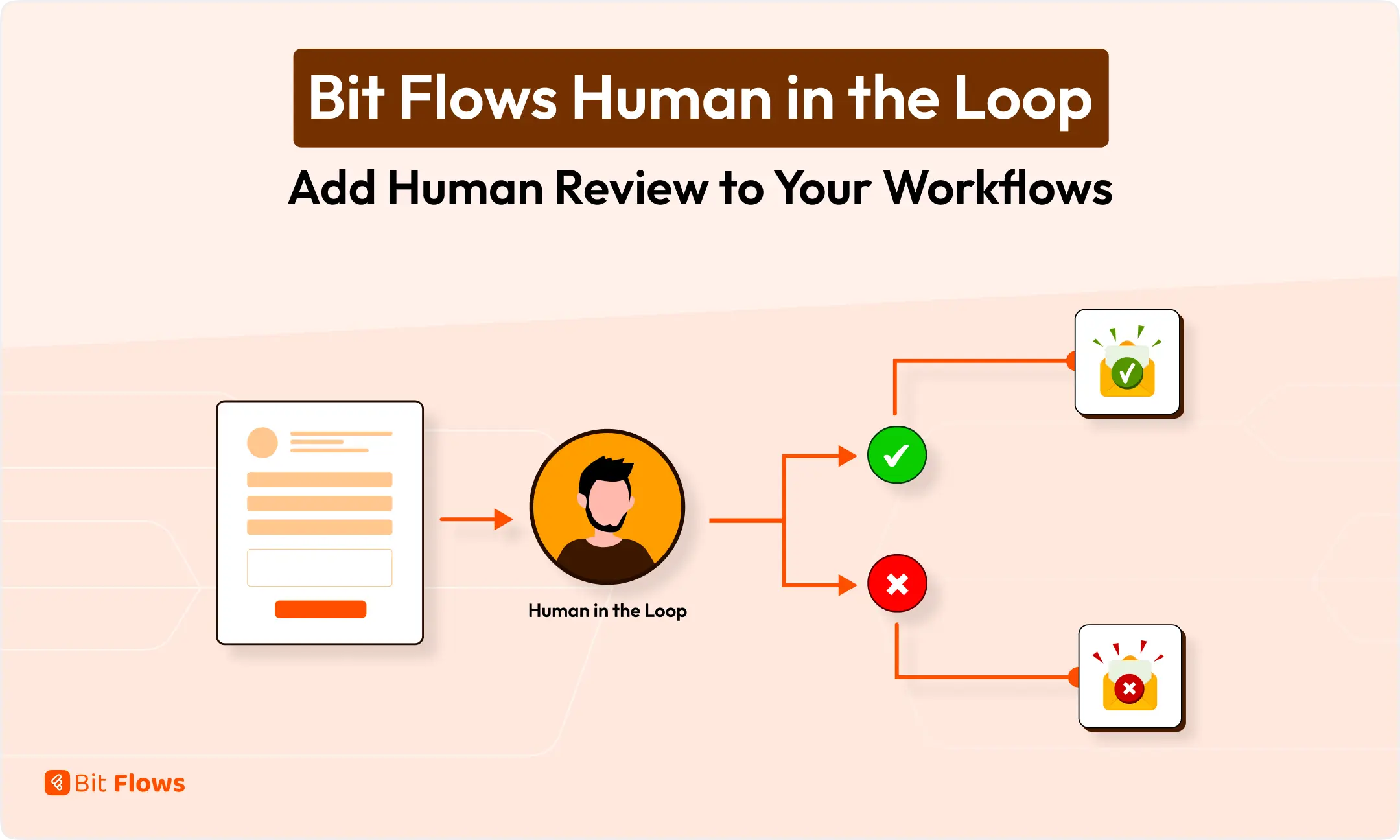
Human in the Loop lets you pause a workflow, send something for review, and continue only after a real person responds.
Bit Flows now includes this feature, so you can add approval steps to workflows that should not run on their own from start to finish.
This matters in workflows where the next action depends on a decision, not just data. A leave request, refund, expense, or internal approval sometimes needs a person in the middle.
Human in the Loop gives you that review step without breaking the workflow.
Human in the Loop is for workflows that need review before the next step runs. Here is the basic idea:
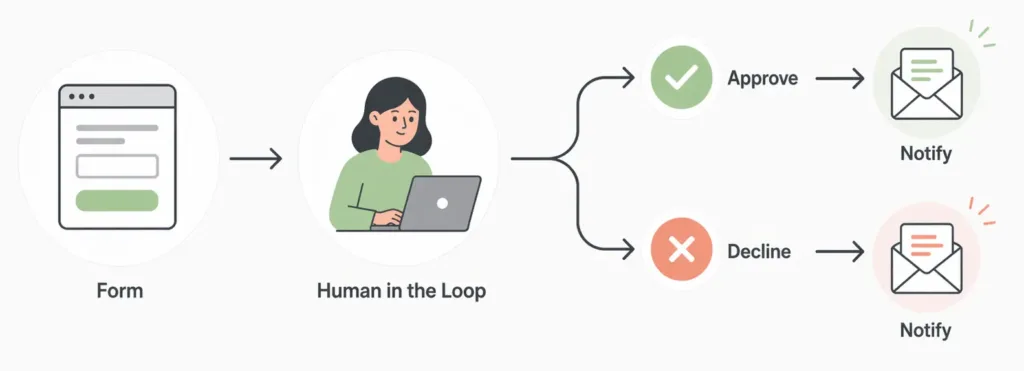
So the tool is not about sending a normal email. It is about adding a decision step inside automation. Right now, Human in the Loop review emails work with Gmail and WP Mail.
Use it when a workflow needs human judgment. Some examples:
If a workflow should not continue without a person checking it first, this tool fits that case.
To show the feature clearly, I am using a leave request workflow.
An employee fills out a leave application form. Bit Flows captures that submission. Then the Human in the Loop step sends the request to HR. HR reviews it from email and clicks Approve or Decline. After that, the workflow continues and sends the right follow-up email to the employee. The flow looks like this:
Form Submit Success → Gmail Human in the Loop → Conditions → Approved Email or Disapproved Email
What You Need Before Setting It Up:
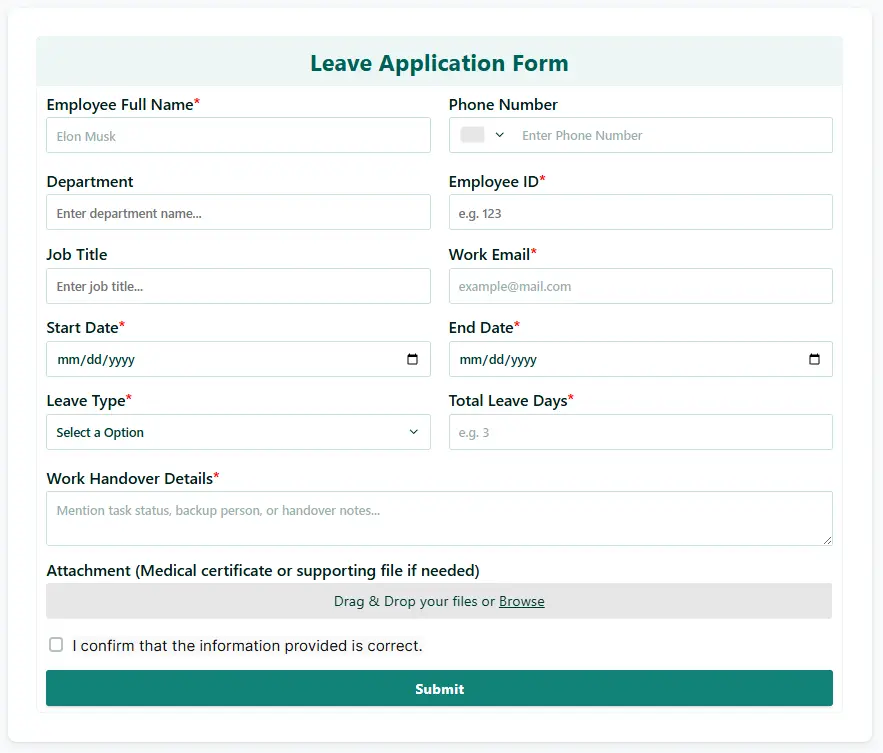
If you already have a leave application form, use that. If not, create a new one. I have built the form using Bit Form. Here are my form fields:
Create a new flow in Bit Flows and select the Form trigger. Then choose the form you created. Click on the “Listen Response” button and then submit the form.
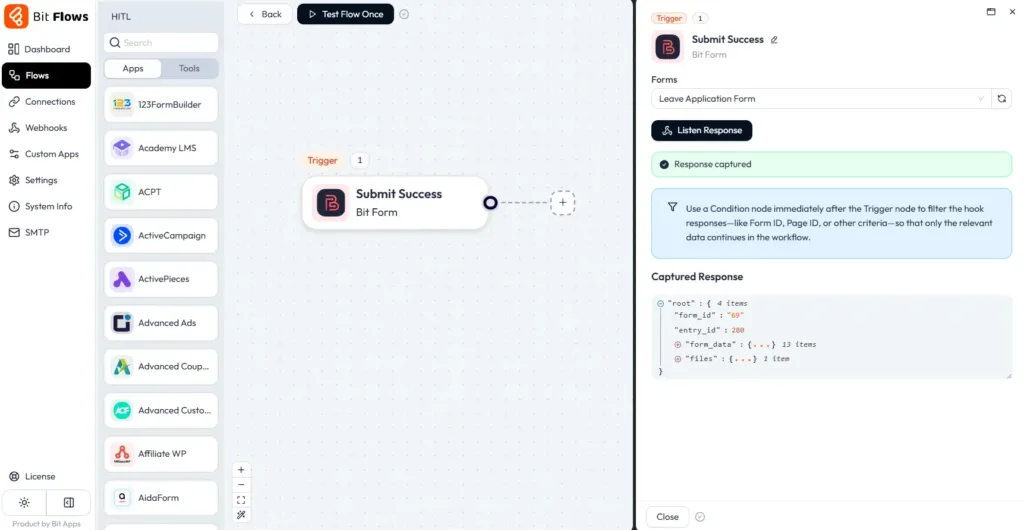
This will capture the form fields, telling Bit Flows to start the workflow every time the form is submitted.
Click the plus icon in your flow to add a new step. This will open the action panel.
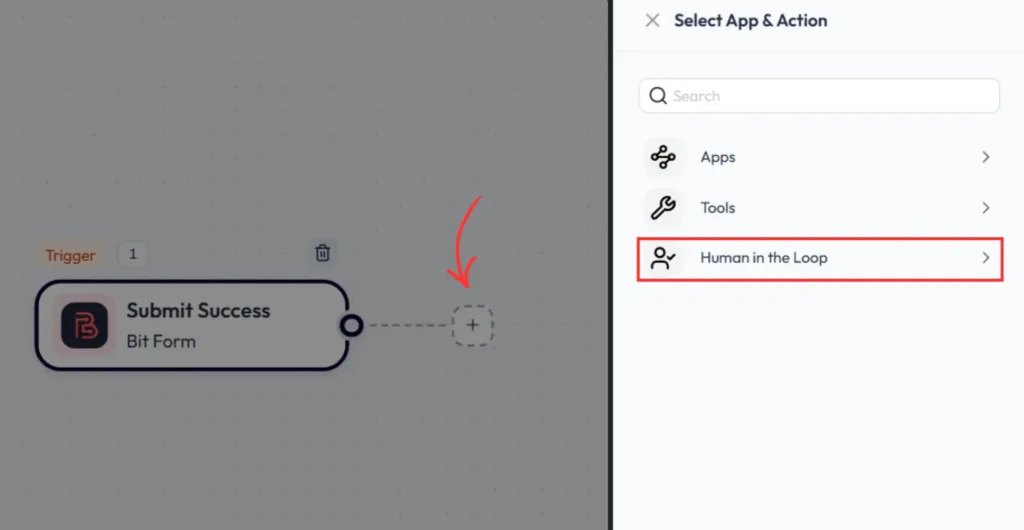
From the available options, select Human in the Loop to see the supported review actions.
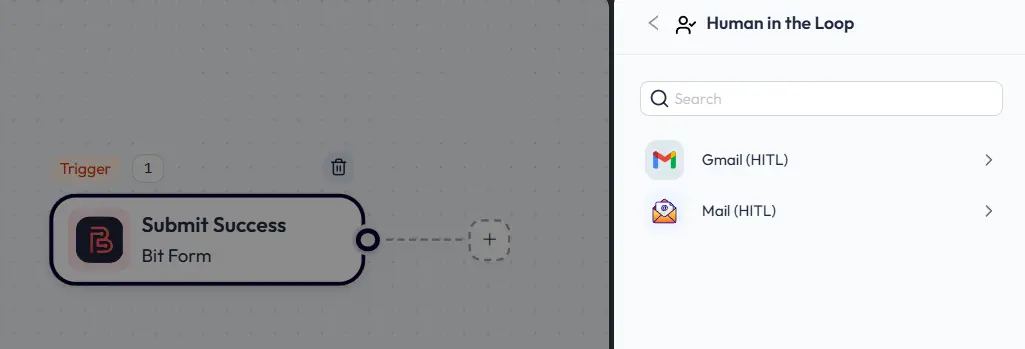
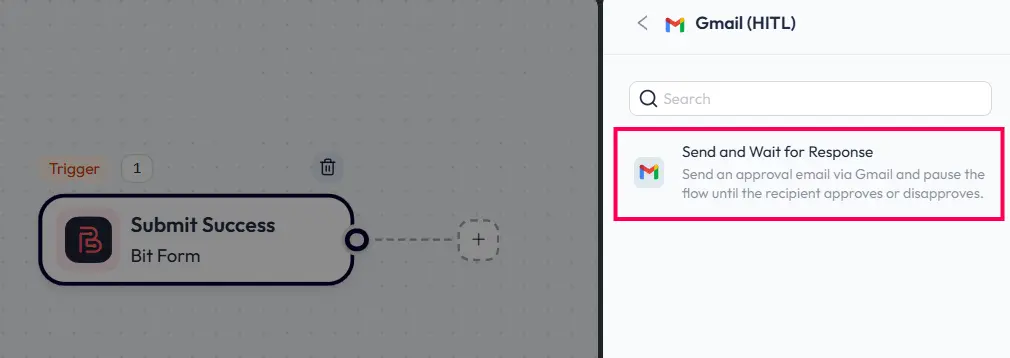
Choose Gmail (HITL) or Mail (HITL), then click Send and Wait for Response to add the Human in the Loop step to the workflow.
Select your Gmail connection first, then enter the From Email and To Email addresses. Add the subject and write a short message with the key request details.
If you have not set up your Gmail connection yet, connect it first with your Gmail credentials.
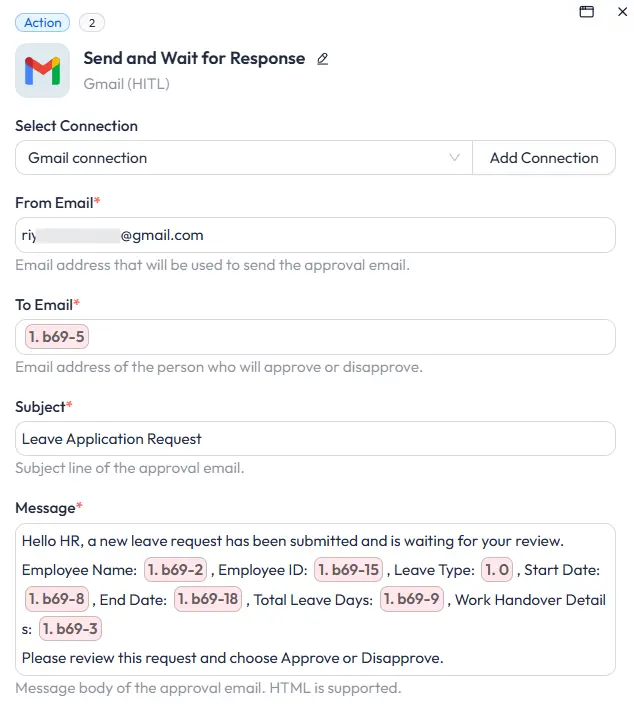
Note: You do not need every field in the review email. Only pass the fields that actually need to review the request.
Next, choose the approval option, set the button labels, and button styles.
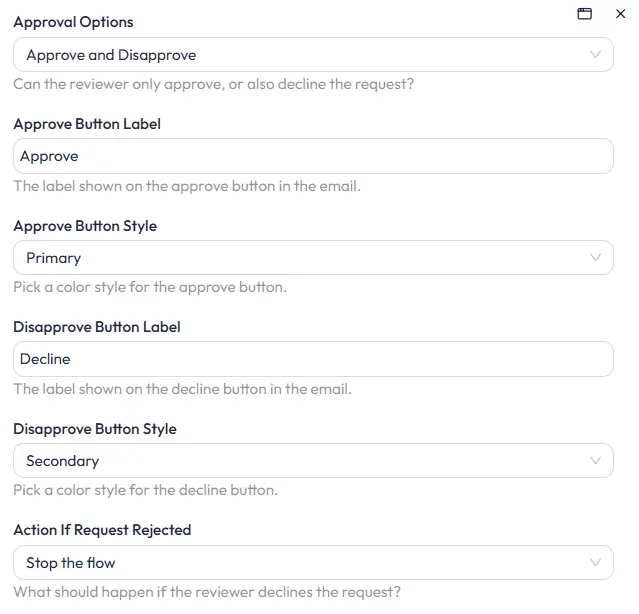
Then define the deadline using either a time interval or a specific date and time. Finally, choose what should happen if no response is received, such as continuing or stopping the flow.
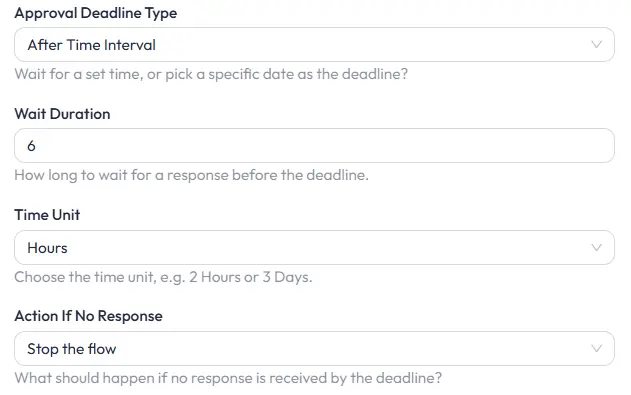
You can also decide what happens if nobody responds before the deadline. In this example, the flow is set to stop if no response comes in time.
Tips: Set a clear deadline, choose what happens if there is no response, and include only the fields the reviewer needs.
Add a Conditions node after the Human in the Loop step. This node will check the result returned from the review email. Create two conditions, one for approval and another for decline.
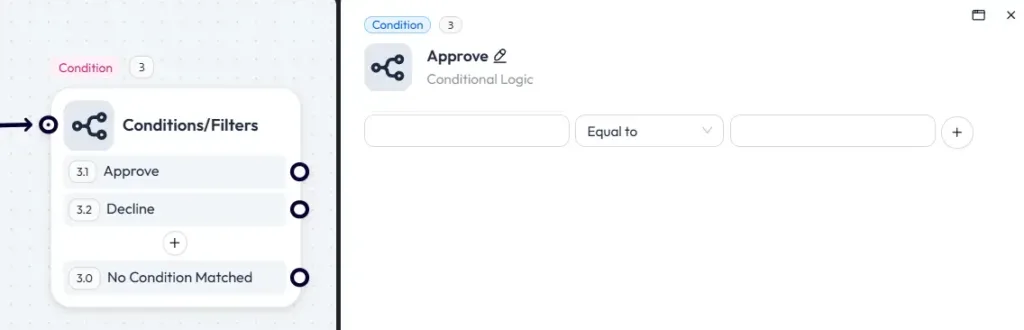
In the condition field, map the status value from the Gmail (HITL) step. This is the field that stores the reviewer’s response.
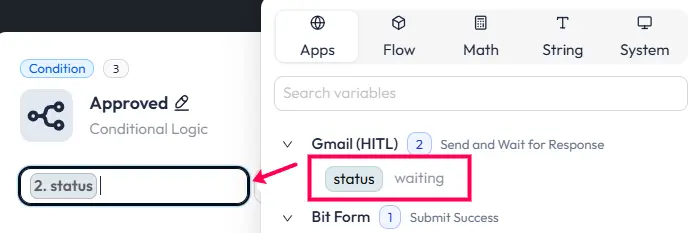
Set one condition to approved and the other to disapproved so the flow can continue through the correct branch.
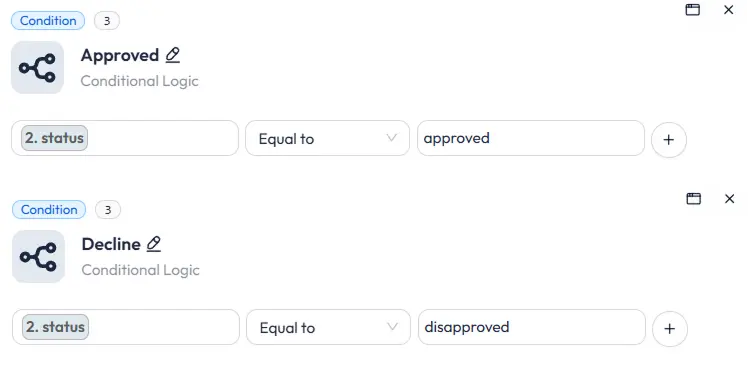
Make sure the condition text matches the exact value returned by the Human in the Loop node.
Now add the next actions after each condition branch. For the approved branch, add a Gmail Send an Email node that sends an approval email to the employee.
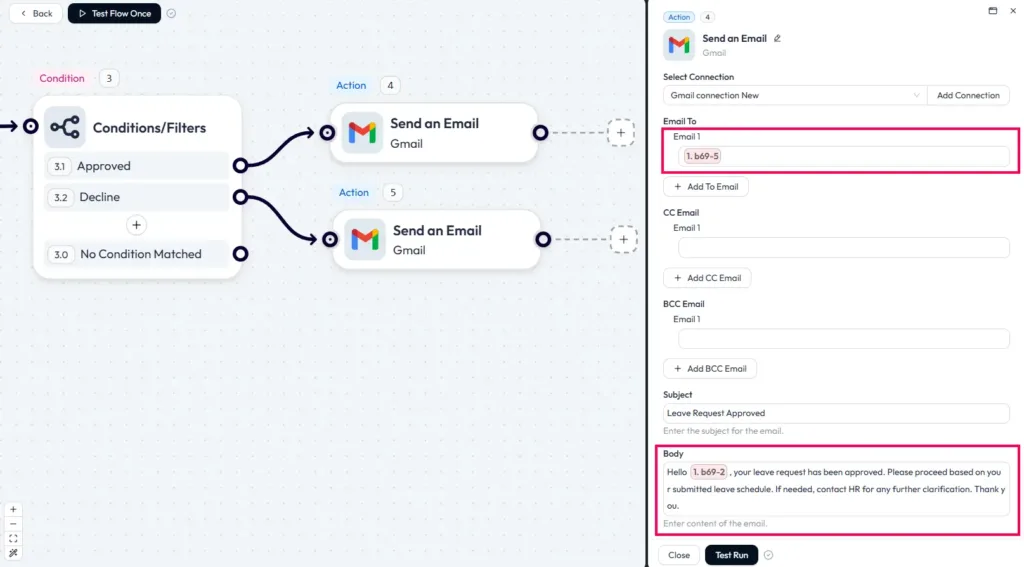
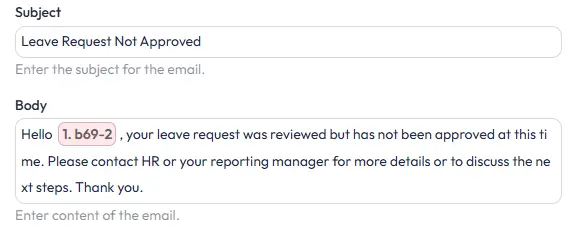
In the Disapproved branch email, use the same employee email mapping, then write the disapproval subject and message body so the employee gets the correct result.
Now submit another leave request from the form and test the whole workflow. Once the workflow runs, the reviewer receives the Human in the Loop email in Gmail. The email includes the request details, deadline, and the Approve and Decline buttons.
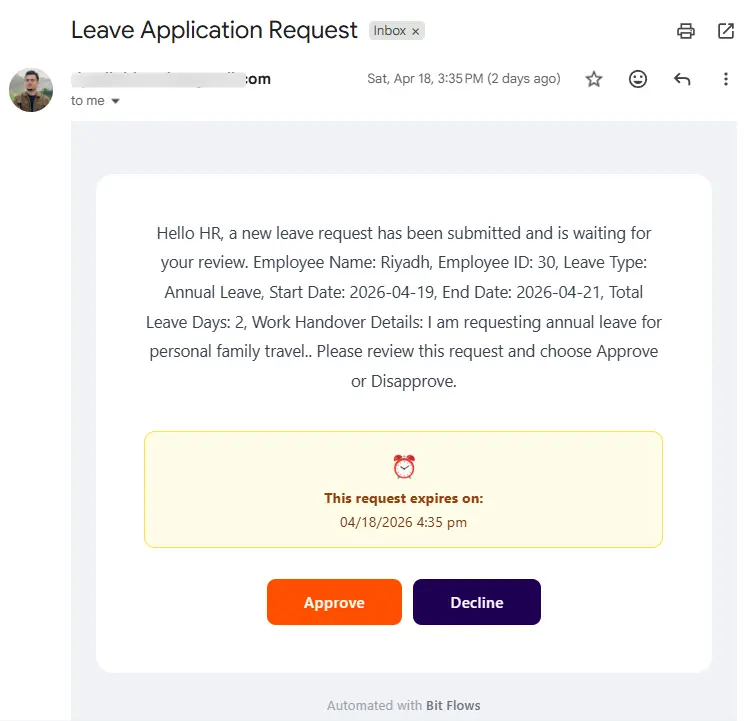
When the reviewer clicks Approve or Decline, Bit Flows captures that response and processes the result. Then the workflow continues through the matching branch and sends the correct follow-up email automatically.
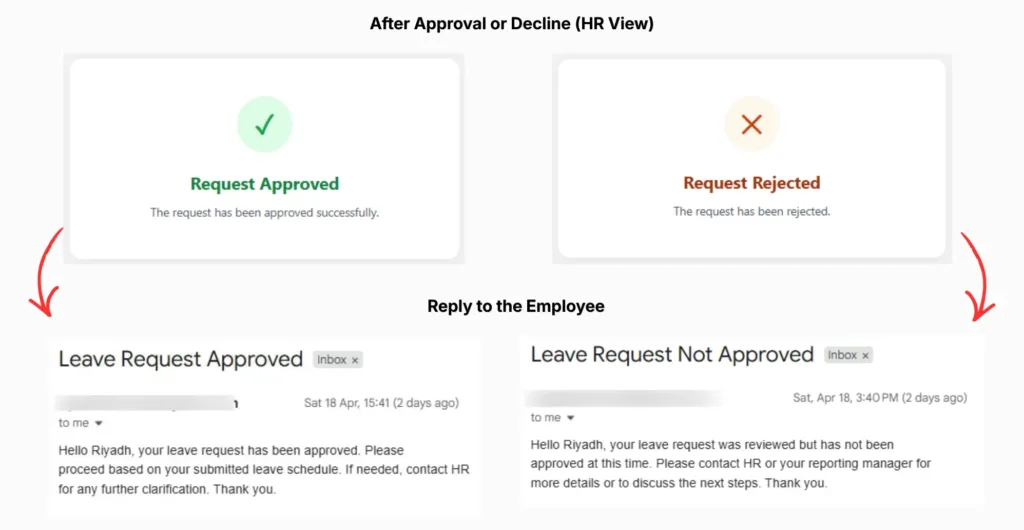
In the working path:
This proves the tool is doing what it should do. It pauses at the review step, waits for the human action, then continues.
Once the reviewer clicks Approve or Decline, Bit Flows captures that response from the Human in the Loop step. Then the Conditions/Filters node checks the returned status and sends the workflow through the matching branch.
That branch can then run the next action, such as sending an approval email, sending a disapproval email, or triggering another step.
The Human in the Loop feature changes what you can build.
You are no longer limited to workflows that should run from start to finish without review. You can now create flows where automation handles the process, but a person still controls the decision step.
The leave request example is only a demo. The bigger point is this:
Bit Flows can now wait for a human decision inside an automation.
If you want to go beyond human review, you can add the Bit Flows AI Agent to the workflow for smarter decision-making.
Human in the Loop makes Bit Flows more practical for real approval-based workflows. You can automate the repetitive parts, pause the flow when a decision is needed, and continue only after someone reviews the request.
The leave request example in this guide is just one use case. Once you understand this setup, you can use the same pattern for many other review-based processes across HR, finance, support, and internal operations.
Ready to add human review steps to your own workflows? Open Bit Flows, create a new flow, and try the Human in the Loop action today.
It is a feature that lets Bit Flows pause a workflow, send a review request to a person, and continue only after that person responds.
Right now, Human in the Loop review emails work with Gmail and WP Mail.
Yes. Once the response is received, Bit Flows resumes the workflow and runs the next step based on that result.
Yes. You can use a Conditions node after the Human in the Loop step and create separate branches for each result.
If the token is no longer valid, Bit Flows shows an error message. This protects the workflow from old or reused test actions.




 EN
EN  DE
DE  ES
ES  NL
NL  IT
IT