Your course platform already knows when a student enrolls, finishes a lesson, fails a quiz, or disappears for three weeks. It just doesn’t tell anything else.
So you do it. You copy the new enrollment into your CRM on Monday. You check a spreadsheet to see who finished Foundations and might buy Advanced. You find out a learner failed the same quiz four times when they email support to cancel.
Every one of those jobs takes two minutes and repeats once per student. That is the problem with running a course business by hand: the workload scales with the thing you are trying to grow, and it scales at exactly the moment you have least time for it.
WordPress LMS automation fixes the gap by wiring course events that already fire inside your site to the systems that should react to them. This guide covers what your LMS handles alone, the exact trigger and action names for ten LMS plugins, seven workflows built and tested in a live install, and the five mistakes that quietly break them.
Your LMS handles course delivery, access, progress, quizzes, and its built-in notifications. The gap starts when a course event needs to update a CRM, spreadsheet, chat tool, email platform, or another course.
Which plugin you run decides what you can build. Sensei can read a learner’s current lesson and quiz status mid-flow, which makes it the easier choice for anything involving a delay. LearnDash and LifterLMS fire on unenrollment. Tutor LMS and Academy LMS hand you a quiz percentage threshold directly.
Seven flows are worth building: enrollment into your CRM and a tracking sheet, completions routed into the next course, instructor alerts when a quiz percentage drops, a nudge for students who stall, WooCommerce buyers enrolled the moment payment lands, access revoked on refund or withdrawal, and AI feedback an instructor approves before it sends.
Four of the five things that break these flows break silently: a delay left on WP-Cron, a rule comparing raw score instead of percentage, a single value compared against a list, and an LMS notification left on so students get two emails. Start with enrollment. It is a foundational event that many downstream flows can build on.
Two different things get called WordPress LMS automation, and the difference decides which tool you need.
The first happens inside the course. Most established LMS plugins handle core course delivery, progress, and access internally, while features such as drip scheduling, prerequisites, and certificates vary by plugin and plan. Reaching for an external tool here only adds a moving part when your LMS already handles the job.
The second happens after. A student enrolls, and a record should appear in your CRM. A quiz comes back at 42 and someone should hear about it. A course finishes and the next one should open up. None of that lives in the LMS, and none of it happens unless something connects the two. That second kind is what the rest of this guide builds.
Build this one first. Not because it’s the most interesting, but because it is the event that feeds everything else in WordPress LMS automation.
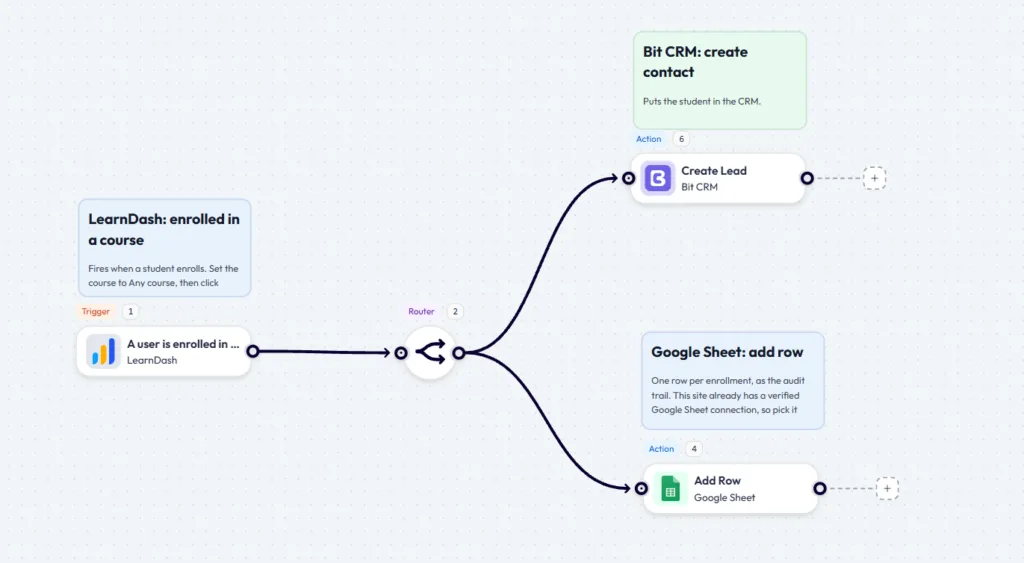
Pick LearnDash as your trigger and choose A user is enrolled in a course. When it asks which course, say Any course. Scoping to one course feels tidy on day one, but by course twenty you’re editing twenty flows to change one email. The LearnDash trigger guide covers the other eight events.
Click Capture Response and actually go enroll yourself. Field mapping reads from captured data, and an empty Name column three weeks later almost always traces back to skipping this.
The Router pushes the run down both branches at once. A CRM record and an audit row were never an either-or.
On the CRM branch, Create Lead maps the student into Bit CRM with their email as the identity field. Our form-to-CRM guide goes deeper on owners, sources, and tags if you want more than the basics.
Tutor LMS automation earns its keep here, because completion is the moment a student is most likely to buy again.
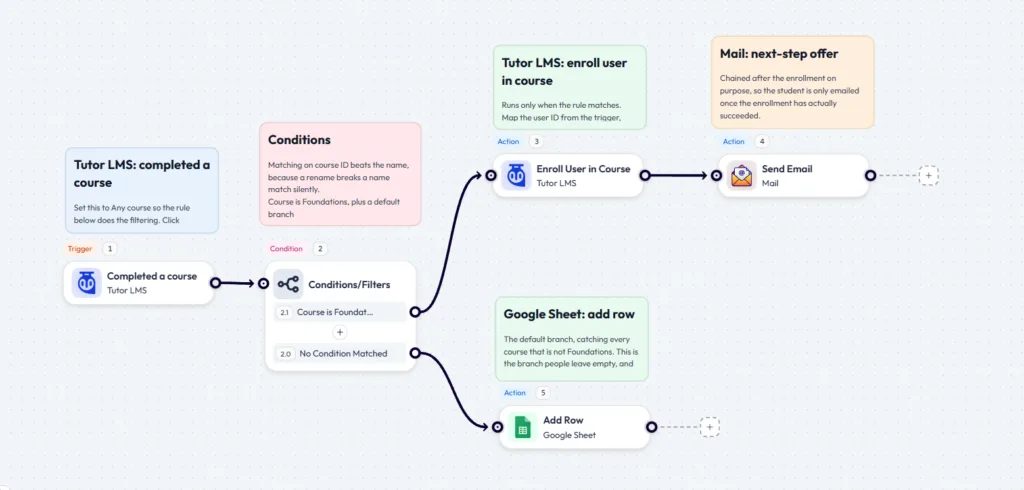
Use a Conditional here rather than a Router, because the branches are mutually exclusive. The Conditional supports AND and OR logic and gives you a no-match fallback path, which is the branch most people leave empty and then wonder why nothing happens for their other courses.
Chain the email after the enrollment rather than running both in parallel. Sequenced that way, the student only hears “you’re in Advanced” if the enrollment actually succeeded.
Open the Enroll User in Course node and look at Map Fields. Two fields are required: User ID and the course. Pull User ID from the trigger’s user data rather than routing it through an email lookup, because email matching looks fine right up until a student signs up twice with two addresses. Set the course to Advanced as a fixed value. The field mapping guide covers the variable picker if this is your first time in that screen.
Swap the trigger, and this same shape works elsewhere. Quiz submission, lesson completion, enrollment, and a percentage threshold are all available in the Tutor LMS trigger guide.
Repeated quiz failure is the clearest early churn signal in a course business, and almost nobody automates student notifications around it.
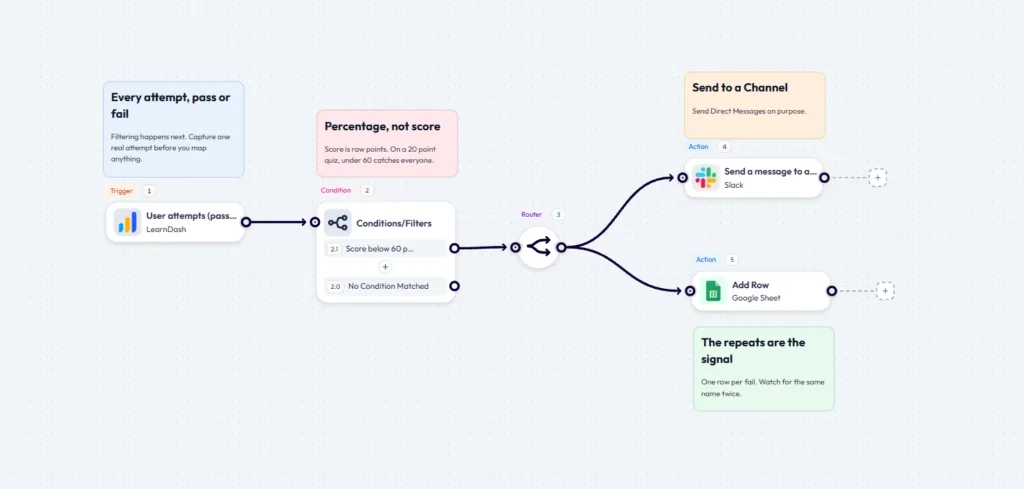
LearnDash reports score in raw points and percentage as the 0 to 100 value, so “score below 60” on a 20-point quiz matches every attempt, perfect ones included. This one line breaks more WordPress LMS automation than anything else in the article. Open the Conditional, check which field you picked, and confirm it against a real captured payload.
Your LMS may save you the trouble. Tutor LMS automation and Academy LMS both offer a percentage threshold trigger that does the comparison for you. On LifterLMS, MasterStudy, or Masteriyo, trigger on the failed-quiz event directly and drop the condition entirely. A passing attempt reaches No Condition Matched and stops there, which is exactly what you want.
Past the condition, send that alert to a channel, not a person. Slack splits Send a message to a channel and Send Direct Message into separate actions, and the channel one is right here. Instructors change roles and leave, but the Channels stay.
One refinement once it’s running: alert on the second failure, not the first. A student who fails once and retakes is normal, and pinging instructors on every single failure gets the channel muted inside a week. LearnDash’s quiz payload carries an attempt count, so keep logging every failure to the sheet and gate only the Slack branch on two or more.
This is the WordPress LMS automation that fails silently on most hosting, so it needs two warnings before you build it.
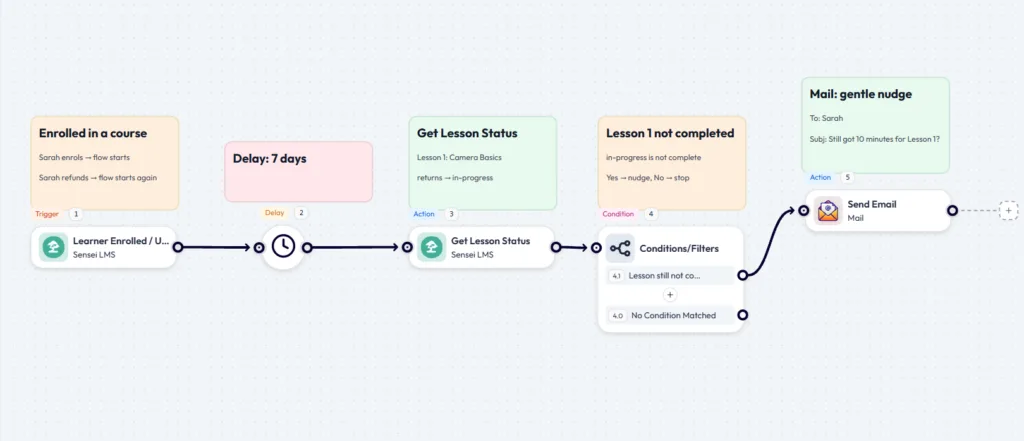
The first warning is cron. Delay and Schedule steps run on WP-Cron, which only fires when somebody visits your site. On a quiet course site, a seven-day delay lands on day nine, or never, and nothing in the log looks wrong. The flow just sits there waiting.
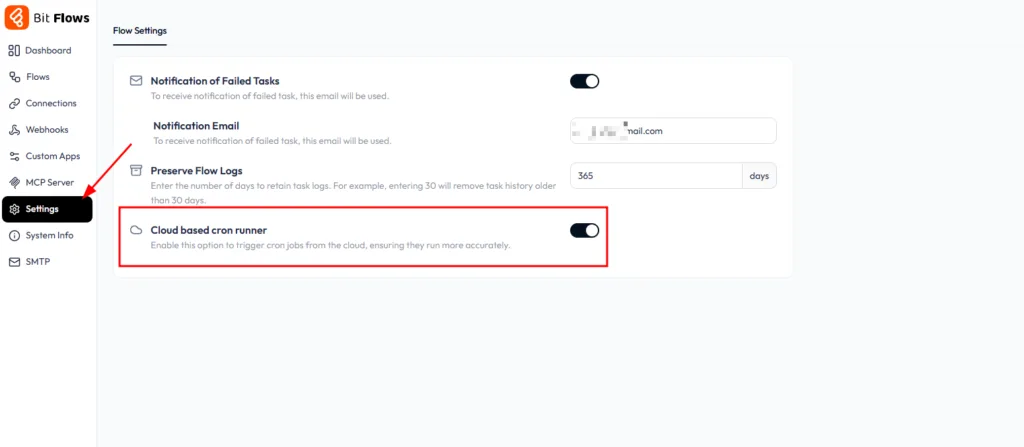
Go to Bit Flows → Settings and switch on Cloud-based cron runner, which triggers cron jobs from the cloud instead of waiting for visitor traffic. Do this before you build anything time-based. While you’re there, enable Notification of Failed Tasks too, since a flow this slow is one you want to hear about when it breaks.
A common mistake is to rely only on the enrollment payload after a long delay. The enrollment payload is seven days old by the time the Delay finishes, and it never carried lesson progress anyway. You need a step that reads the current state.
That is why this one runs on Sensei. Get Lesson Status returns today’s value and gives the Conditional something real to compare: in-progress against complete. One last guard: only send the nudge if the learner still has access to the course.
Start short. A three-day nudge you can test this sprint beats a thirty-day sequence you never check.
If you sell courses through WooCommerce, the purchase is the real trigger and the enrollment is the action, which is how you automate course enrollment without touching the LMS first.
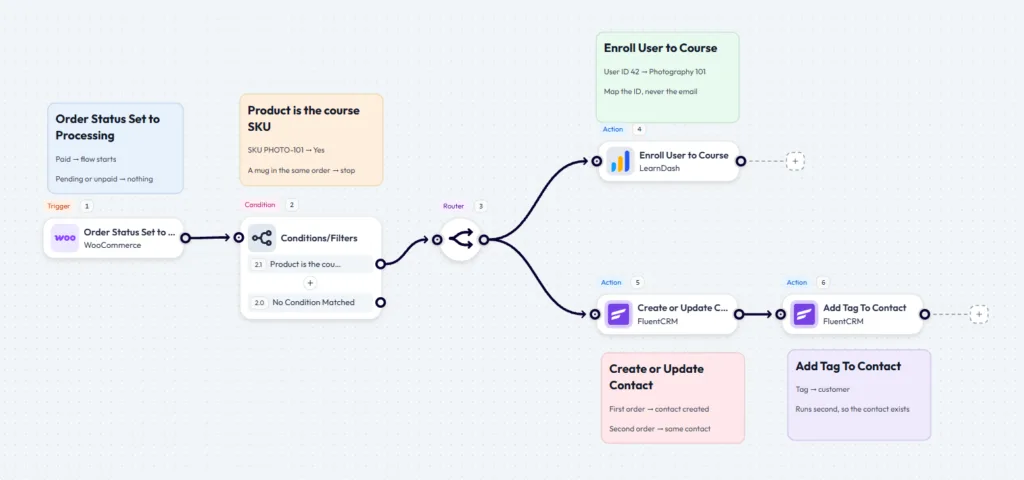
Bind to a paid order status, not to order creation. A new WooCommerce order exists before payment is attempted and sits on Pending by default, so a flow bound to order creation can enroll people who never paid. Processing is the usual choice for paid orders that still need fulfillment. Orders containing only products that are both virtual and downloadable normally skip Processing and move directly to Completed, so use Completed for those automatically completed digital orders.
The SKU condition is not optional. Without it, anybody who buys a mug in the same order gets enrolled in your course.
Upsert the contact before tagging it. A first-time buyer is not in your CRM yet, so a bare Add Tag step fails on exactly the people you most want tagged.
Watch the line items. A WooCommerce order holds an array of products, so a single-value SKU comparison can read the wrong item on a mixed basket. Capture a real multi-item order and check whether you need an Iterator over the line items rather than a flat comparison.
Access cleanup is the flow people build last and regret not building first, usually the week somebody keeps course access straight through a refund.
On LearnDash or LifterLMS, trigger on the unenrollment event and fan out. If your LMS does not expose an unenrollment trigger, start from another reliable access-removal event, such as a membership cancellation or refund, and route from there.
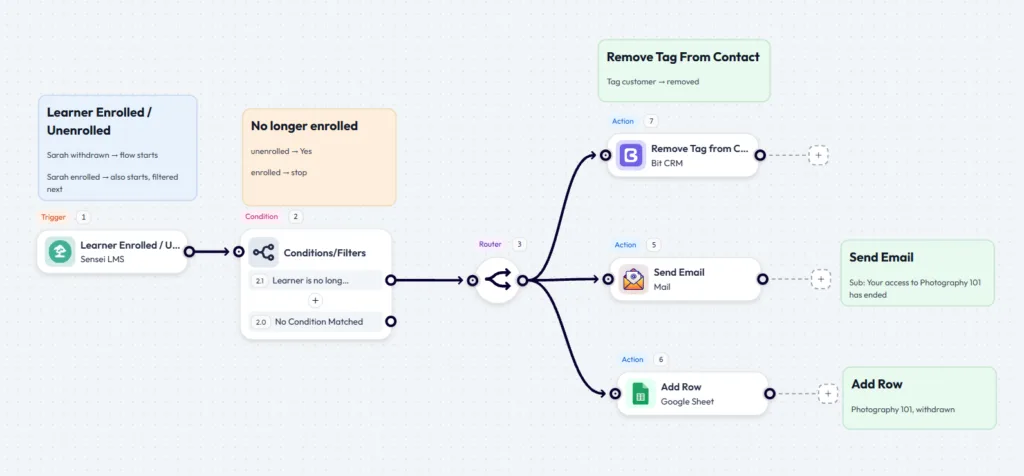
Use a condition to confirm the learner is actually losing access before the Router runs. Everyone else hits No Condition Matched and stops. That single guard keeps the cleanup flow from firing for the wrong user state.
Past the condition, the Router fires three things at once, because access, marketing, and records all go stale at the same moment. Bit CRM drops the customer tag. Mail tells the user his or her access has ended. Google Sheets writes the row you’ll want in two weeks.
Automate course access cleanup without logging it, and you’ve built something that revokes access and can’t explain why. A timestamped line answers the support email in ten seconds.
Most WordPress LMS automation stops at telling someone they scored 58. This one tells them what to do about it, in language an instructor signed off on. Tutor LMS automation and LearnDash automation both support it, and the shape is identical either way.
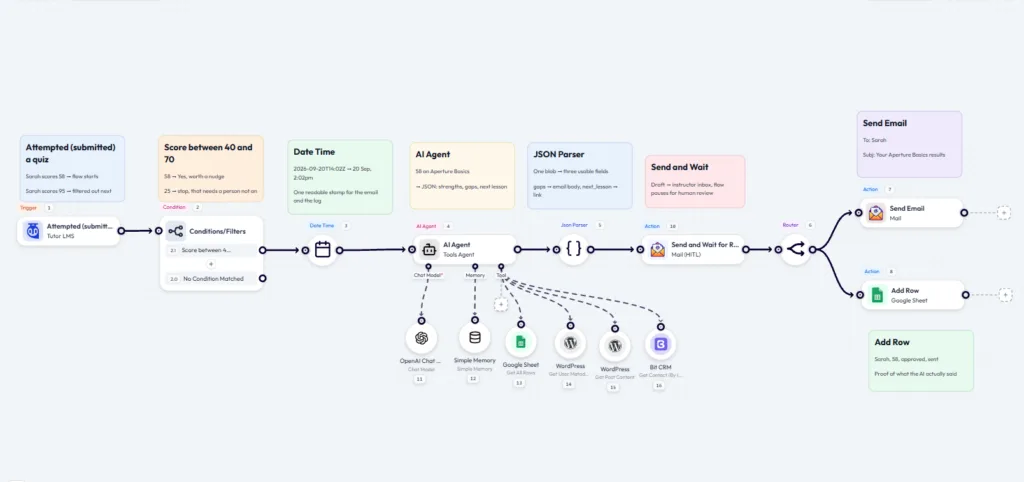
The 40 to 70 band is the whole targeting strategy. Above it, students don’t need help. Below it, a generated paragraph is the wrong response, and a conversation is the right one. Date Time runs first so one readable timestamp serves both the email and the log row.
Then the AI agent, and this is where it stops being a form letter. Chat Model and Memory sit underneath it alongside four tools: Get All Rows, User Metadata, Post Content, and Get Contact. Those turn a bare score into feedback that knows this is the student’s third attempt, what the lesson actually covered, and which track they’re on. Ask for JSON rather than prose, and the parser splits it into a body, a link, and a field worth logging.
Send and Wait is what makes this shippable. The draft lands in an instructor’s inbox and the flow holds until someone answers. Worth knowing what the reviewer can and can’t do. The email gives them two buttons: approve and disapprove. There’s no edit box, so a nearly right draft can only be sent as written or stopped entirely.
After approval, the Router sends the email and writes the row together. That row is your record of what the AI said and who approved it, which matters more than it sounds.
Two honest notes on cost and privacy. Bit Flows does not bill for AI usage, but your model provider does. Workflow logic runs on your own server, but any step that calls an external model sends that data to the provider you connected.
The first is scope. Building a flow per course feels organized right up until you have twenty of them, and changing one line of copy means opening every single one. Set the trigger to Any course and let a Conditional handle the rest.
The second is duplicate email, and it’s the one students actually notice. Your flow sends a welcome message, LearnDash Notifications sends its own, and now there are two. Check what your LMS is already sending before you add to it.
The third is cron, and it’s the expensive one. Delays run on WP-Cron; WP-Cron only runs when someone visits, and on a quiet site your nudge turns up days late or never. Nothing in the interface hints at any of this, so turn on the cloud-based cron runner before you build anything time-based.
The fourth is score versus percentage. LearnDash counts score in raw points, so a rule set at 60 catches every attempt on a twenty-point quiz, including the perfect ones.
The fifth is arrays. Orders, group memberships, and course lists all hold more than one entry, and a flat comparison only ever reads the first. Reach for an Iterator. Several of these mistakes can produce incorrect results without causing the workflow itself to fail, which is why testing the actual output matters, which is exactly why the checklist is worth five minutes.
Which LMS you run decides what you can build, and coverage varies more than any roundup admits. These counts reflect the Bit Flows integration available when this guide was prepared and may change as new triggers and actions are added.
| LMS plugin | Triggers | Actions | Notable |
| Sensei LMS | 15 | 18 | Lesson and quiz status lookups |
| LearnDash | 9 | 14 | Group events, assignment submission |
| LifterLMS | 8 | 0 | Quiz passed and failed as separate triggers |
| Tutor LMS | 5 | 6 | Percentage threshold trigger |
| Academy LMS | 5 | 2 | Percentage threshold trigger |
| MasterStudy LMS | 5 | 4 | Quiz passed and failed as separate triggers |
| Masteriyo | 4 | 0 | Triggers only |
| LearnPress | 3 | 2 | Enroll and unenroll actions |
| MemberPress Courses | 3 | 3 | Section completion trigger |
| WP Courseware | 0 | 1 | Enroll action only |
Two things the numbers don’t show. Sensei stands out for learner-progress lookup actions. Get Lesson Status, Get Course Progress, and Get Quiz Grade let a flow check where a student is right now rather than react to a payload from last week, which is what makes the delayed nudge in Flow 4 possible at all.
And triggers only is a real category. LifterLMS and Masteriyo can start a flow, but nothing can write back to them, so enrollment there has to go through a role change or the plugin’s own API.
Pick enrollment. It is the WordPress LMS automation with the widest downstream effect. Build it with a Router, three actions, and a real test enrollment. Check the logs, confirm no duplicate emails, and leave it running a week before you build the second.
Bit Flows gives you the LMS triggers, the branching, and the destinations for WordPress LMS automation on one canvas, and runs from your own WordPress install rather than metering each run. If your course events still end in a spreadsheet you update by hand, that is the flow to replace first.
WordPress LMS automation connects course events such as enrollment, lesson completion and quiz attempts to actions in other systems, including CRMs, spreadsheets, email tools and team chat, without manual admin work.
Sensei LMS has the widest coverage with 15 triggers and 18 actions, and it is the only one offering lesson and quiz status lookups, with LearnDash second at 9 triggers and 14 actions.
Partly. The free LearnDash Notifications add-on emails students on course, lesson, quiz and assignment events, but it cannot write to a CRM, a spreadsheet or a chat tool.
Enrollment, unenrollment, lesson completion, topic completion, quiz attempts, assignment submission, group changes and course completion, though the exact list depends on which LMS plugin you run.
No. When the workflow starts with a WordPress event, a self-hosted plugin handles it without per-task billing or a separate paid WooCommerce connector.
Trigger on the appropriate paid WooCommerce order status, usually Processing, or Completed for automatically completed digital orders. Then check the product against your course SKU, call the LMS enrollment action, and map the user ID and course fields.
Delayed steps usually run on WP-Cron, which only fires when somebody visits your site, so a low-traffic course site needs an external cron runner or a server cron job.
Yes. Use a percentage threshold trigger if your LMS offers one, or add a condition on the percentage field, then branch to separate messages for passing and failing students.
It will if the LMS notification for the same event is still enabled, so turn the built-in email off before your workflow sends its own.
Only with a human approval step before the send, and with the AI given read-only tools, because any tool the agent can call runs before anyone reviews the draft.
Yes. MemberPress, Paid Memberships Pro, WishList Member and SureMembers all expose membership events that can start or end course access.
Workflow logic runs on your own server, but any step calling an external service, including a CRM or an AI model, sends that data to the provider you connected.





 EN
EN  DE
DE  ES
ES  NL
NL  IT
IT  PT
PT  JA
JA