
Pipedrive is useful for managing leads and deals, while Google Sheets is often where teams build shared reports, working lists, and operational views. The problem is keeping both places updated without another export-and-copy routine.
With Bit Flows, a Pipedrive Google Sheets integration can send a new Pipedrive lead into a spreadsheet automatically through the Google Sheets Add Row action. This guide shows the complete setup, including account authorization, response capture, field mapping, testing, and the limits of the one-way workflow.
Create a Bit Flows workflow with Pipedrive → Lead Created as the trigger and Google Sheets → Add Row as the action. Authorize both accounts, capture one sample lead with Listen Response, map the Pipedrive fields to your sheet columns, then test and activate the flow.
Result: New Pipedrive leads created after the workflow is active can be added to Google Sheets automatically. The flow is one-way, so edits in Google Sheets are not pushed back to Pipedrive.
A manual export is fine when you need CRM data once. A Pipedrive Google Sheets automation becomes more useful when Google Sheets is an ongoing lead tracker, reporting sheet, or shared view for people who do not need full Pipedrive access.
The basic workflow uses two nodes: Pipedrive receives the CRM event, and Google Sheets writes the mapped values into a new row.
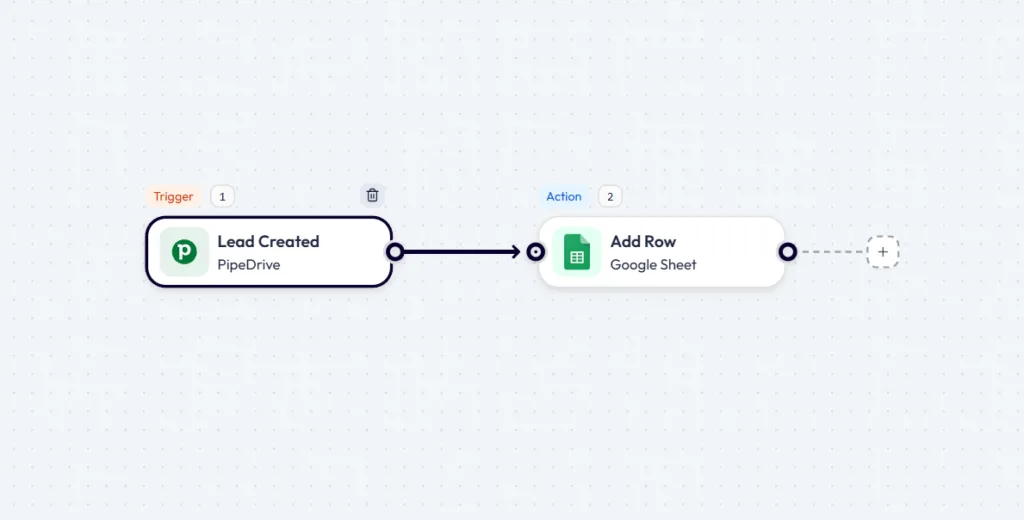
You need OAuth credentials for both services. It is easier to prepare those connections first, then build and test the workflow with real sample data.
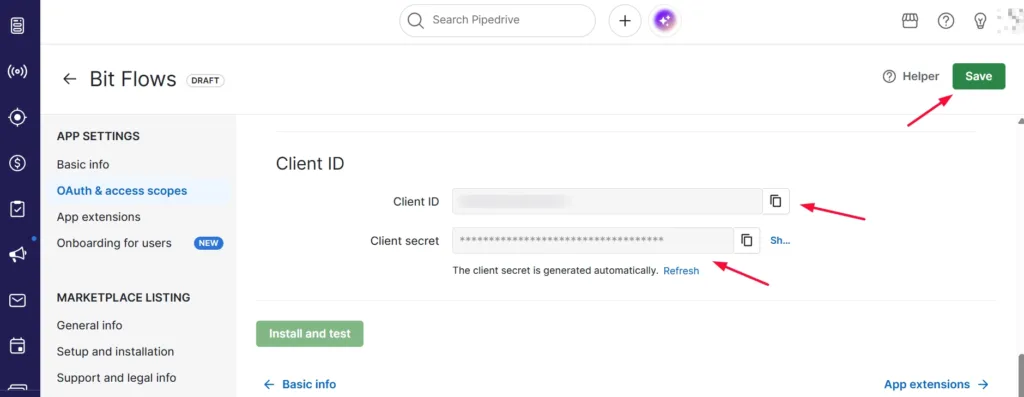
Open the Pipedrive Developer Hub, create a public app, and paste in the callback URL Bit Flows provides. Enable the Pipedrive access the workflow needs, including Leads access. Pipedrive also documents separate webhook permissions for apps that create webhooks, so allow the relevant webhook access if it is required in your app setup.
Copy the Client ID and Client Secret from the app and add them to Bit Flows. Treat the Client Secret like a password and do not expose it in a public screenshot or shared document. The Pipedrive integration guide covers the current Bit Flows connection and webhook steps.
For Google Sheets, create or select a Google Cloud project, enable the Google Drive API and Google Sheets API, configure the OAuth consent screen, and create a Web application OAuth client. Add the Authorized JavaScript Origin and Authorized Redirect URI shown by Bit Flows, then copy the Client ID and Client Secret into the Google Sheets connection.
The Google Sheets integration guide walks through the current Google Cloud setup, scopes, authorization, spreadsheet selection, and Add Row action.
Create a new flow, choose Pipedrive as the trigger app, and select Lead Created. Add or select your Pipedrive connection and complete the authorization.
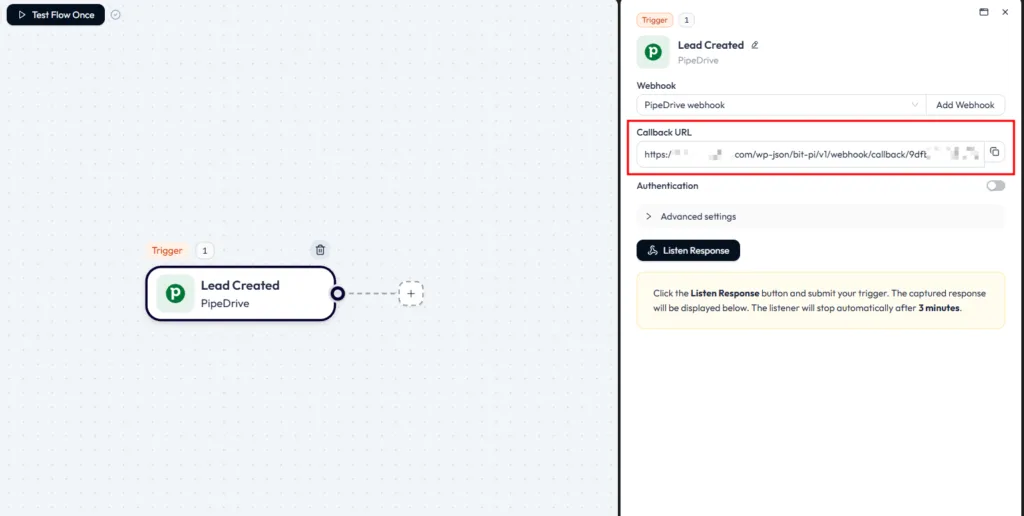
This trigger is what starts the workflow whenever a new lead event reaches Bit Flows.
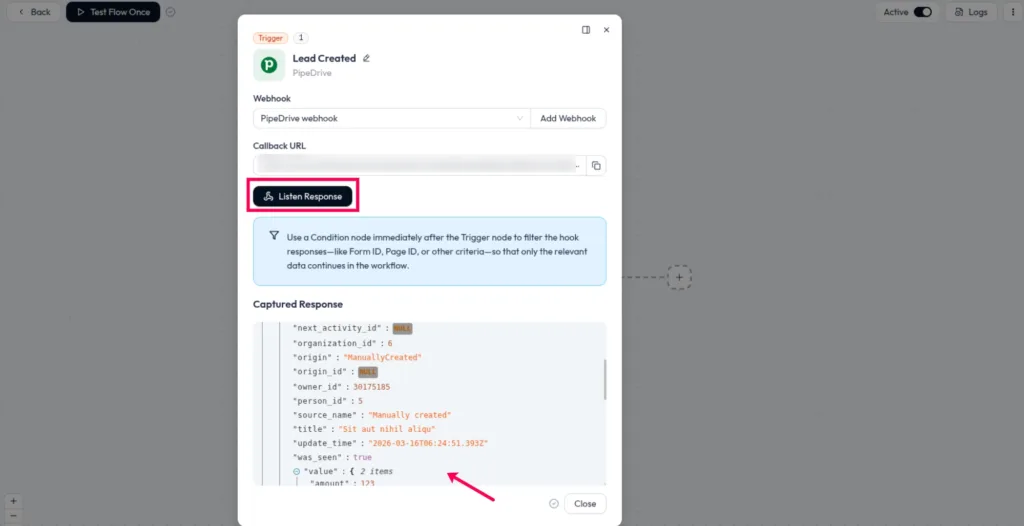
Before mapping anything, click Listen Response and create a realistic test lead in Pipedrive. Bit Flows captures the payload Pipedrive sends, which gives you the lead fields available for mapping later. Using representative data here makes missing or empty fields easier to spot before launch.
Add an action below the Pipedrive trigger, choose Google Sheets, and select Add Row.
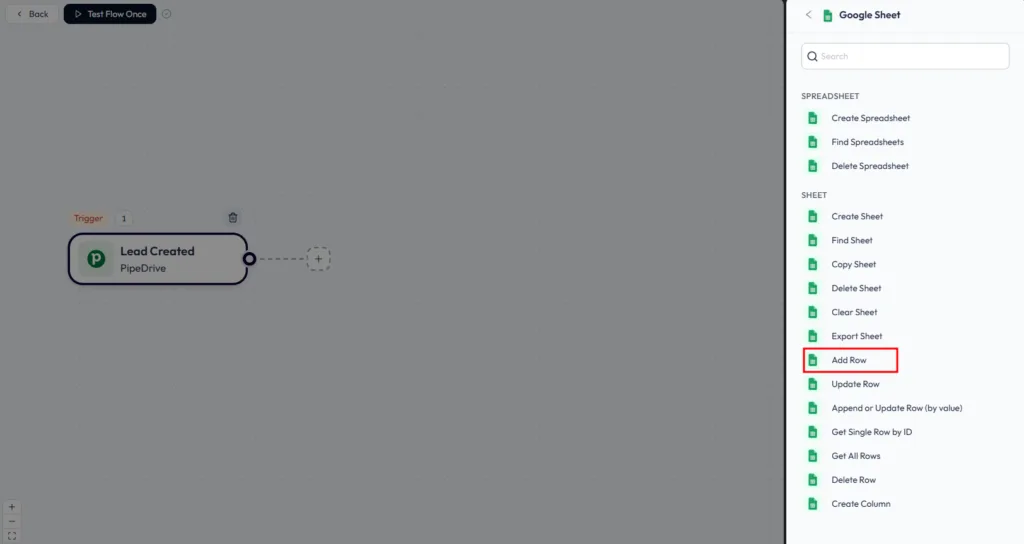
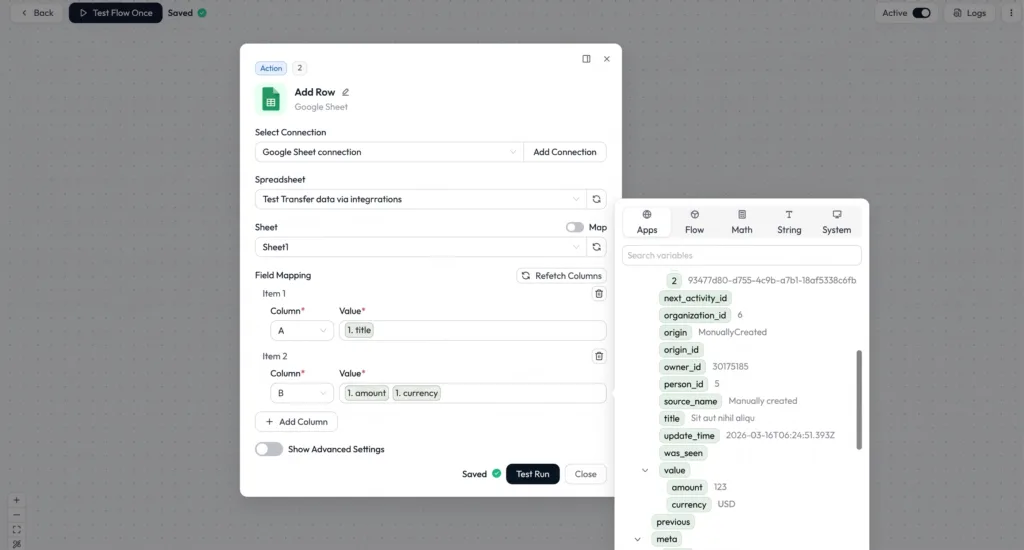
Connect your Google account, then choose the spreadsheet and the specific sheet that should receive each new lead. This is the step that sends each Pipedrive lead to Google Sheets.
For each Google Sheets column, choose the value you want to write from the variable panel. The Pipedrive fields from your captured response are available there, along with data from other workflow nodes and built-in Flow, Math, String, or System values where relevant. Map only the fields the spreadsheet actually needs.
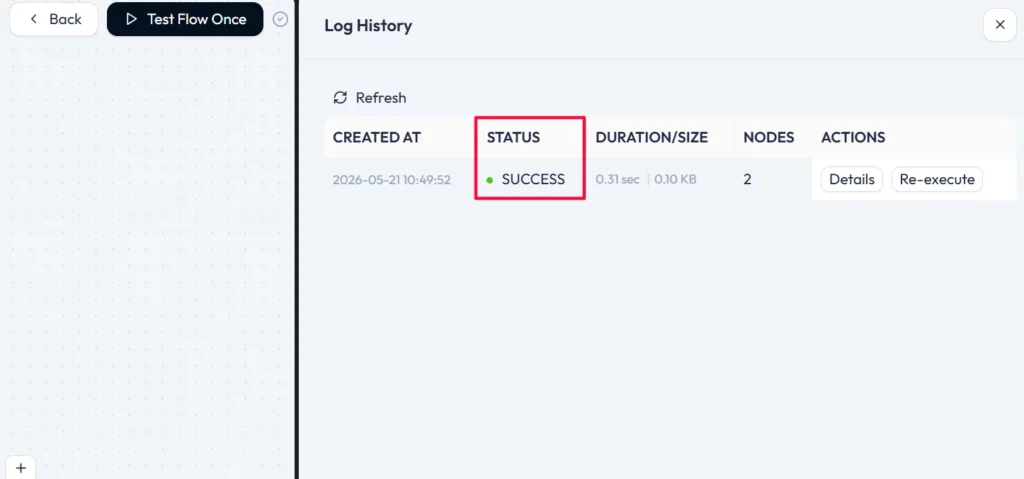
Click Test Flow Once, create another lead in Pipedrive, and then open Logs. Check that the run completed successfully, but also open the Google Sheet and verify the actual row. A Success status confirms the workflow ran; the row itself confirms that the right values landed in the right columns.
After the test is correct, activate the workflow. New Pipedrive leads can then create new Google Sheets rows using the fields you mapped.
The workflow is most useful when the spreadsheet has a clear job rather than becoming a second copy of the entire CRM.
Sales can keep working in Pipedrive while marketing, operations, or another department receives only the lead fields relevant to its work.
A Google Sheet can give people who do not need CRM access a smaller working view with lead name, owner, contact details, status, or other selected fields.
If reporting already happens in Google Sheets, this one-way setup gives you a practical way to sync Pipedrive to Google Sheets for new lead events instead of waiting for the next manual export.
Instead of giving another team the entire CRM record, map only what it needs. That keeps the sheet easier to scan and reduces unnecessary data duplication.
Yes. Change the Pipedrive trigger to Deal Created, run Listen Response again with a real deal, and map the deal fields to Google Sheets. The pattern is the same, but the payload is different.
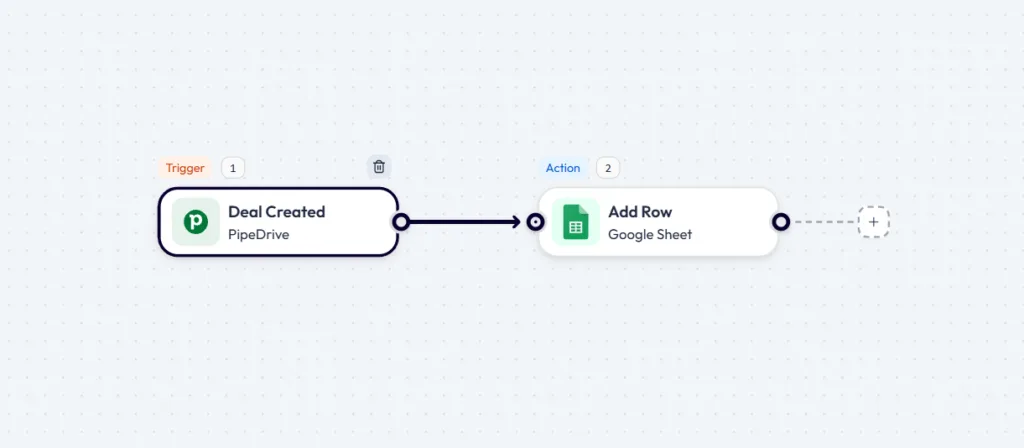
Do not reuse the lead mapping without checking it. Deal data can expose different fields, so capture the deal response first and verify each mapped value. A separate sheet can also make sense when deal reporting focuses on amount, stage, owner, or pipeline data that does not belong in the lead tracker.
Once the Pipedrive-to-Sheets flow is stable, the same trigger can continue to other actions. For example, you can send a sales notification to Slack, trigger an email, or pass the lead into another system without rebuilding the Pipedrive trigger. The Pipedrive integrations page shows other actions you can connect after the lead is captured.
Yes. Bit Flows uses a visual workflow builder for this setup, so you do not need to write code. You still need to create and authorize the Pipedrive and Google OAuth connections.
Create or open your public app in the Pipedrive Developer Hub. The Client ID and Client Secret are available in the app’s OAuth and access-scope settings.
Pipedrive places the personal API token under Settings → Personal preferences → API when your permissions allow access. The workflow in this article uses OAuth credentials instead, so the API token is not required for this setup.
Create a Web application OAuth client in Google Cloud after enabling the required Google APIs and configuring the OAuth consent screen. Add the origin and redirect URI provided by Bit Flows, then copy the Client ID and Client Secret into the Google Sheets connection.
Yes. Use Lead Created as the Pipedrive trigger and Add Row as the Google Sheets action. After the flow is activated, new lead events can create new rows using the fields you mapped.
No. This workflow sends selected Pipedrive data into Google Sheets. Changes made later in the spreadsheet are not sent back to Pipedrive through the same flow.
Yes. Use a Pipedrive deal event such as Deal Created, capture a fresh deal response, and map the returned deal fields to the Google Sheets columns you need.
No. This event-based setup handles new trigger events after activation. For existing records, export the required data from Pipedrive and import it into Google Sheets separately.








 EN
EN  DE
DE  ES
ES  NL
NL  IT
IT  PT
PT  JA
JA