A new lead entering your WordPress CRM does not automatically tell sales whether that person is ready to buy.
One prospect may have a clear implementation problem, approved budget, a 30-day timeline, and a request for a technical call. Another may provide only a company name and generic email address. Treating both records the same leaves sales doing the qualification work manually.
This WordPress AI lead scoring workflow handles that first decision inside the CRM process.
When a new lead arrives, the workflow pulls the full CRM record, adds outside business context, and lets an AI Agent evaluate the opportunity. The Agent returns a score and qualification result, then workflow rules route the lead into Hot, Review, or Low paths.
For this setup, the lead starts in Bit CRM and Bit Flows handles the scoring, enrichment, and routing steps. Hot leads can become Deals and trigger an immediate sales alert. Uncertain leads wait for a real person’s approval. Low-priority leads remain in the CRM with a tag instead of being deleted.
You can set up WordPress AI lead scoring by starting a workflow from the CRM Lead Created trigger, passing the lead to an AI Agent, reading the reply, and branching on the result with a Conditions node.
The workflow is:
Bit CRM Lead Created → Get Lead → HTTP Request → AI Agent → JSON Parser → Conditions → Hot / Review / Low
The AI Agent interprets the Lead. JSON Parser turns its response into usable workflow fields. Conditions control the final route.
Hot: Create a Deal and notify sales through Telegram.
Review: Pause for Human in the Loop approval, then create the Deal only when the reviewer approves.
Low: Keep the Lead and add an AI Low Priority tag.
Bit CRM can serve as both a trigger and an action in Bit Flows, allowing CRM events to initiate broader automations that involve external apps, APIs, AI, and approval steps.
Bit CRM installed with at least one lead in it, because you need real field names to map against. Bit Flows installed on the same site. An API key from an AI provider that Bit Flows supports, such as OpenAI, Gemini, Claude, or Groq. Somewhere to send the alert, which in this build is Telegram, and a mailbox for the approval step.
One thing worth knowing early. Bit CRM’s native workflow builder is a Bit CRM Pro feature. The Bit CRM triggers and actions used in Bit Flows do not require a Bit CRM Pro upgrade, so you can trigger the flow from a Lead, retrieve CRM data, create Deals, and add tags while using free Bit CRM. However, this exact workflow uses Human in the Loop for the Review branch, and Human in the Loop is a Bit Flows Pro feature. Your connected AI provider may also charge separately for API usage.
One trigger, one decision, three outcomes. The lead already exists when the workflow starts, so nothing here creates a duplicate record. Every step after the trigger works with that same lead.
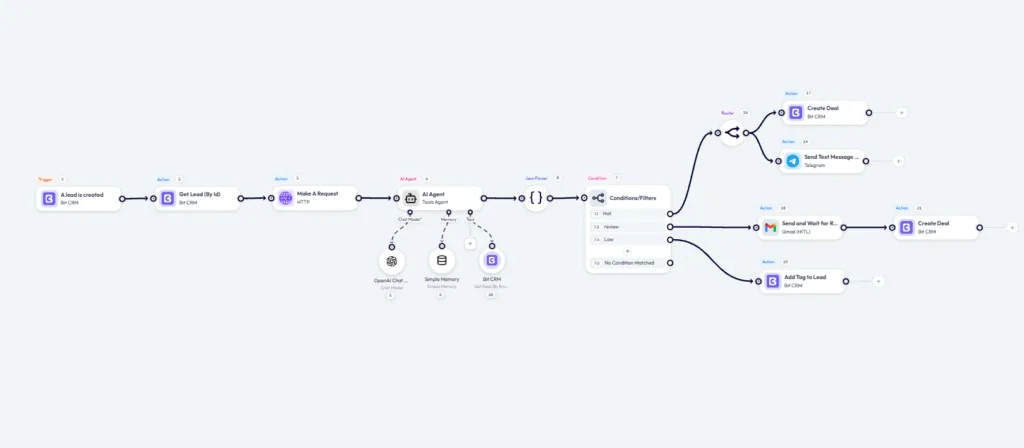
Read left to right, and the logic is simple. Get the lead, add outside context, ask the agent, read the answer, pick a branch, act. The rest of this guide covers each of those five moves and links the official documentation for the fiddly configuration, so you are not scrolling past forty screenshots to find one field name.
I built this flow on a live WordPress install and pushed real leads through it before writing any of it down. Every screenshot on this page comes from that build, including the scores, the agent reasoning, and the approval email that landed at 3:59 pm with a one-hour expiry on it.
Create a new flow, choose Bit CRM as the trigger app, and select the event A lead is created. That single event is what starts everything, and it fires on new leads only, not on updates.
Then click Listen Response and go create a test lead in Bit CRM. The listener runs for three minutes and captures the payload, which is what gives every later node a real field list to map against instead of guesswork.

If this is your first Bit Flows build, the beginner guide to creating a flow covers the canvas, capture, and log basics in more detail than is useful to repeat here.
The next node is: Bit CRM → Get Lead (By Id)
Map the Lead ID captured by the trigger into the Lead ID field.

This gives the workflow access to the full Lead information available from the CRM record, in the rest of the workflow.
This build adds two things before the decision. A Bit CRM Get Lead (By Id) action pulls the complete stored record, and an HTTP Make A Request action calls an outside endpoint to bring back business context that WordPress does not hold. The URL, authentication, and returned fields depend entirely on the service you are calling, so configure that node against your own provider documentation and use the HTTP action reference for the request setup.

A note on doing this honestly. If your trigger payload already carries every field you plan to put in the prompt, the Get Lead step is a spare part, and you can drop it. Check your own captured response before you keep it. Enrichment only earns its place when it tells the agent something the lead record could not.
Add an AI Agent node and set it to Tools Agent. This is the part that separates an agent from a plain AI text action. A text action returns words. An agent can look things up, weigh what it finds, and commit to a decision the rest of the workflow can act on.
Three sub-nodes hang off it. Chat Model is required, and in this build it is an OpenAI chat model. Simple Memory keeps context available across the run. The Tool slot holds a Bit CRM action, Get Deal (By Email), which is the interesting one.
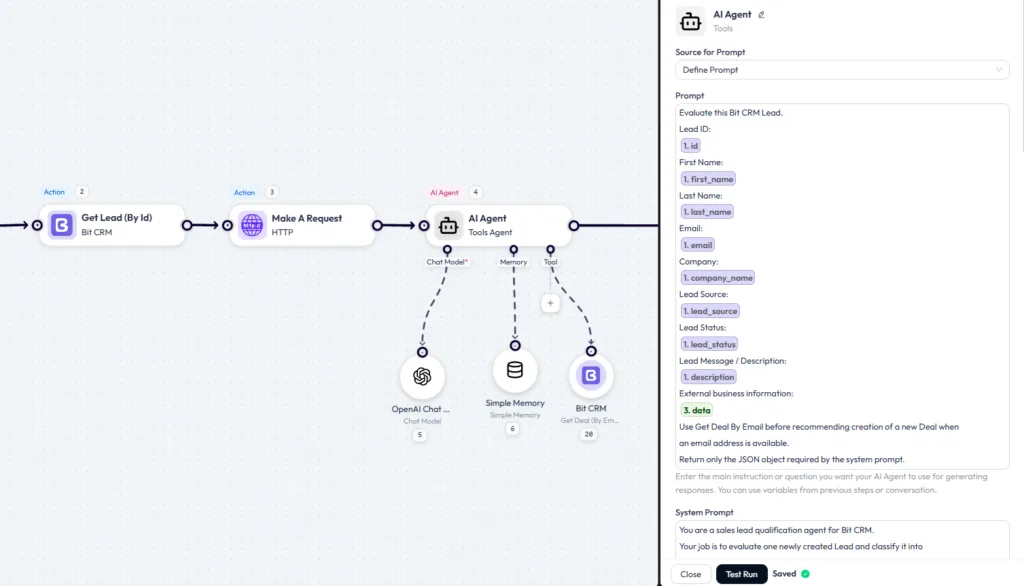
That Bit CRM tool is what stops the workflow from being naive. Before the agent recommends creating a new opportunity, it can search the CRM for a deal already attached to that email address. A returning contact with an open proposal is not a fresh hot lead, and without the lookup the agent has no way to know that. Set the tool description to say exactly when to use it, because the agent reads that description to decide whether to call it.
The node has two text areas. System Prompt holds the role and the rules, including the instruction to return valid JSON and nothing else. Prompt holds the actual lead data, mapped field by field from the trigger, plus the response from the HTTP step. Keep the model focused on classification rather than prose. You want a verdict, not an essay.
Sample System Prompt
You are a CRM lead qualification agent.
Evaluate each lead using the CRM data, external context, and available tools.
Classify the lead as:
hot, review, or low.
Consider business need, product fit, purchase intent, urgency, timeline, and budget when explicitly provided.
Before recommending a new deal, check whether a deal already exists for the lead's email.
Return valid JSON only:
{
"qualification": "hot|review|low",
"score": 0,
"confidence": 0,
"next_action": "create_deal|human_review|nurture",
"reason": "short evidence-based reason"
}The AI Agent documentation covers the prompt source options, the iteration limit, and the test run behaviour if you want to go deeper on the node itself.
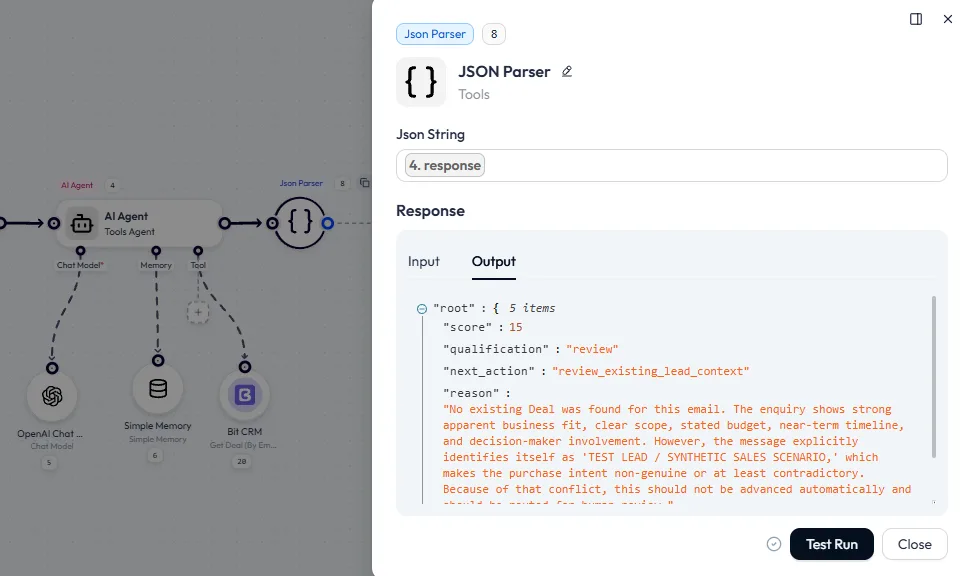
If your AI Agent configuration returns raw JSON text instead of structured fields, add a JSON Parser between the AI Agent and Conditions.
Now the branching, and this is where most lead scoring tutorials stop short. The obvious move is to read the label and branch on it. This build does not trust the label on its own.

The Hot condition needs qualification to equal hot, a score to be 80 or above, and confidence to be 80 or above. A Lead that fails the Hot criteria should be captured by your Review rules rather than automatically treated as low priority. Define the Review branch explicitly so uncertain results do not fall into No Condition Matched.
Your thresholds do not have to match this example. Decide which combination of qualification, score, and confidence should send a lead to human review and which should mark it as low priority.
A score that does not change what happens next is a number in a log file. Each branch here ends in a different action.
The Hot branch goes into a Router, which splits the data down both paths at once rather than choosing between them. One path creates a Deal in Bit CRM. The other sends a Telegram message so the sales team sees the lead without sitting in the CRM all day. For the setup steps, see the official Telegram integration documentation for Bit Flows.
A useful message can contain:

This gives the sales team immediate context without requiring them to open every Lead manually.
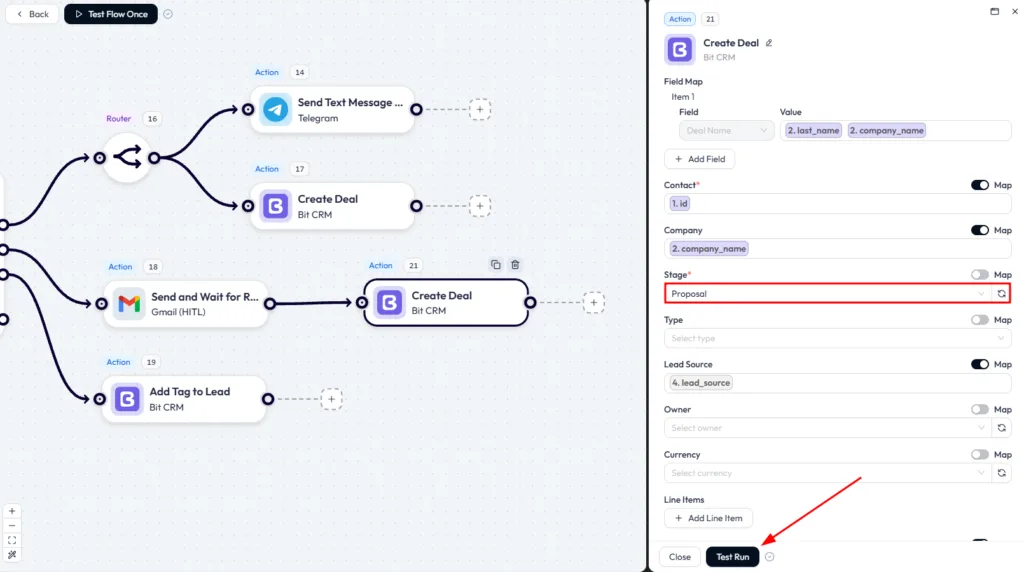
Three fields are required in the current Bit CRM Create Deal action: Deal Name, Stage, and Contact. Stage can be mapped or set to a fixed stage such as Proposal. Contact needs more attention because a Lead and a Contact are separate records in Bit CRM. If your process turns qualified Leads into Contacts, convert the Lead first and map the resulting Contact ID into the Contact field.
The Review branch uses Gmail with Human in the Loop and the Send and Wait for Response action. This is not an email notification.
The workflow pauses until the reviewer responds. If a Deal should be created only after approval, configure the Human in the Loop rejection behavior to Stop the Flow, or place a Condition after the approval step and continue to Create Deal only when the returned status is Approved. Do not leave rejection set to Continue the Flow unless a later Condition handles that result.

Look at what the reviewer receives. The score, the confidence figure, the reason the agent gave, and two buttons. In this example, the agent found an existing deal at the proposal stage for that email address, scored the lead 10 with 97 confidence, and pushed it to a human rather than opening a second opportunity against the same account. That is the enrichment tool and the confidence gate both doing their jobs in one run.
The request also carries an expiry. A review that nobody answers does not sit open forever, which is a small detail that matters a lot the first time somebody goes on holiday. The Human in the Loop documentation covers the channel setup and token handling.
The Low branch does not delete anything and does not create anything. It adds a tag to the lead with the Bit CRM Add Tag to Lead action.

The lead stays fully intact and searchable, just marked. That matters because AI scoring is wrong sometimes, and a tag is reversible in a way that a deleted record is not. It also gives you a filter to work later, when the quarter is quiet, and somebody wants a list to call through.
Bit Flows does not charge per task execution, so higher lead volume does not add a Bit Flows per-task fee. Because the workflows run on your WordPress site, available execution capacity also depends on your hosting resources. Higher volume can still increase external costs, especially AI API usage or paid enrichment APIs. This particular workflow also requires Bit Flows Pro if you use the Human in the Loop Review branch.
Three costs are easy to miss, so here they are plainly. The AI provider bills you separately for every token this workflow spends. Bit Flows supplies the integration, not the model, and you supply the API key.
Bit CRM itself has a free WordPress.org version covering leads, contacts, companies, deals, and invoicing. The client portal, custom fields, multi-currency, the MCP server, and the CRM native workflow builder are in Bit CRM Pro.
WordPress AI lead scoring only becomes useful when the score changes what happens next. In this workflow, a strong lead can move into Bit CRM as a Deal and alert the sales team, an uncertain lead can wait for human approval, and a low-priority lead can stay organized without distracting the team.
The first version does not need perfect scoring rules. Start with the trigger, AI qualification, and one routing path. Test it with real lead scenarios, review the Bit Flows logs, then adjust the score and confidence thresholds before adding the remaining branches. The goal is not to make the AI responsible for the sales process. It is to let AI interpret the lead while your Conditions, Router, and Human in the Loop steps control what happens next.
If your leads already live in Bit CRM, you can build this AI lead qualification workflow with Bit Flows and start by testing a single branch before expanding it into the full Hot, Review, and Low routing system.
Yes, you can score form submissions directly in Bit Flows and send the result to a spreadsheet or a Slack alert, but without a CRM there is no record for the score to live on and no pipeline for hot leads to enter.
Yes, the Bit CRM triggers and actions are free inside Bit Flows and need no separate connector purchase, though other connectors in the same workflow may require a paid Bit Flows plan.
No, Bit Flows does not charge for tokens, but the AI provider does. You connect your own OpenAI, Gemini, Claude, or Groq key and that provider bills your usage directly.
A normal AI action returns text you then have to handle, while an AI Agent can call tools such as a CRM lookup, weigh the result, and return a decision the workflow branches on.
Because model judgement is probabilistic, and Human in the Loop pauses the workflow so a person approves borderline cases before a Deal is created rather than after.
Bit CRM exposes dozens of triggers across leads, contacts, companies, deals, products, invoices, activities, notes, and tags, plus 31 actions, according to the official Bit CRM integration page.
Yes, adding a Bit CRM deal lookup as a tool lets the agent search by email before recommending a new opportunity, which prevents duplicate deals against returning contacts.
Bit Flows uses queue-based background processing rather than running workflows during page loads, but the work still uses your server resources, so heavy volume is a hosting question.
They exit through the No Condition Matched output, which you should connect to something such as a tag or an internal alert so unscored leads do not disappear silently.
Neither is universally better. Rules win when your criteria are fixed and numeric, while AI scoring wins when the deciding signal sits in free text such as the enquiry message itself.






 EN
EN  DE
DE  ES
ES  NL
NL  IT
IT  PT
PT  JA
JA