
If you use WPForms, you already know the pain. Form entries come in fast. Then the manual work starts. You open emails. You copy fields. You paste into a spreadsheet. Or you export CSV files. It feels small at first. Then it turns into a daily routine that wastes time and creates mistakes.
Many site owners try to solve this with a built-in integration. But the WPForms Google Sheets addon is a Pro feature, which means you need a paid license to use it.
Some users avoid this completely by choosing a form builder that includes Google Sheets for free. Bit Form is one such option, offering built-in Google Sheets integration without paid add-ons or extra plugins.
The good news is that you can connect WPForms to Google Sheets for free using Bit Flows. WPForms is available as a free trigger, and Google Sheets is available as a free action. This turns Bit Flows into a true Google Sheets connector for WPForms that stays free and unlimited.
This guide shows you how to set up WPForms Google Sheets integrations in a clean and beginner-friendly way. Once your flow is live, every WPForms submission will go to your Google Sheet automatically. No extra fees. No task limits. No complex code setup.
Connecting WPForms with Google Sheets fixes the biggest workflow bottleneck: moving data out of your site and into a place where you can sort it, share it, and act on it quickly. When entries land in a sheet automatically, you do not lose leads, and you do not miss messages. You also avoid human errors that are common with copy and paste.
The free version of WPForms does not allow you to view form entries inside WordPress. By sending submissions to Google Sheets for free, you can still see, manage, and store every entry without upgrading. This makes Google Sheets a practical inbox for WPForms data.
A spreadsheet also makes teamwork easier. You can share the sheet with a coworker, a sales rep, or a support team. Everyone sees the same list and can work in real time. This is one of the main reasons people build a WPForms with Google Sheet workflow in the first place.
Once you have WPForms to Google Sheets running, you can also expand later. For example, you can send the same lead to a CRM, notify your team, or add filters and conditions inside your automation. Bit Flows supports multi-step workflows and tools like router, delay, iterator, repeater, and conditions.
WPForms is a popular WordPress form builder. People use it for contact forms, lead capture forms, request forms, and registrations. The problem is not collecting the data. The problem is what happens after the submit button. Without automation, you still have to move the data where you need it. That is where teams lose time.
WPForms does offer a Google Sheets integration. But it is gated behind the Google Sheets addon, which requires a Pro license level or higher plan. That is why many users search for a Google Sheets connector for WPForms that works without paying more.
Automation solves this by converting form submissions into instant workflows. In Bit Flows, WPForms becomes the trigger, meaning it starts the workflow when a form is submitted. Then Google Sheets becomes the action, meaning it receives the data and adds a row to your sheet.
Bit Flows is also designed to process workflows in the background to keep the front end responsive. It uses a queued approach and can pause and resume when server resources are limited, which matters on shared hosting.
There are several ways to connect Google Sheets to WPForms. Some methods require paid add-ons. Some rely on third-party automation services that charge monthly. Others require custom scripting. These approaches either cost more or feel too technical for everyday site owners.
The simplest approach, especially when you want a free Google Sheets integration, is to set up a self-hosted workflow inside WordPress. That is exactly what Bit Flows is built for. It is a WordPress automation plugin, and it focuses on unlimited workflows and unlimited task execution without per-task billing.
This is also where Bit Flows stands out for WPForms integration. WPForms is included as a free trigger in Bit Flows, and Google Sheets is included as a free action. So the exact WPForms to Google Sheets setup you want is supported on the free plan.
Before you start, make sure you have three things ready:
A WPForms form that can be submitted, a Google Sheet where you want to store entries, and Bit Flows installed and activated. Bit Flows uses a capture step to detect your form fields, so having a working form matters.
Go to your WordPress dashboard. Navigate to Plugins, then Add New, then search for Bit Flows. Install and activate the free version.

You can also follow the manual upload method: Download the plugin ZIP from the Bit Flows official website, then return to Plugins, Add New, Upload Plugin, and activate it.
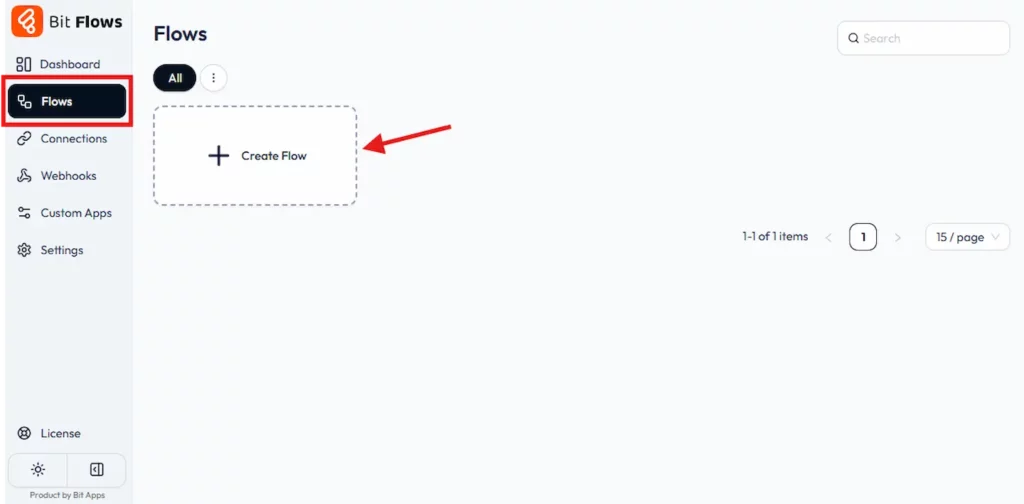
From your WordPress dashboard sidebar, open Bit Flows. Go to Flows, then select Create Flow.
Give your flow a name that matches your goal, such as WPForms to Google Sheets.
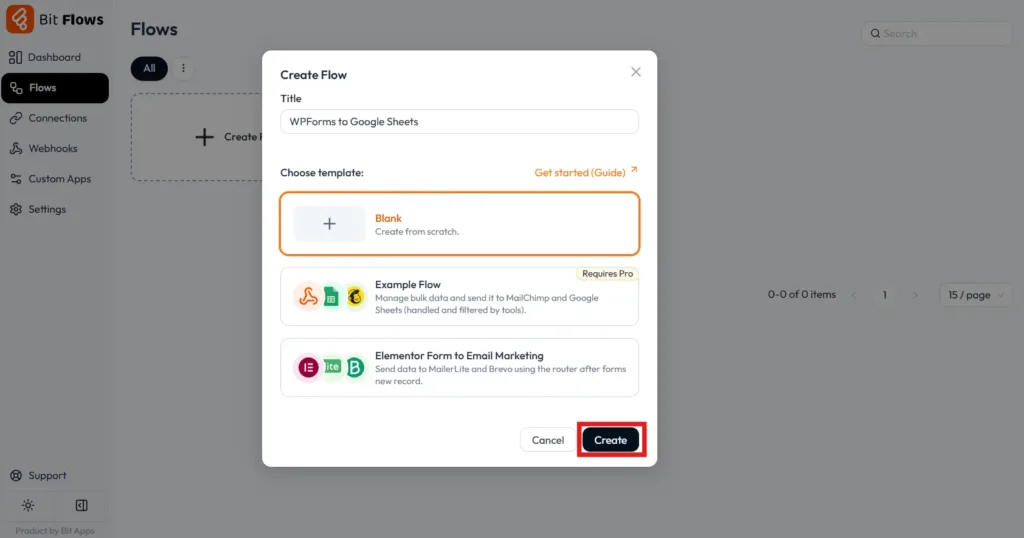
Click Create, and you will land in the Bit Flows builder. Bit Flows guides describe this flow to the builder path as the normal workflow setup flow.
In the builder, click the trigger plus node.
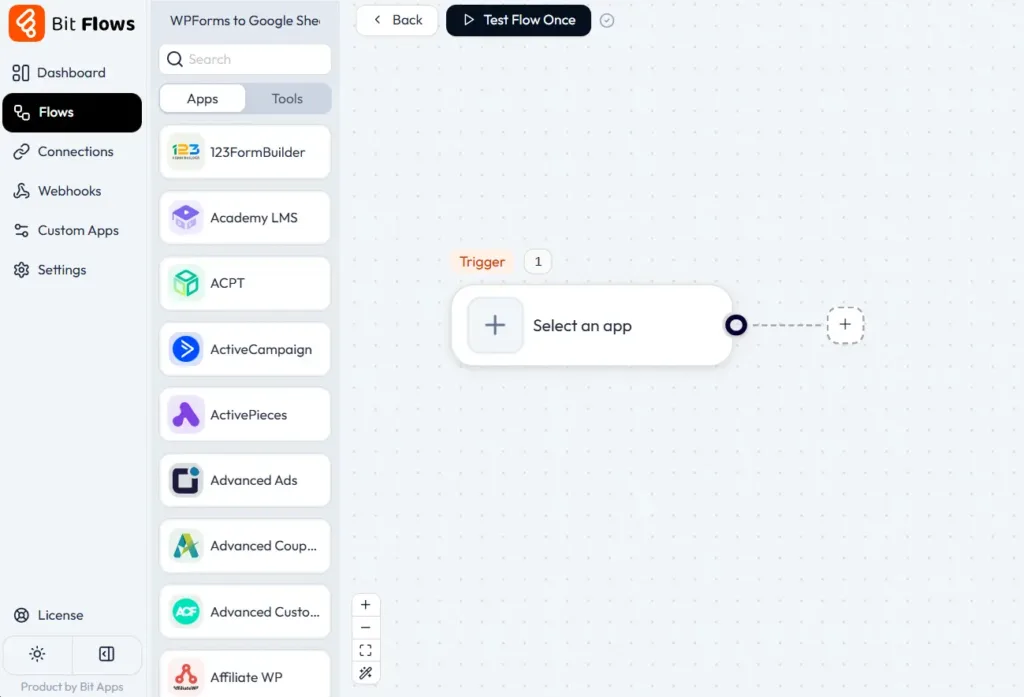
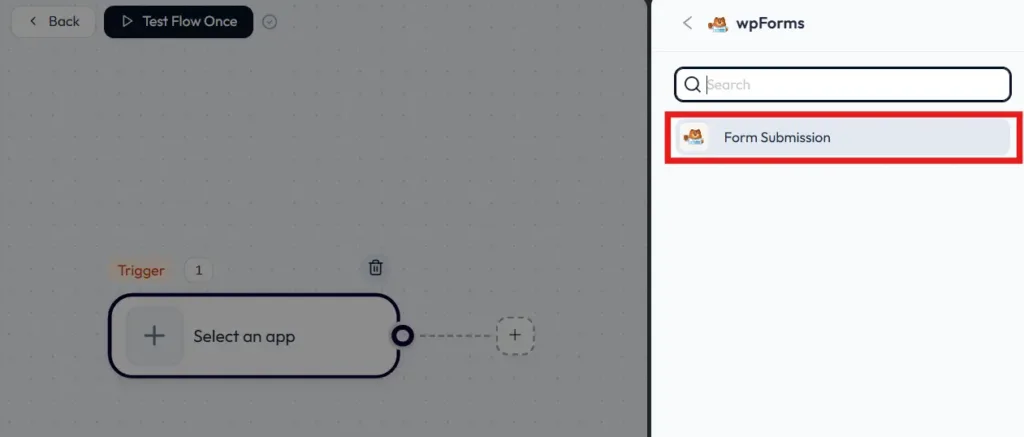
Select WPForms from the trigger app list.
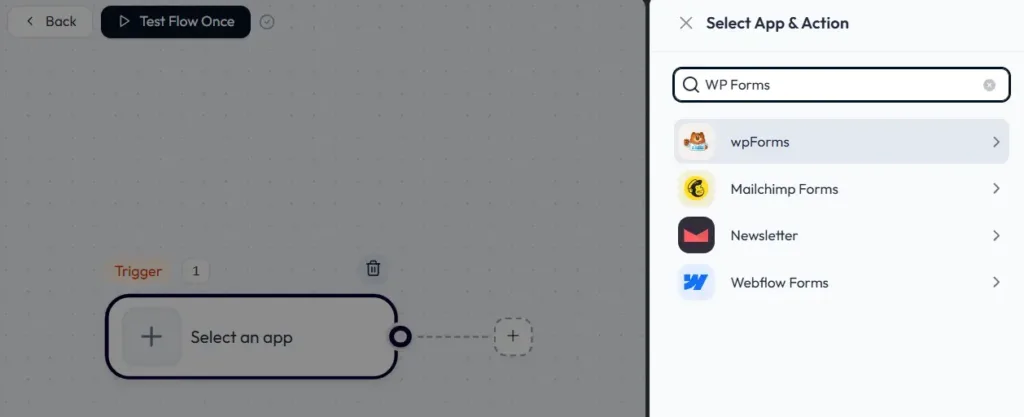
You will see trigger events. WPForms supports form submission events, select the event.
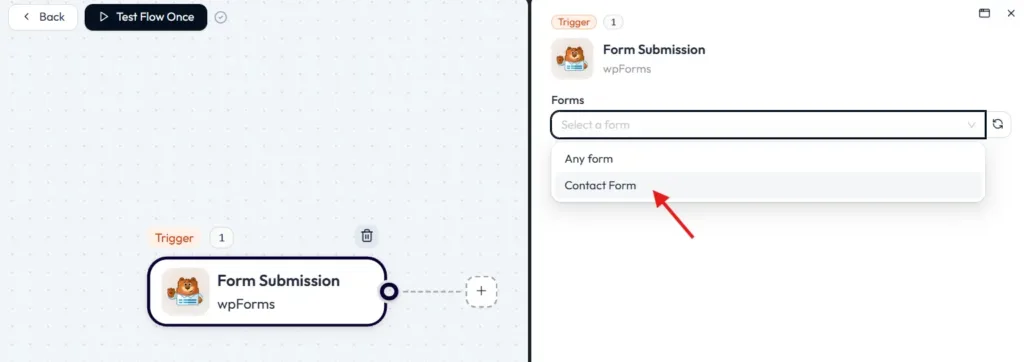
Pick the form you want to connect. If you want all forms to send to the same sheet, Bit Flows also supports an Any Form style selection in its trigger pattern for forms.
After you select the form, click the Listen Response button.
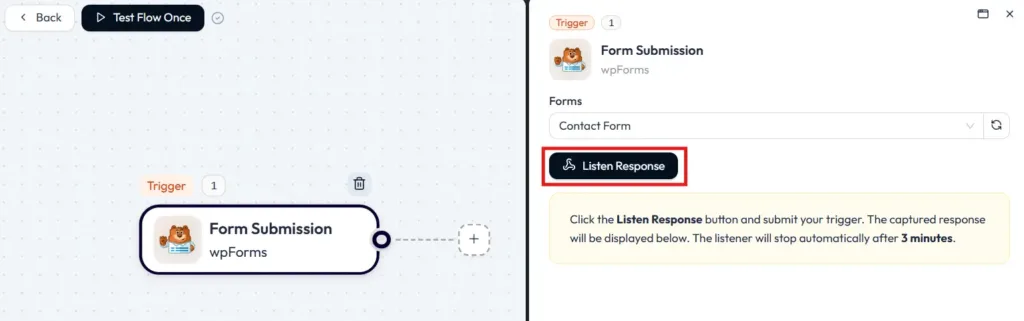
It listens for a submission so Bit Flows can capture your WPForms fields. Now submit a test entry on the front end of your site.
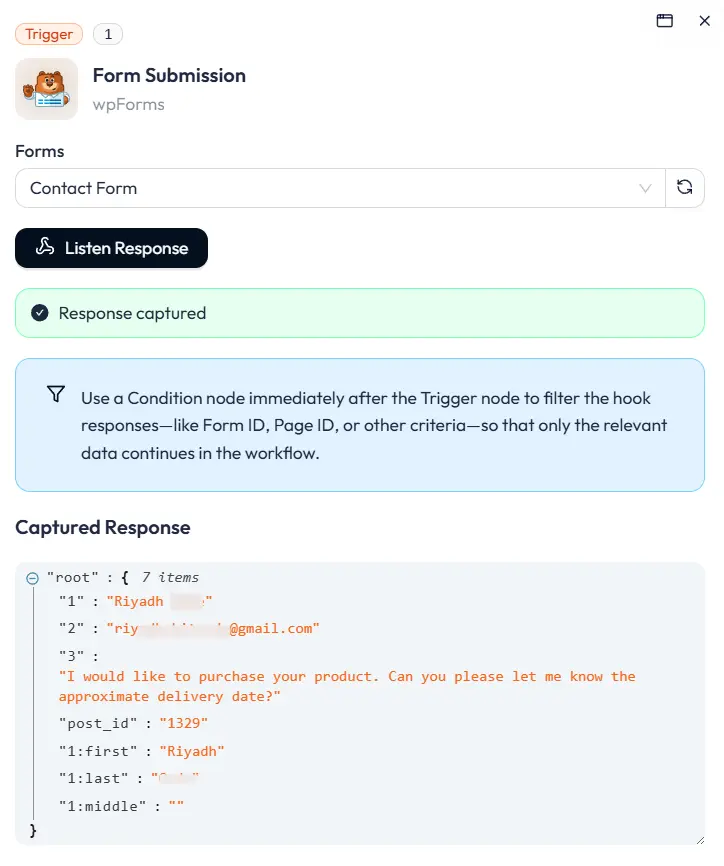
Return to the Bit Flows builder. You should see that the response was captured successfully. This capture step is a documented requirement in the Bit Flows trigger setup.
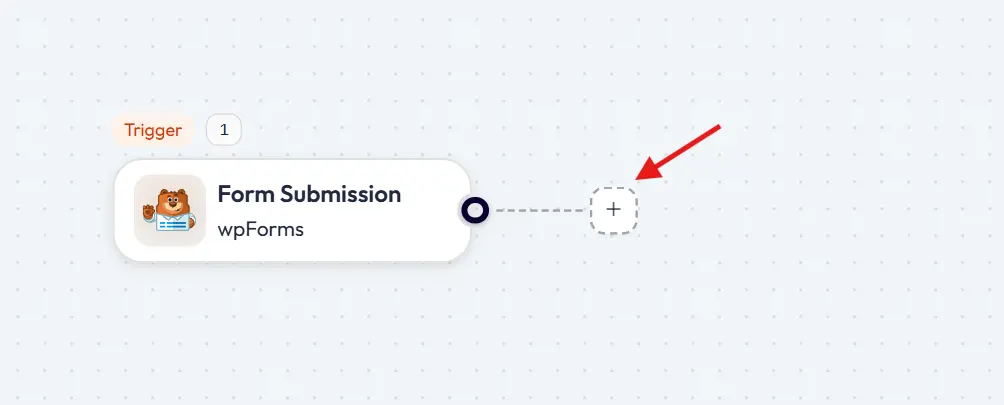
Click the plus icon after the trigger to add an action step.
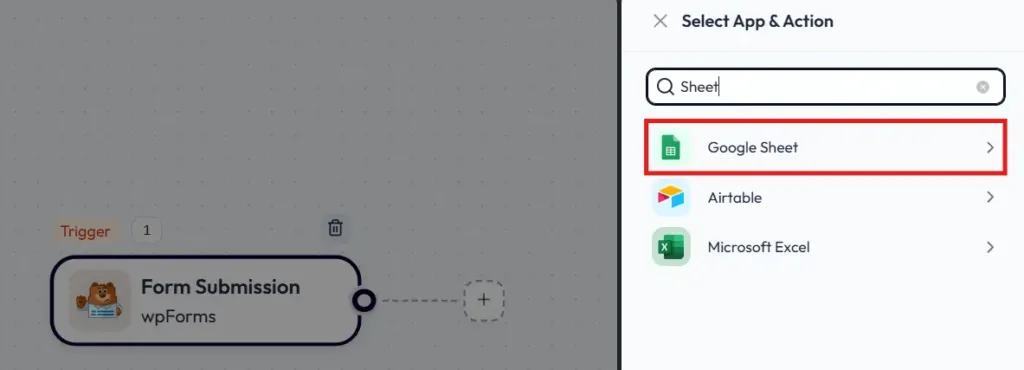
Select Google Sheets.
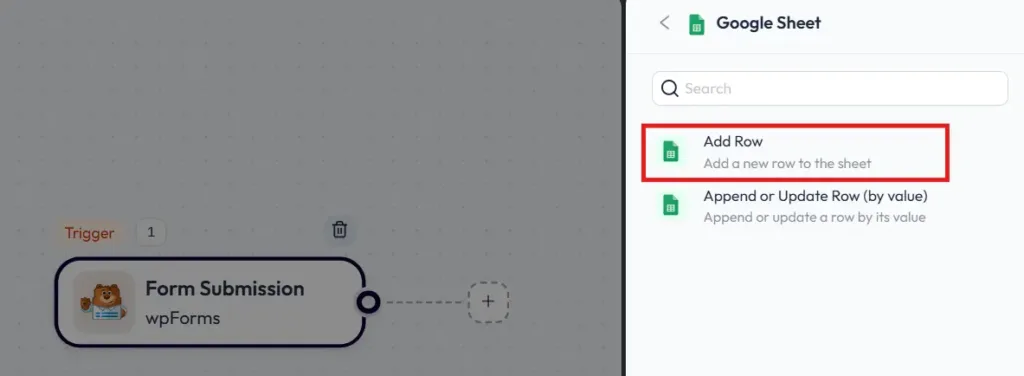
Choose the Add Row event. This will add one row of data in Google Sheets when the trigger runs.
Now connect Google Sheets with Bit Flows.
Bit Flows uses an OAuth-based connection that requires a Client ID and Client Secret. You generate these in Google Cloud Console by creating a project, enabling the Google Drive API and Google Sheets API, setting up the consent screen, and creating OAuth client credentials with the redirect URI provided by Bit Flows. Then you paste the Client ID and Client Secret into Bit Flows to complete the connection.
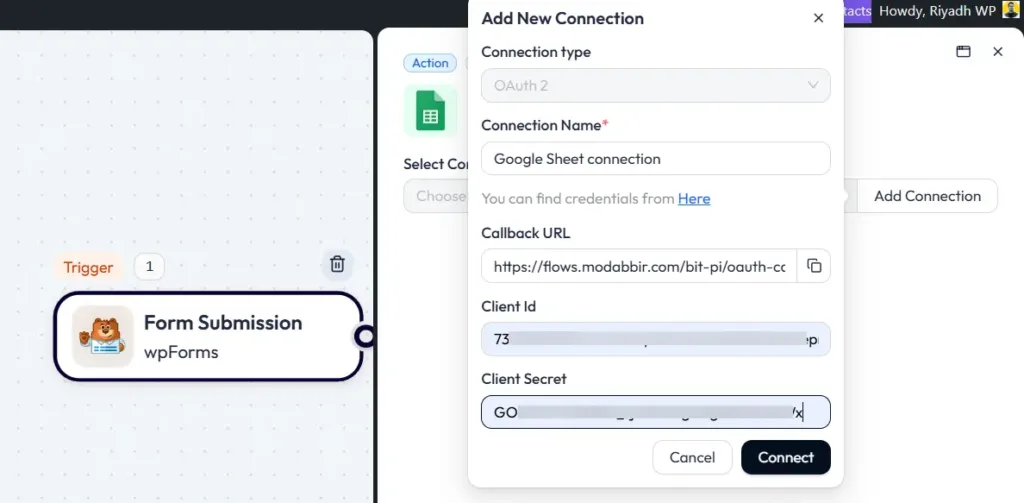
This setup looks long on paper, but it is a one-time connection. After you connect once, Bit Flows lets you reuse the same connection for future flows.
After a successful connection, select your spreadsheet, then select the sheet tab inside it. Bit Flows shows these as dropdowns after authentication.
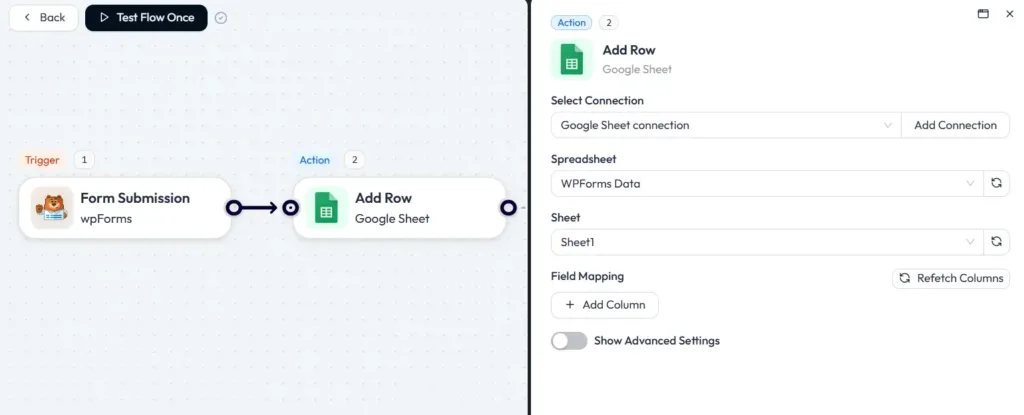
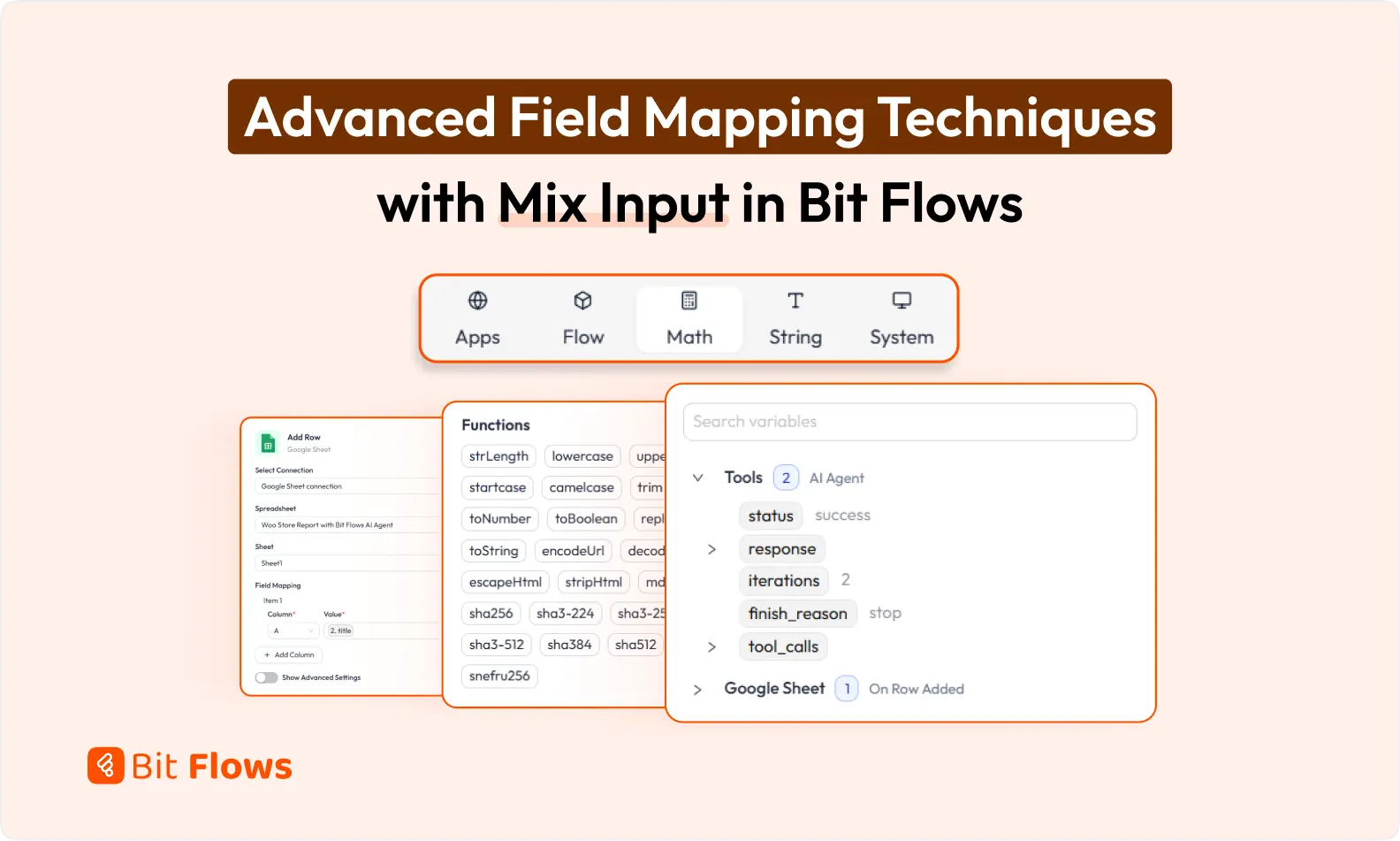
Now you will map your WPForms data to Google Sheet columns. Bit Flows uses a simple mapping structure: Column and Value.
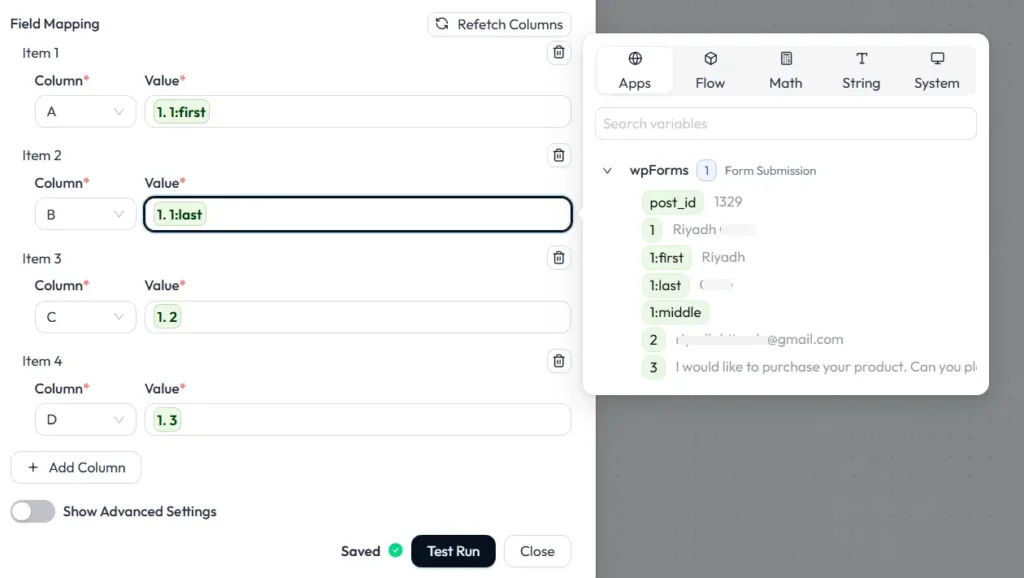
For each column, pick the matching WPForms field value from the captured response. This mapping step is the core of a clean WPForms to Google Sheets setup.
Make sure your Google Sheet has clear columns so the mapping stays readable. Bit Flows will show your sheet columns during mapping, which makes matching fields easier.
When you finish mapping, click Test Run.
Then check your Google Sheet. You should see a new row added with the test data. The Test Run is the simplest way to confirm your mapping works.
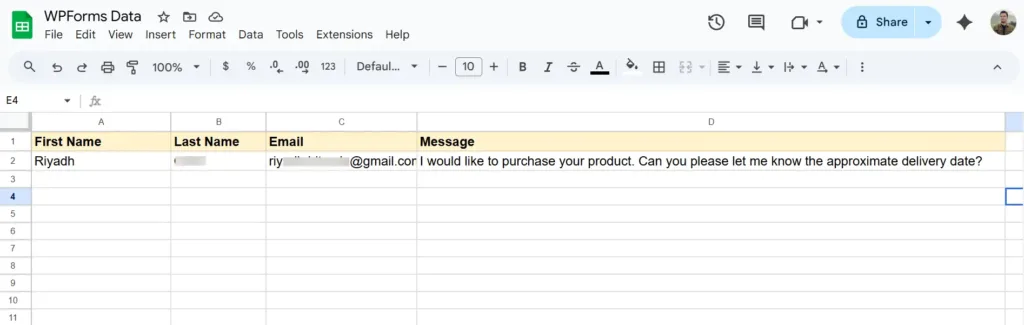
Once your test works, your WPForms integration is ready.
From now on, every WPForms submission will go to Google Sheets automatically as a new row, which is exactly what the Add Row action is designed to do. If something fails, open the Logs area in Bit Flows. Logs are useful for troubleshooting and re-executing tasks.
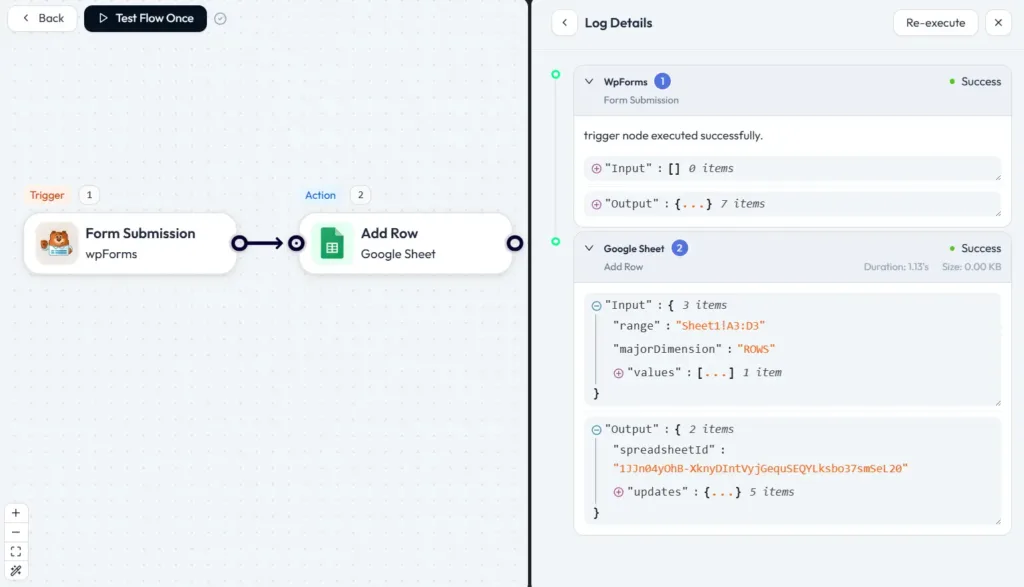
If the workflow does not send data, start with the Listen Response step. Re-run Listen Response and submit a new test form. Without captured fields, mapping will break.
If you cannot see your spreadsheet list, it usually points to an authorization issue. Recheck the Google Sheets connection step. Make sure the correct APIs are enabled and the redirect URI and scopes were entered as required.
If rows appear but columns are wrong, re-check your mapping. This is almost always a field-to-column mismatch. Bit Flows mapping is easy and visual, so a quick remap usually fixes it.
Bit Form is a modern WordPress form builder that removes the extra steps many users face with WPForms. It comes with a free Google Sheets integration built in. You do not need paid addons or extra automation plugins. Once a form is submitted, the data can go straight to your Google Sheet.

This makes Bit Form a strong option if you want a simple setup and zero added cost. You install one plugin and connect Google Sheets directly. No monthly fees. No task limits. No third-party tools.
Why Bit Form stands out
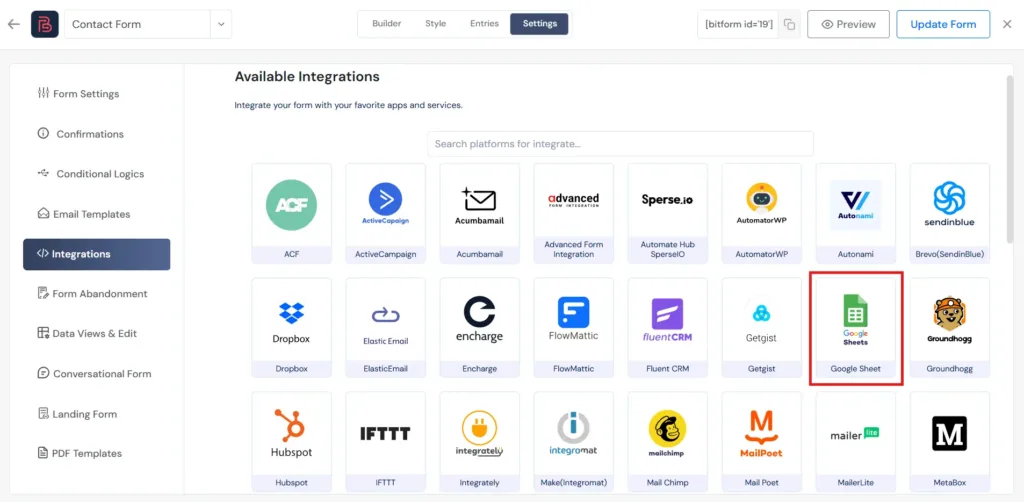
If your main goal is to send form entries to Google Sheets without paying for upgrades, Bit Form does that out of the box. It keeps the workflow simple and keeps your data moving automatically.
If you want WPForms to Google Sheets without paying for upgrades, Bit Flows is a simple and easy solution. It works as a Google Sheets connector for WPForms that stays free and unlimited, without task limits and without per-submission fees.
If you prefer a form builder with Google Sheets built in from the start, Bit Form is another solid option. It includes free Google Sheets integration without paid addons or extra plugins.
This is the real win. You stop wasting time on exports and copy and paste. Your form data lands where you need it, in a spreadsheet you can filter and share. And as your site grows, you can keep using the same WPForms integration and the same Google Sheets integration with no limits.
It removes manual work. Every form submission is logged automatically, so you avoid copy-and-paste errors, and you can work from a single spreadsheet.
Yes. Bit Flows includes WPForms as a free trigger and Google Sheets as a free action. It also supports unlimited workflows and unlimited task execution.
It is an automation that sends each WPForms entry to Google Sheets as a new row. In Bit Flows, this is done with a WPForms trigger and a Google Sheets Add Row action.
If you want free and unlimited usage, Bit Flows is a strong option because WPForms and Google Sheets are available in the free trigger and free action list.
Yes, but it requires the Google Sheets add-on and a Pro license level or higher plan.
Bit Flows states the free plan supports unlimited workflows, steps, and tasks, with no usage caps, and it lists WPForms and Google Sheets among free triggers and actions.
Bit Flows uses TLS for encrypted transfers and supports secure authentication methods like OAuth2 and API keys. So your form data will be safe and secure.




 EN
EN  DE
DE  ES
ES  NL
NL  IT
IT