Contact Form 7 is still one of the most popular WordPress form builder plugins. It’s very simple and able to cover basic contact form needs. But the Contact Form 7 doesn’t have any direct integrations with Mailchimp.
There are many free and paid ways to integrate Contact Form 7 with Mailchimp. But most of them are tricky to set up or very complex interface for beginners.
Today, I will show you how to do a free Contact Form 7 to Mailchimp integration using Bit Flows. A user-friendly tool that gives you unlimited workflows without any task limits.
So every time someone fills out your Contact Form 7, they automatically become a new subscriber in Mailchimp. I will walk through everything step by step. Let’s do it!

Imagine you have an email list of fans or customers. Mailchimp is a super popular email marketing tool that helps you send newsletters, announcements, or special offers to that whole list at once. Instead of emailing people one by one, Mailchimp lets you do it in bulk. It’s perfect for growing your audience and keeping customers in the loop. Businesses big and small use it for things like:
Newsletters: Send out your latest blog posts or company news.
Promotions or Updates: Let subscribers know about sales, new products, or events.
Automated Drips: Set up a series of emails (welcome series, etc.) that go out automatically over time.
Mailchimp is all about email marketing and automation. It helps you connect with your audience and build relationships via email. Mailchimp has a free plan for small lists, so getting started won’t cost you a thing.
Think of Bit Flows as a friendly assistant for your WordPress site. It’s a free, drag-and-drop automation plugin that works like Zapier or Make, but right inside WordPress. It lets you connect different tools and services without any coding.
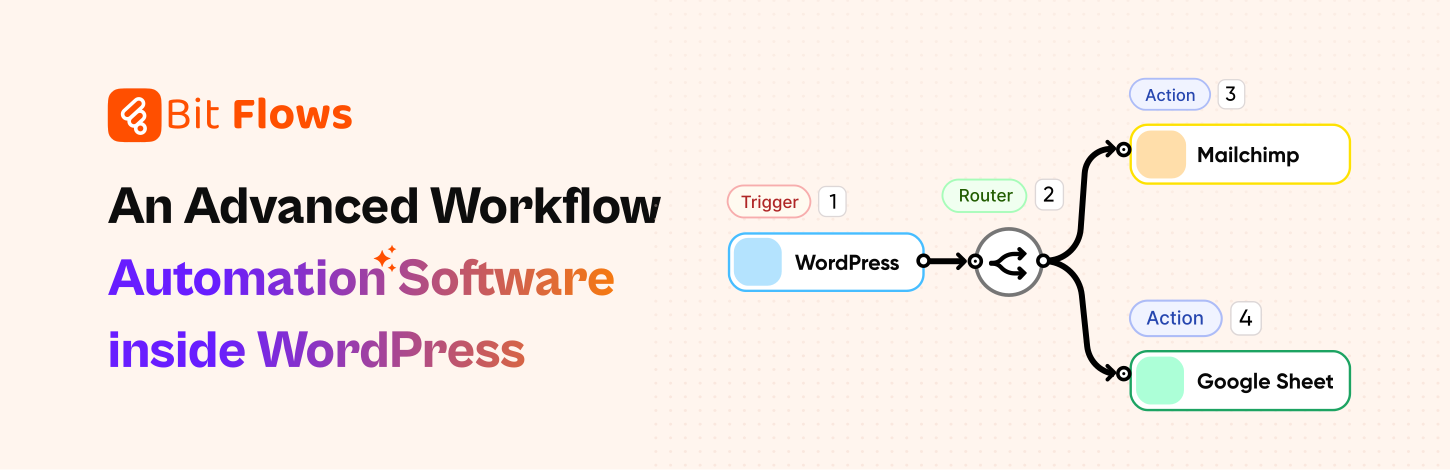
Bit Flows is a no-code and beginner-friendly tool. You literally pick from lists and add them to your workflow. So you can build visual workflows right on your site. It supports popular form plugins like Contact Form 7 and connects to over 170 platforms. So Bit Flows can take your form data and send it to Mailchimp (or almost anywhere else).
Some key features to know:
Bit Flows is like having an automation toolkit built right into your WordPress dashboard. It’s perfect if you want to automate tasks and connect tools (like CF7 and Mailchimp) without leaving your site or playing with code.
With Bit Flows, you can send any form data to Mailchimp, such as Contact Form 7, Bit Form, or Elementor form to Mailchimp. So let’s see how you can easily connect Contact Form 7 with Mailchimp.
Let’s go through the steps in a very easy way:
Open Bit Flows and Create a New Flow: In your WordPress dashboard, go to Bit Flows and click Create Flow.
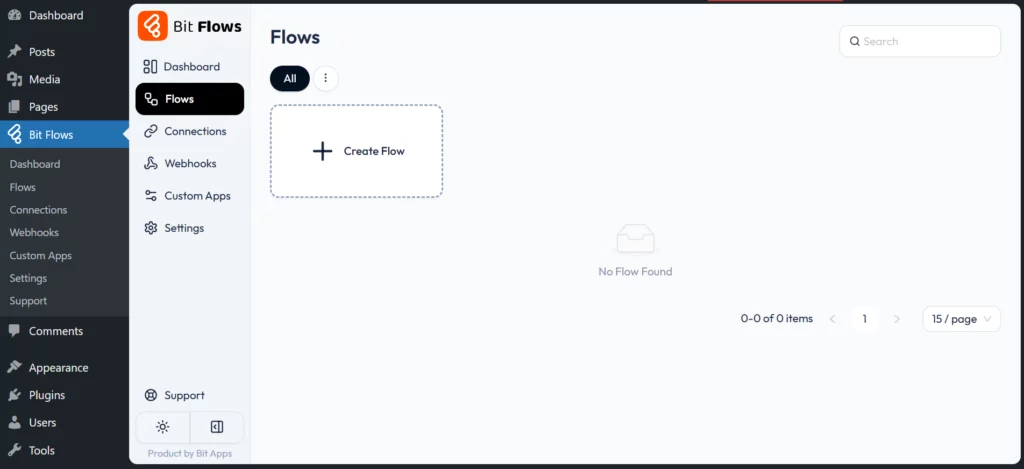
Give it a name like “CF7 to Mailchimp” so you can find it later. And then click on the Create button.

Set Up the Trigger (Contact Form 7): Click “Add Trigger” and choose Contact Form 7 as the source. You’ll see an option like “On Form Submit.” Pick that.

Then select the specific form you want to use (if you have more than one). Now Bit Flows knows, “When this form is filled out, start the workflow.”

After that, click on the Listen button, which will listen to your form responses.

Now you just need to submit your form to get the response data. This process will capture all your field data to send it to your MailChimp account. Once you run the test submission, the form will capture data like this:

Add the Mailchimp Action: Click “Select an app”. Find Mailchimp in the list of apps. You will see an action like “Create Subscriber.” Select that.

Connect Your Mailchimp Account: If this is your first Mailchimp action, you’ll be asked to connect Bit Flows to your Mailchimp account. This means pasting in a Mailchimp API key (from your Mailchimp account settings) and giving Bit Flows permission to manage your lists.

Bit Flows will ask you for an API key or to log in to Mailchimp (just follow the instructions). This lets Bit Flows send data into your Mailchimp account. Once connected, choose the Mailchimp audience/list you want to add subscribers to.
Map Your Form Fields to Mailchimp Fields: Now you will see your Contact Form 7 fields on one side, like your-email, your-name, etc., and Mailchimp list fields on the other, like Email Address, First Name.
Simply match them up. For example, map the CF7 email field to Mailchimp’s Email Address. If you collected a first name in the form, map that too. Bit Flows makes this visual; just select each for pairing.

Save and Test: Now submit a test entry to your Contact Form 7. Then check your Mailchimp audience; the new test email should appear as a subscriber. If it works, you’re all set!

That’s it! You’ve just set up an automated integration of Contact Form 7 with MailChimp. So now, when someone submits Contact Form 7, they automatically become a Mailchimp subscriber, with no manual copying needed.
One of the cool things about Bit Flows is that it can do more than just Mailchimp. You can create multi-step workflows: imagine the form data going to Mailchimp and also to other places, all in one go. For example, you could:
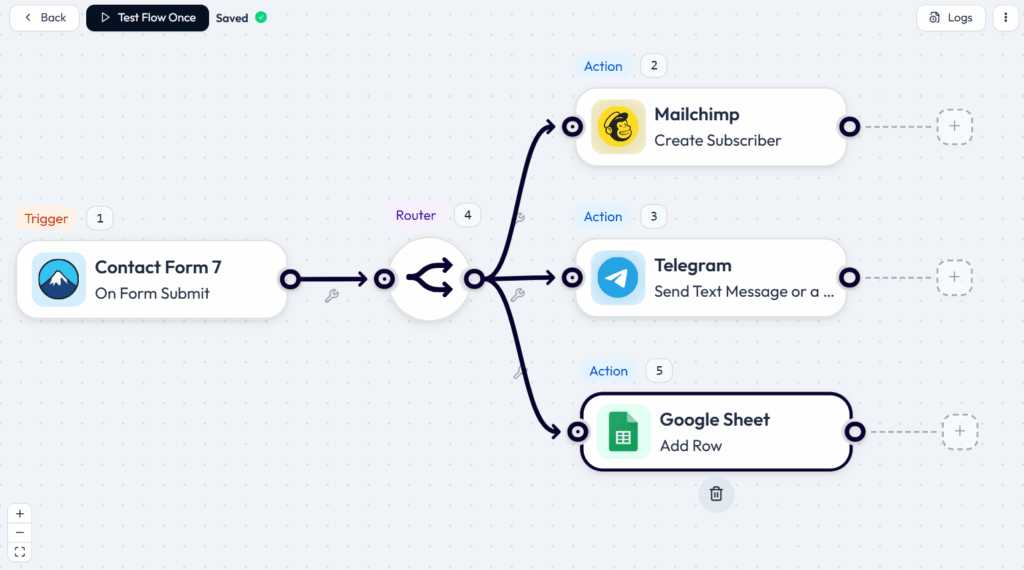
Since Bit Flows connects to hundreds of services, the possibilities are almost endless. In one workflow, you can send the data to two or three or more paths. For example, after the Mailchimp step, you could add another “action” that writes the same contact into Google Sheets. Another action could tell your CRM. Bit Flows’ router or multi-step tool makes this easy to visualize. Once your form data is captured, you have unlimited options for where it goes.
That means no more copying and pasting. You could even have Bit Flows handle a team notification, data backup, and tagging in Mailchimp. And because Bit Flows offers unlimited workflows, you’re not charged for each extra step; you can automate as much as you like for free.
Bit Flows doesn’t just do the job and disappear. It also gives you useful tools so you can rest easy:
Error Alerts and Logs: If something goes wrong (maybe Mailchimp was temporarily down, or a field didn’t match), Bit Flows will let you know. It keeps detailed logs of every workflow run, showing you exactly which step ran and whether it succeeded.

If an action fails, the error shows up in the log. Think of it like an automatic detective: it spots the problem and shows you where it happened. You can even get notifications for failed tasks. In short, no guessing games. You’ll see right away if something needs fixing.
No-Code Interface: As mentioned, the setup is visual. You’re literally pointing and clicking. This makes it super approachable even if you’re not a developer. The steps we listed above all happen through menus and buttons without writing a single line of code.
All these extras mean you’re in control. If an email didn’t arrive, Bit Flows’ logs tell you why. If a form field failed to map, it won’t go silent. These features let you sleep easier, knowing you can see exactly what’s happening under the hood.
You have now set up a free Contact Form 7 to Mailchimp integration using Bit Flows, without writing a single line of code. By following the steps above, you are automating your form submissions to build your email list and save tons of time. Remember, Bit Flows works on unlimited tasks and workflows, so there’s no extra cost as your needs grow.
Give it a try, I hope you’ll love how easy and friendly it feels. It really is as simple as if someone submits the form, add them to Mailchimp. Now go enjoy more free time while the automations do the work for you.
You can use Bit Flows, a free no-code plugin, to connect Contact Form 7 to Mailchimp in minutes.
Yes, Bit Flows lets you send form data to Mailchimp without any cost or coding.
Absolutely! With Bit Flows, you can automate lead collection from CF7 into Mailchimp easily.
No. Bit Flows is a no-code tool with a drag-and-drop interface, perfect for beginners.
Yes! Bit Flows offers unlimited workflows and tasks—even in the free version.
Yes. Bit Flows supports multi-step workflows, so you can send form data to Mailchimp, Google Sheets, CRMs, and more, at the same time.
Automation saves time, reduces errors, and helps you grow your email list without manual work.






 EN
EN  DE
DE  ES
ES  NL
NL  IT
IT