OpenRouter gives you access to many AI models from one place. Bit Flows automation plugin lets you connect OpenRouter inside WordPress and use those models in real automation workflows.
You can use OpenRouter to generate content, summarize data, write email drafts, classify messages, prepare reports, and run AI Agent workflows. Bit Flows can fetch available OpenRouter models, create chat completions, check credits, and pass the AI output to WordPress, WooCommerce, Gmail, Google Sheets, Slack, CRMs, webhooks, and other tools.
Il OpenRouter integration is free from the Bit Flows side. OpenRouter API or model usage may require credits or paid access based on the model you choose.
Use OpenRouter with Bit Flows to run AI models inside WordPress workflows. Simple flow:
Connect OpenRouter → Choose an AI model → Send workflow data → Generate AI output → Use the result in another action
Basic steps:
Use a direct OpenRouter action for simple AI tasks. Use the Bit Flows AI Agent when the workflow needs tool access, decisions, or multiple steps.
Many WordPress AI workflows depend on one AI provider. OpenRouter gives you more model choice through a single connection at an affordable price.
Inside Bit Flows, this means you can choose a model based on the workflow goal. One workflow may need a fast model for short summaries. Another may need a stronger model for report writing, content review, email drafting, or support analysis.
Bit Flows adds the workflow layer. OpenRouter provides the AI model. Together, they let you use AI inside real WordPress actions, not only as a standalone text generator.
Bit Flows uses a visual workflow builder. You can add a trigger, connect OpenRouter as an action, map data from previous steps, and send the AI response to the next tool. A simple OpenRouter workflow follows this pattern:
For advanced workflows, OpenRouter can be used with the Bit Flows AI Agent. The AI Agent can analyze data, create structured output, make decisions, and pass the result to the next workflow step.
The OpenRouter integration does not add a separate fee from the Bit Flows side.
OpenRouter model usage is controlled by OpenRouter. Some models may be free. Some may require credits or paid usage. Pricing can also change based on the model and provider. Before using OpenRouter in production workflows, check:
This keeps your workflow more predictable and reduces failed runs caused by low credits or unavailable models.
To use OpenRouter models in WordPress, connect your OpenRouter account with Bit Flows using an API key. Basic setup:
After connecting OpenRouter, Bit Flows can send workflow data to your selected AI model and use the response in the next step.
You can use OpenRouter as a direct action for simple AI responses. For advanced workflows, use it with the Bit Flows AI Agent. The AI Agent can use tools, process data, create output, and call the next action.
Now let’s build a simple example.
This workflow creates a simple WooCommerce report using the Bit Flows AI Agent with an OpenRouter model. Then it sends the report through Gmail. The flow is:
WooCommerce data → AI Agent with OpenRouter → report generation → Send the report using Gmail
Log in to your OpenRouter account. Create an API key from your OpenRouter dashboard and copy it. You will add this key inside Bit Flows.

Per prima cosa, installare e attivare il programma Bit Flows plugin. Then go to your WordPress dashboard. Open Bit Flows → Create New Flow.
Choose a trigger for the report. For a recurring report, use the Programma trigger. Set it to run daily, weekly, or monthly based on your reporting needs.

After the Schedule trigger, add the Agente AI.
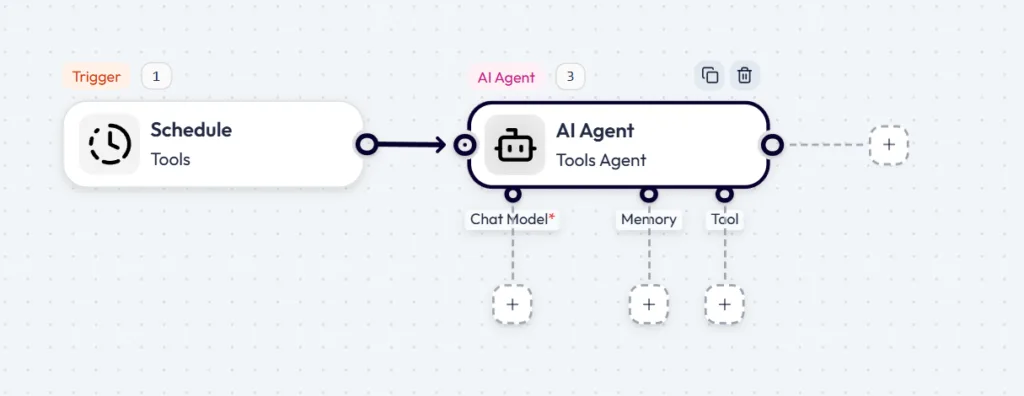
Inside the AI Agent setup, choose OpenRouter as the model provider. Add your OpenRouter API key and save the connection. Bit Flows can then fetch available OpenRouter models into the model dropdown.

Select the OpenRouter model you want to use for the WooCommerce report.
Now, add WooCommerce as a tool inside the AI Agent. Choose the WooCommerce tool and select the Get Order (All) event. This allows the AI Agent to access WooCommerce order data while generating the report.
Add a clear prompt inside the AI Agent.
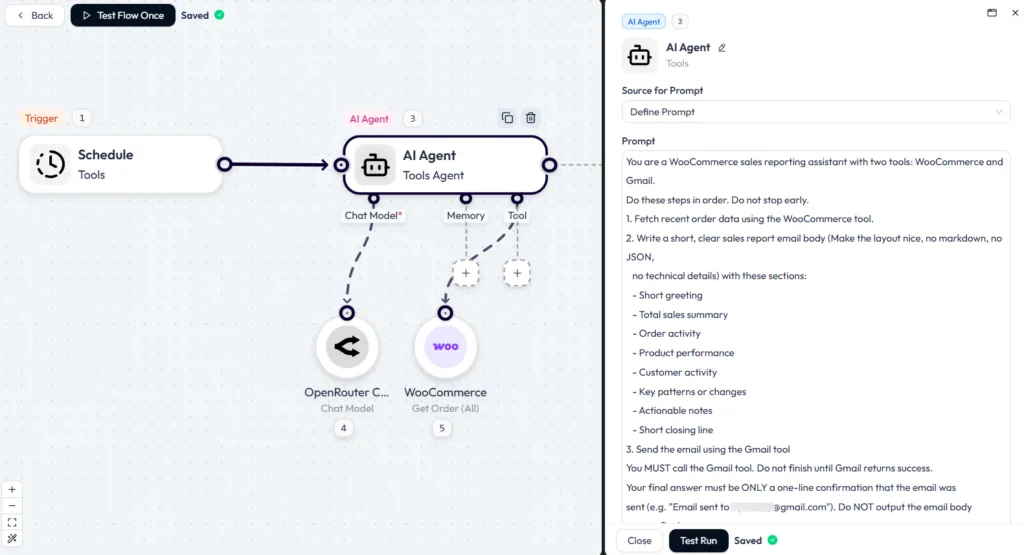
Use this prompt structure:
You are a WooCommerce sales reporting assistant with two tools: WooCommerce and Gmail.
Do these steps in order. Do not stop early.
1. Fetch recent order data using the WooCommerce tool.
2. Write a short, clear sales report email body (Make the layout nice, no markdown, no JSON,
no technical details) with these sections:
- Short greeting
- Total sales summary
- Order activity
- Product performance
- Customer activity
- Key patterns or changes
- Actionable notes
- Short closing line
3. Send the email using the Gmail tool.
You MUST call the Gmail tool. Do not finish until Gmail returns success. Your final answer must be ONLY a one-line confirmation that the email was sent (e.g. "Email sent to [email protected]"). Do NOT output the email body as your final answer. Run a test so Bit Flows can capture a sample of WooCommerce data and confirm that the tool is returning the expected order information.

If the report feels too general, update the prompt with more specific rules. You can ask the agent to focus on a date range, best-selling products, order status, revenue changes, or customer behavior.
Add a Gmail action after the AI Agent. Choose Send an Email.
Map the AI Agent output into the email body, or just make it AI define.

Set the recipient, subject line, and sender details. Use a simple subject line like: WooCommerce Sales Report

Save the Gmail action and run the full workflow.

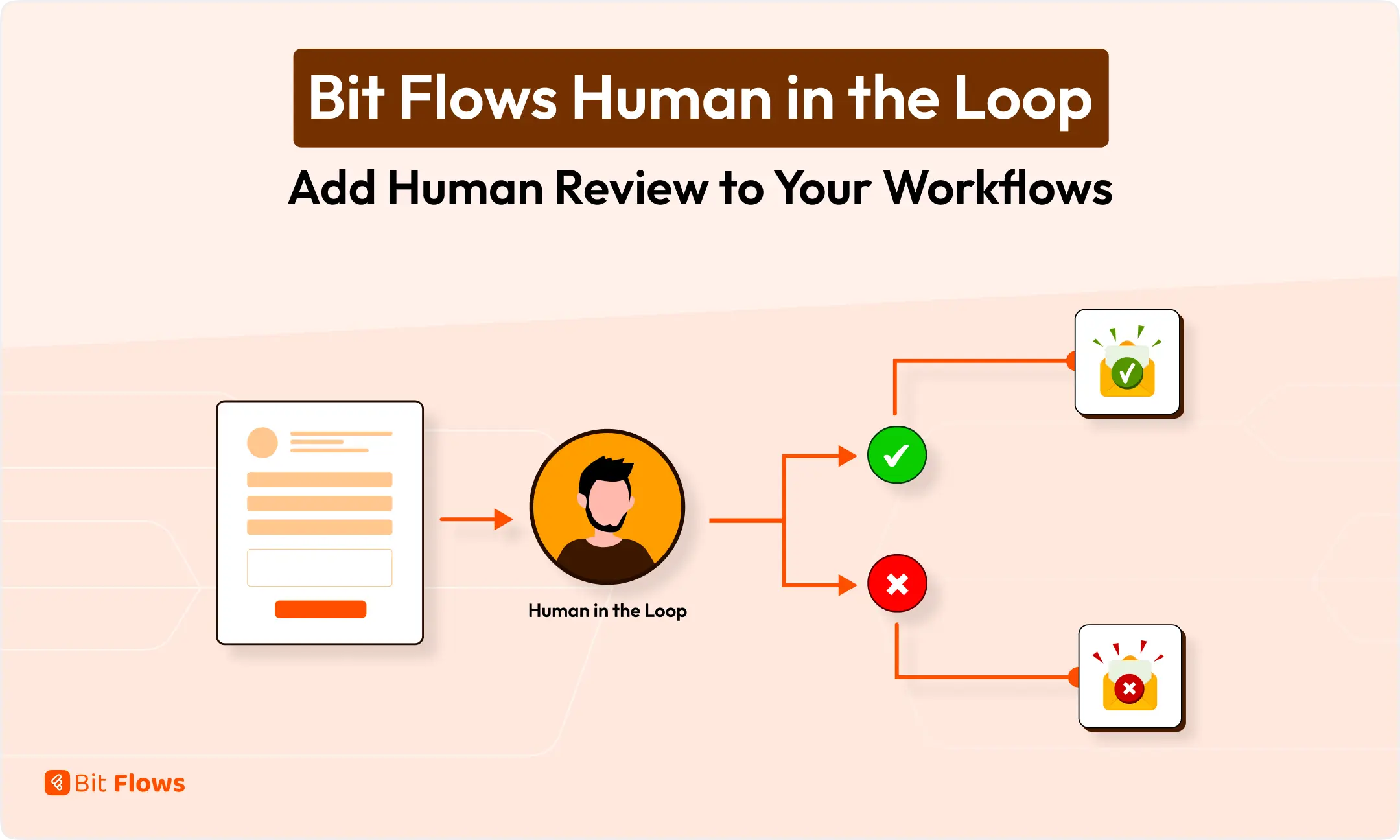
If the report needs approval before sending, add a Gmail Human in the Loop step before the final Gmail email. The reviewer can approve or decline the AI-generated report before the workflow sends it.
Run the complete flow once and check each step. Confirm that:
If the report misses important details, update the prompt or adjust the WooCommerce tool data used by the AI Agent.
AI can produce wrong, vague, or risky output. Keep review steps for important workflows.
Some OpenRouter models may require credits. Check model pricing and account balance before using a model in regular workflows.
A weak prompt creates weak output. Give the AI model:
Do not send unnecessary data to the model. Use only the fields needed for the task. For a report workflow, send the data needed to create the report. Leave out fields that do not affect the final output.
Start small. Test the OpenRouter action first. Then add AI Agent logic. Then add review steps if needed. Then connect the final app. This keeps the setup easier to debug.
Use OpenRouter when you want more AI model options inside WordPress automation. It is useful when:
For simple tasks, one OpenRouter action may be enough. For decision-based workflows, use the AI Agent. For sensitive workflows, add Human in the Loop before the final action.
OpenRouter is useful when you want more AI model choices inside WordPress automation.
With Bit Flows, you can connect OpenRouter, choose a model, and use the AI output in real workflows. You can create WooCommerce reports, email drafts, support summaries, lead scores, CRM updates, and more.
Start with one simple workflow, such as a WooCommerce sales report sent through Gmail. Test the model output. Then add more tools, better prompts, or human review when the workflow needs more control.
Yes. With Bit Flows, you can connect OpenRouter to WordPress and use OpenRouter models inside automation workflows.
Yes. OpenRouter models can be used with the Bit Flows AI Agent. The AI Agent can use the selected model to analyze data, create output, and support workflow decisions.
The current OpenRouter actions are Create Chat Completion, List Models, and Fetch Credits.
Yes. Bit Flows can fetch available OpenRouter models through the OpenRouter integration. You can then choose a model for your workflow.
The OpenRouter integration does not add a separate Bit Flows integration cost. OpenRouter model usage may require credits or paid access based on the selected model.
Yes. You can add a Human in the Loop step after the AI output. The reviewer can approve or decline the result before the workflow continues.
Good use cases include SEO metadata generation, support ticket triage, lead scoring, WooCommerce order summaries, content repurposing, email drafts, and approval-based AI workflows.
No. Use it where the output affects customers, public content, revenue, refunds, security, or important business decisions. Simple internal summaries may not need review.



 IT
IT  EN
EN  DE
DE  ES
ES  NL
NL