Writing product descriptions takes time. You need to add products. Then you write a description for the product. Then you work for SEO. This workflow can be slow, especially when managing hundreds of products in your WooCommerce store.
Here’s a fast way to solve this problem. When a WooCommerce product is created or updated, a workflow automation tool like Bit Flows sends the product title to ChatGPT. And you will get SEO-optimized WooCommerce product descriptions with ChatGPT. Bit Flows then updates the product description field automatically.
The whole process runs without your involvement. You save time, keep descriptions consistent, and get SEO-friendly text that actually converts customers. This setup transforms a repetitive manual task into a smooth automated workflow.
Before we dive into the setup process, make sure you have these essentials ready:
https://yoursite.com/wp-json/wc/v3/products/)Having these components ready ensures a smooth setup process and prevents common configuration issues that can derail your automation efforts.
Once you’ve automated your WooCommerce product descriptions using Bit Flows and ChatGPT, the possibilities don’t end there.
You can further optimize your WooCommerce store by automating additional tasks, such as syncing orders with Google Sheets, managing inventory, or exploring advanced integrations with other platforms like Google Gemini.
Now you may have a question: what if I am not using WooCommerce? Bit Flows also offers native integrations with various WooCommerce alternatives, allowing you to still benefit from powerful automation workflows.
Understanding the WooCommerce with ChatGPT workflow helps you troubleshoot issues and customize the process for your specific needs:
This streamlined process eliminates manual intervention while maintaining high-quality output standards.
Follow these simple steps to connect WooCommerce with ChatGPT and automate your WooCommerce product descriptions writing.
Begin by creating a new workflow in Bit Flows. Select the WooCommerce product event that should trigger your WooCommerce automation; this can be set for either when a product is created or when it’s updated.

Then click on the Listen Response button and create a test product. It will capture all the related product data for the next step of WooCommerce automation.

While configuring the trigger, be sure that you have the key product fields you’ll need, particularly product.id and product.title. This step tells Bit Flows exactly when to start running your workflow and what information to pass along.
Next, add an OpenAI/ChatGPT action to your workflow. Connect your OpenAI API key and choose the “Create a Chat Completion” action. Then, select your preferred AI model (such as gpt-4o or gpt-5).
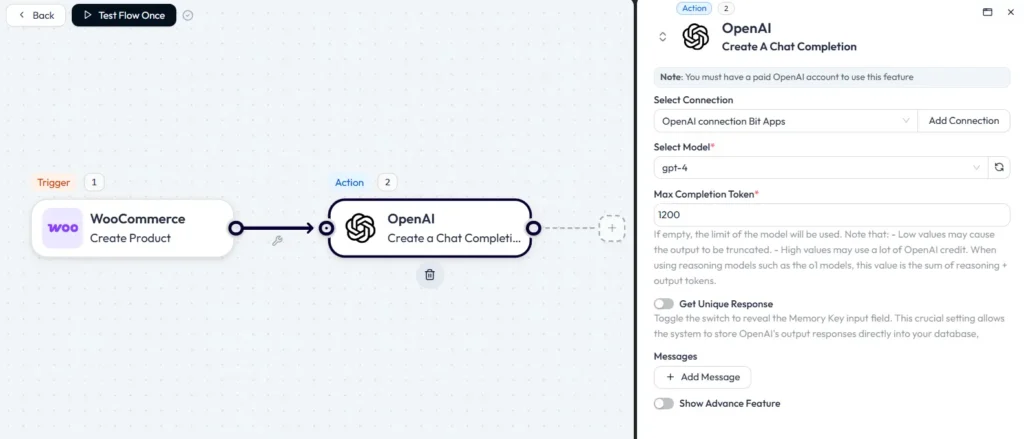
Create a clear and simple prompt instructing ChatGPT to generate an SEO-friendly product description based on the product title. Set a max token limit.
And on the Message, select the User field and add your prompt to the Value. Map the Product title field from the WooCommerce node.

No click on the Test Run. It’s helpful to run a test with your prompt and review the output in Bit Flows before moving to the next step.
After receiving the generated description from ChatGPT, add an API Request action to update your WooCommerce product description.

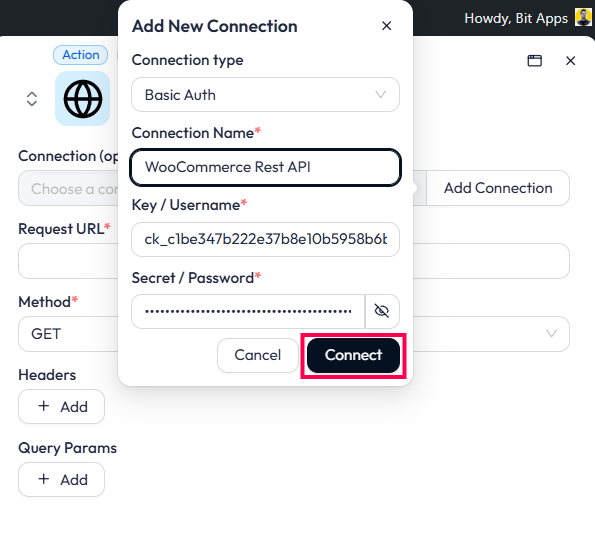
Now we need to add the connection. Click on the Add Connection button and choose Basic OAuth for authentication, and here we need to provide WooCommerce API credentials.
To get the credentials, navigate to WooCommerce> Settings> Advanced> Rest API tab> and create a Rest API key.

Describe the API and select the admin account as the user. Choose Read/Write as the permission. And then click on the Generate API key button.

It will create the Consumer key and Consumer secret.

Copy these credentials. We will use the credentials to connect to the Bit Flows API Request actions with WooCommerce. Now navigate to the Bit Flows builder, click on the Add Connection, select Basic Auth, and paste the Consumer key and Consumer secret. Then click on the Connect button.
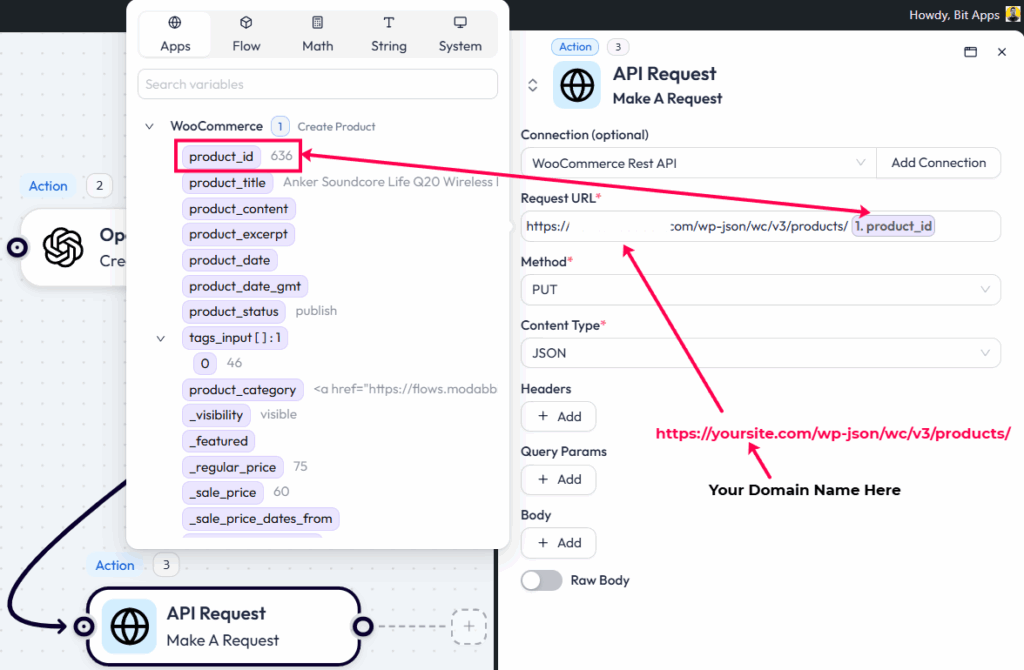
Now we need to configure the API Request further to put the generated WooCommerce product description automatically.
Add the following request URL:
https://yoursite.com/wp-json/wc/v3/products/Change yoursite.com to your domain name. And choose PUT as the method. Select content type JSON.
Now we need to map the generated description. To do that, click on the +Add button under the Body section, in the key field, and add “description” as the key.
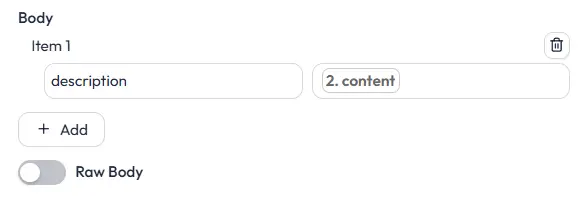
In the value field, map the generated description. You will see the description under the content of the ChatGPT response.

Now, click on the Test Run button; it will put the product description into your product automatically.
Here is a generated WooCommerce product description written by this workflow. You can add a more comprehensive prompt to get better results.

Test this action to make sure you receive a successful response. Lastly, double-check your field mappings so {{product.id}} comes from the trigger and the new description comes from the ChatGPT step. Then test it with a sample product to ensure everything updates smoothly. By following these steps, you’ll have a fully automated system to generate and update SEO-optimized WooCommerce product descriptions with ChatGPT.
Sample OpenAI prompt mapping:
Input: "product.title"
Prompt: "Write an SEO product description for 'product.title'. Include 3 short benefits and a 3-row HTML table of specs. Return HTML only."
These examples show the data structure and formatting that produce professional-looking product descriptions.
Optimize your workflow with these proven strategies:
These optimizations help you maintain high-quality, consistent descriptions across your entire product catalog.
SEO optimization doesn’t happen by accident. Your automated descriptions can help you scale content fast while maintaining search engine visibility.
Good prompts produce keyword-rich copy that resonates with both users and search engines. Include product-specific keywords in your prompts and ask ChatGPT to naturally incorporate the product title and 1–2 target keywords.
Keep user intent in mind first. Write for customers who want to understand your product’s benefits and specifications. Then add SEO signals like bullet points and specification tables that search engines recognize as structured content.
Ensure unique text for each product. Search engines penalize duplicate content, so avoid using identical descriptions across similar products. Your prompts should generate unique copy based on each product’s specific title and attributes.
Robust workflows anticipate and handle potential issues:
These practices ensure your automation remains reliable even when external services experience issues.
Copy and customize these proven prompt templates:
Comprehensive template: Write an SEO product description for “{{product.title}}”. Include 3 benefits and one short HTML table with specs. Use 3–4 short sentences.
Simple template: Create product copy for “{{product.title}}”. Add bullet benefits. Add usage tips. Keep it simple.
Targeted template: Generate a product description for “{{product.title}}”. Include the target audience and 2 quick selling points. Return HTML.
These templates provide starting points you can modify based on your specific product categories and brand voice.
This automated setup saves significant time while maintaining consistency across your product catalog. It makes SEO optimization easier by generating keyword-rich descriptions that both customers and search engines appreciate.
Bit Flows creates a smooth bridge between WooCommerce and ChatGPT. The workflow is straightforward: trigger, generate, update. This simplicity makes it reliable and easy to maintain.
Start small by testing with a few products. Fine-tune your prompts and model settings based on the results. Once you’re satisfied with the quality, roll out the automation to your entire catalog.
You’ll get high-quality descriptions faster, better, and at scale. Your customers will appreciate detailed product information, and search engines will reward you with better rankings for your comprehensive, unique content.
The investment in setting up this automation pays dividends in time saved and improved conversion rates. Your product pages become more informative and engaging without requiring constant manual updates.
Yes. Use the “product updated” trigger or run the workflow on existing products. The PUT request will overwrite the current WooCommerce description field.
Absolutely. Map additional fields like color, size, SKU, or category into the prompt for richer, more detailed descriptions.
Test the output first. Consider sanitizing or stripping potentially problematic tags. Stick to simple HTML like <p>, <ul>, and <table>.
Include the target language in your prompt. For example: “Write in Spanish.” You can map language fields per product for multilingual stores.
Yes. Trigger the workflow via bulk actions or process a list of product IDs through Bit Flows batch operations.
Add a fallback step with a default description. Log errors and set up admin notifications for failed generations.



 EN
EN  DE
DE  ES
ES  NL
NL  IT
IT