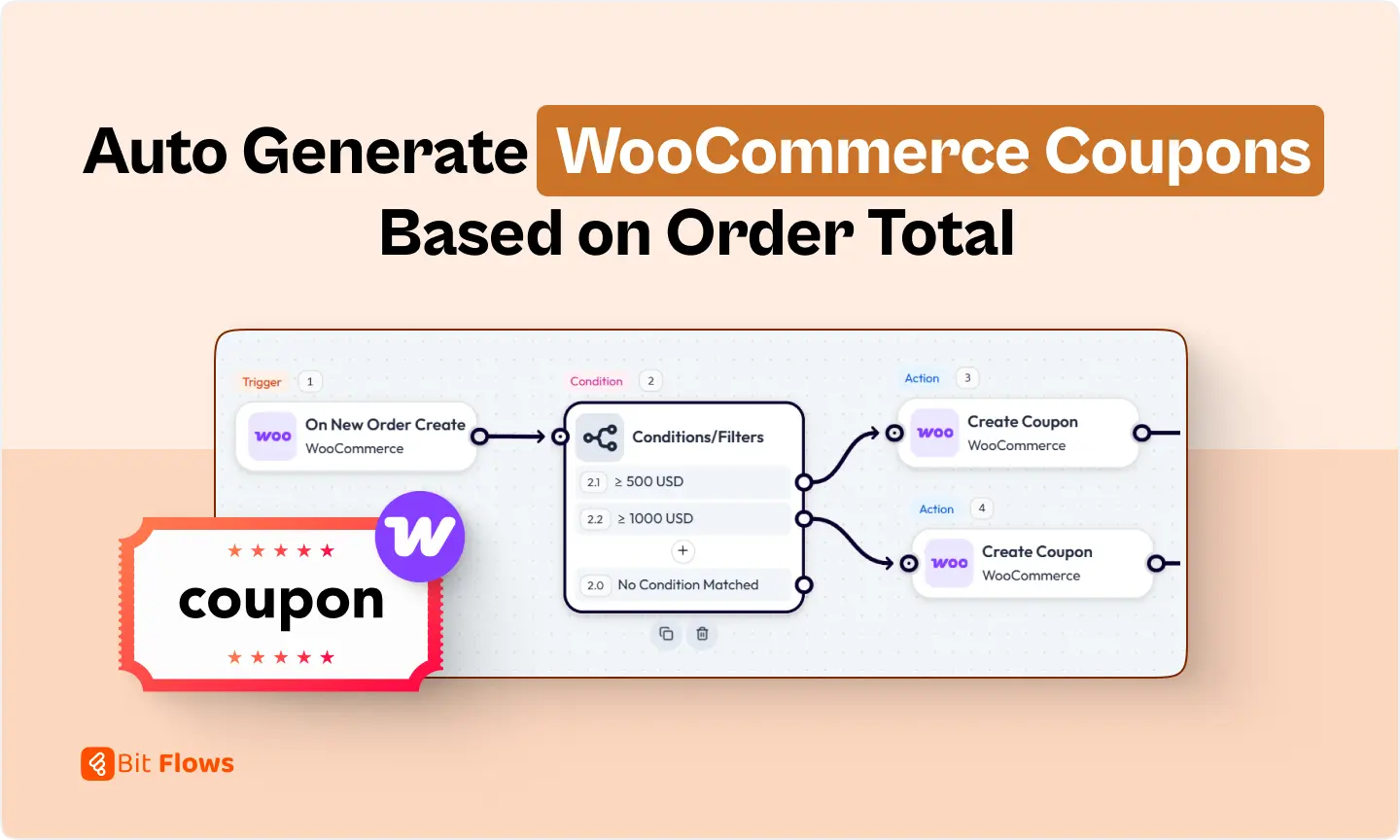
Discounts are a great way to make customers happy and bring them back to your store. But it can be a lot of work to create coupons for every person.
What if you could do this automatically? Imagine if a customer spends $500, they get a 10% off coupon. If they spend $1,000, they get an even bigger discount. This can happen on its own.
This is possible with a WooCommerce automation plugin called Bit Flows. It is a smart automation tool that connects with your WooCommerce shop. You can set up a workflow that watches for new orders. When an order comes in, it checks the total amount. Then, it creates a special coupon and emails it to the customer. You don’t need to write any code.
This guide will show you exactly how to auto-generate WooCommerce coupons. We will go step by step to set up automatic WooCommerce coupons based on how much a customer spends.
Before we start, you will need a few things:
Yes, it is. And Bit Flows makes it very easy.
WooCommerce itself doesn’t have a simple way to create coupons based on order information automatically. You would usually need a developer to write custom code or find other plugins.
With Bit Flows, you can build this automation with just a few clicks:
It is a smart, no-code way for any store owner to give personal rewards and keep customers happy.
WooCommerce coupons are discount codes that customers enter at checkout. You can set them up for many things:
They can also have:
When you use coupons well, they can help you get more repeat sales, lower the number of abandoned carts, and reward your best customers.
Bit Flows is a powerful WooCommerce automation plugin that helps you automate store tasks without coding. It connects your WooCommerce events with hundreds of apps and services. You can create workflows to manage orders, customers, emails, and marketing actions. Its drag-and-drop builder makes automation simple for any user. Bit Flows saves time and keeps your store running smoothly.
Key Features of Bit Flows:
For WooCommerce, Bit Flows supports:
This means you can automate almost any task in WooCommerce, from sending emails to updating inventory.
After activating the plugin, navigate to your WordPress dashboard. Find Bit Flows in the menu. Navigate to Flows> Create Flow.
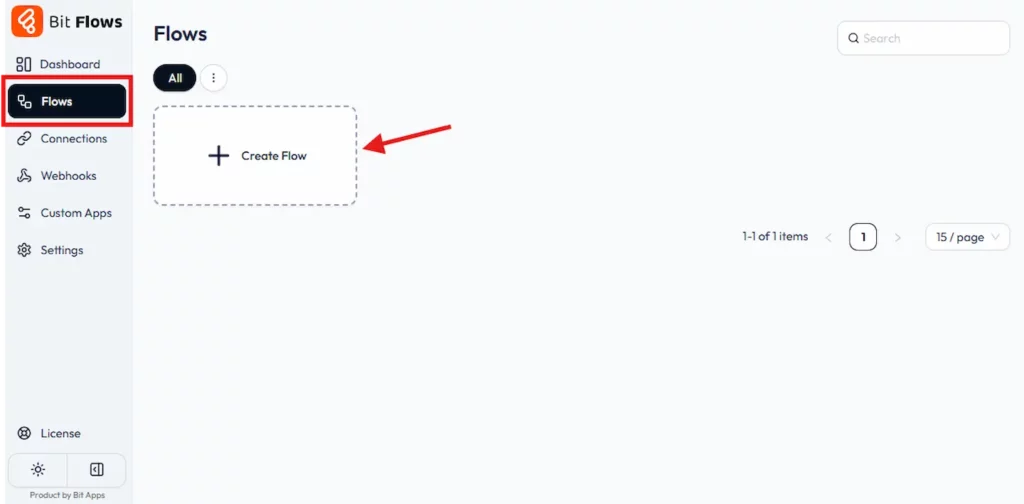
Give your new flow a name. Something like “Auto Coupon from Order Total” is a good idea.

You will see a screen where you can build your workflow. It looks like a canvas where you can connect different parts.

Bit Flows has an easy drag-and-drop builder. This lets you see your workflow as you create it. You can add many steps, conditions, and other tools like Router, Iterator, Delay, and Schedule.
We need to tell the automation when to start. This is called a trigger. So you need to add a Trigger Node to your canvas. Look for the WooCommerce trigger and select the event “On New Order Created.”

Now, click on the Listen Response button and make a test purchase.
This tells the workflow to start every time someone places a new order in your shop.

After the test purchase, you will see that Bit Flows has received all the order data.

You can also get important information from the order, such as:
We will use this information later to make the coupons personal.
Next, we need to check how much the customer spent. To add a condition, click on the tools tab to drag the condition tool. And then click on the “+” to add conditions. You can add as many conditions as you need.

Add a condition node right after the WooCommerce trigger. You will set up two rules, or conditions:

This lets you give different coupons for different spending amounts.
For example:
Bit Flows makes this part very simple and visual. No code is needed.
Now, we will make the coupon.
Now, the system will make the coupon. For each path you made in the next step, you will add a “Create Coupon” action.

In this action, you will decide the details of the coupon. You have many settings to choose from to make the coupon right for your plan.
| Coupon Setting | Example | Explanation |
| Discount Type | Percentage Discount | You can pick from percent, a fixed amount off the cart, or off a product. |
| Coupon Code | {{customer_first_name}}-{{customer_id}} | This makes a special, unique code for every customer. |
| Coupon Amount | 10 for the $500 path, 20 for the $1000 path | You set the discount size based on the rule that was met. |
| Expiry Date | 14 days from when it is made | This makes people want to use the coupon soon. |
| Allowed Emails | {{customer_email}} | This makes sure only the customer who got the coupon can use it. |
| Usage Limit | 1 time per user | This stops the coupon from being used over and over by one person. |
This step changes a simple discount into a special gift. Studies show that when things feel personal, customers are happier and loyal.
When this step runs, Bit Flows will create a new WooCommerce coupon with all the information you provided.
After the coupon is created, we can send it to the customer. The email can include:
Here is how you do it:
Add a new Action Node and choose Mail (Email). Add the From Email, From Name, and To Email. You can also add CC, BCC, and reply to.

Write a personal email message.
Example Email Template
Subject: A Special Discount Coupon for You 🎁
Body:
Hi {{customer_first_name}},
Thank you for your recent order!
Your order total was {{order_total}}, so we made a special coupon just for you.
Coupon Code: {{coupon_code}}
Discount: {{coupon_amount}}
Expires On: {{coupon_expiry_date}}
Use this coupon on your next purchase to save more!
Best,
{{store_name}}

This email uses information from the “Create Coupon” step. Bit Flows lets you connect fields from one step to another easily. You don’t have to type any data yourself.
Before you make it live, it’s good to test it.

If something goes wrong, Bit Flows shows you detailed logs. It can also send you an email if something fails, so you can fix it fast.
If your test was successful, you are ready.
Your store is now set up to reward loyal customers without you doing anything.
If you create too many coupons without a plan, it can cause problems. Here are some good habits for a smart coupon strategy:
Here are some other ideas for WooCommerce automations you can build with Bit Flows:
Once you begin using Bit Flows, you will find many possibilities beyond just making coupons.
Automating is not just about saving time. It’s a strategic move. Here is what you get:
If your automation is not working, you can check these things:
Bit Flows gives you detailed logs and notifications when something fails, so you can solve problems quickly.
Automating WooCommerce coupons with Bit Flows is a very simple way to increase sales and make customers happier. You can reward people instantly, encourage them to buy again, and save yourself hours of work. It all happens in a simple, visual workflow.
When you mix the power of WooCommerce with the automation of Bit Flows, you create a smarter marketing system that runs by itself.
It does not matter if you have a small shop or handle thousands of orders a month. This setup will help you give personal discounts automatically and keep your customers returning.
You can start building your first automated WooCommerce coupon workflow with Bit Flows today. Make your store smarter than ever.
You can set up Bit Flows to check the order total and create a coupon automatically. Just set your conditions and let Bit Flows handle the rest.
Yes, you can personalize coupons for individual customers using order data and unique coupon codes within Bit Flows.
Absolutely. Bit Flows lets you send customized emails to customers with their unique coupon details right after their order.
No coding needed. Bit Flows uses a visual workflow builder where you can drag and drop actions to set up everything.




 JA
JA  EN
EN  DE
DE  ES
ES  NL
NL  IT
IT  PT
PT