Your team works in Discord. Your WooCommerce orders, sales numbers, and product reviews still live inside WordPress. That gap means someone has to open WooCommerce to check completed orders, review sales activity, or see whether a new product review needs attention. Small checks like these do not feel like much until they happen across a team, across a day, and across every store update that should have been automatic.
WooCommerce Discord integrations close that gap. When an order is completed, a sales summary is ready, or a product review needs attention, the update can go directly to the right Discord channel.
In this guide, you’ll build one complete Bit Flows workflow for WooCommerce completed order alerts. You’ll also see two related WooCommerce Discord integration ideas: sales summary updates and product review alerts.
WooCommerce Discord integrations can send important store updates, such as completed orders, sales summaries, and product reviews, to Discord channels without manual checking.
With Bit Flows, the main WooCommerce workflow is:
WooCommerce Order Status Set to Completed → Condition: status equals completed → Discord Send Channel Message → Check Bit Flows logs.
You can also send WooCommerce sales summaries to a Discord report channel and product review alerts to a Discord feedback channel.
Use these flows when your store, sales, support, or product team wants WooCommerce updates inside Discord without opening the WordPress dashboard again and again.
Before building the main WooCommerce completed-order alert, prepare the following:
Create the Discord channels before starting. Short, specific channel names make it obvious what lands there and keep alerts from mixing.
Before building the flow, it helps to understand the full path. This workflow starts when a WooCommerce order status changes to Completed. Bit Flows checks the order status with a condition, then sends a formatted order alert to a selected Discord channel.
The Discord message can include the order ID, customer name, email, total, currency, payment method, status, and order link. Your team gets the completed order update inside Discord without opening WooCommerce every time.
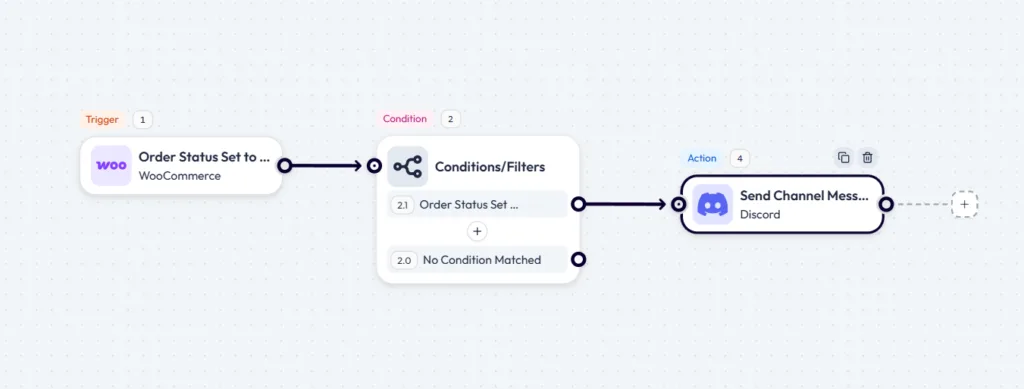
After the message is sent, Bit Flows logs each step so you can confirm the trigger, condition, and Discord action worked correctly.
Open Bit Flows and Een nieuwe stroom maken. Give it a descriptive name; it helps when you check logs or duplicate the flow later.
Kies WooCommerce as the trigger app. Select: Order Status Set to Completed
This trigger fires only when an order moves to completed status. New orders can still be pending, processing, failed, or on hold. Using the completed trigger prevents alerts for orders that the team cannot act on yet.
Klik op Luister Reactie inside the trigger panel.
Go to the WooCommerce order section and either place a test order or manually change an existing test order to completed and update the status.
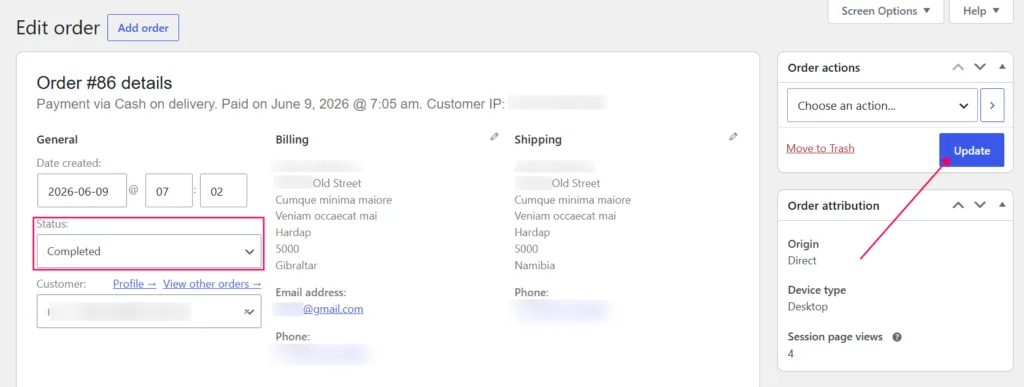
Bit Flows captures the full order data payload. Confirm these fields appear in the captured response:
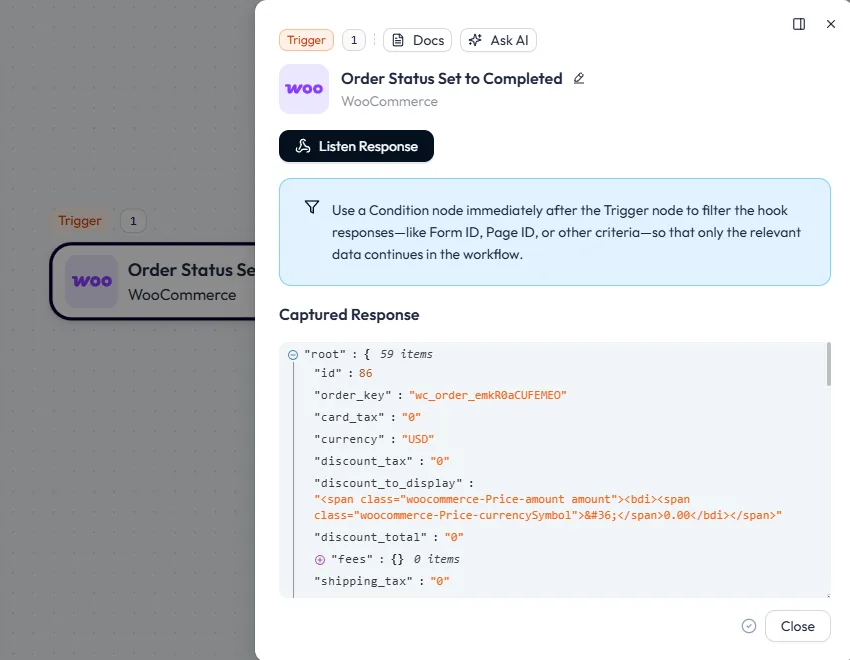
Toevoegen een Voorwaarde node after the trigger. Set the rule:
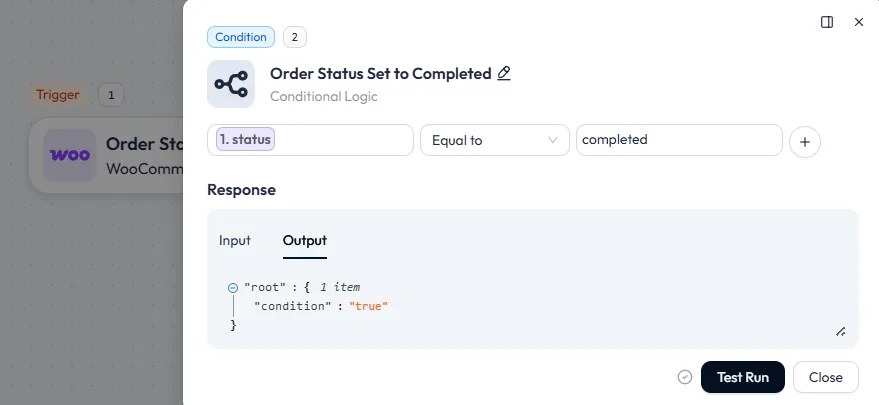
When you test the condition, the Output tab shows “condition”: “true”. That confirms the filter passed, and the Discord action will run.
This condition may look redundant alongside the completed-order trigger. Keep it. It makes the flow testable independently, easier to extend later, for example, adding a second branch for failed orders, and clearer to read when you return to it.
After the condition node, add: Discord: Send Channel Message action node. Click Verbinding toevoegen. The panel asks for:
Ga naar de Discord Developer Portal, create a new application, add a bot, and copy the Bot Token, Client ID, and Client Secret into Bit Flows as shown.
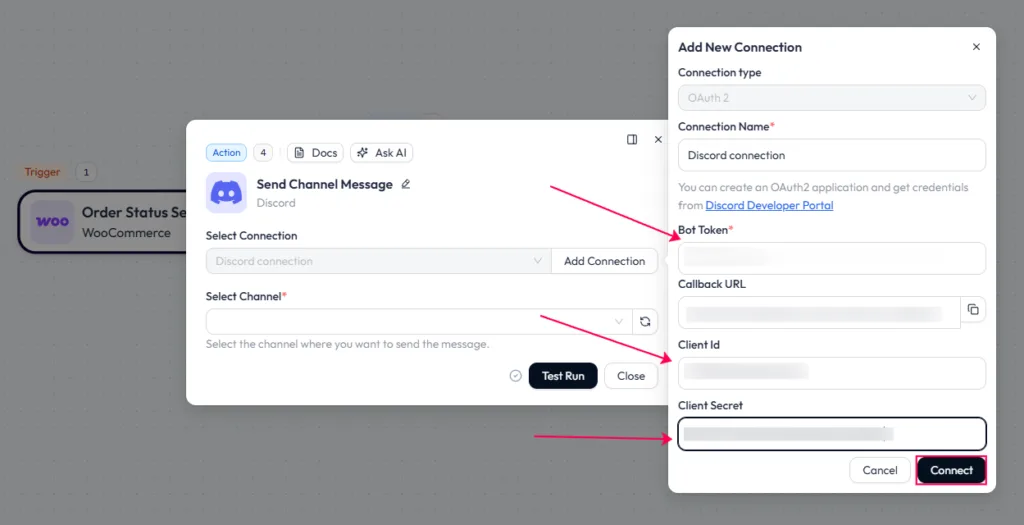
After saving the connection, you can reuse it in any Discord action. Just select the server, choose the channel, and write the message for each flow.
Need the full setup guide? Follow the Bit Flows Discord integration documentation.
Choose the channel where order alerts should land. In the Message Content field, map the WooCommerce fields into a readable format:
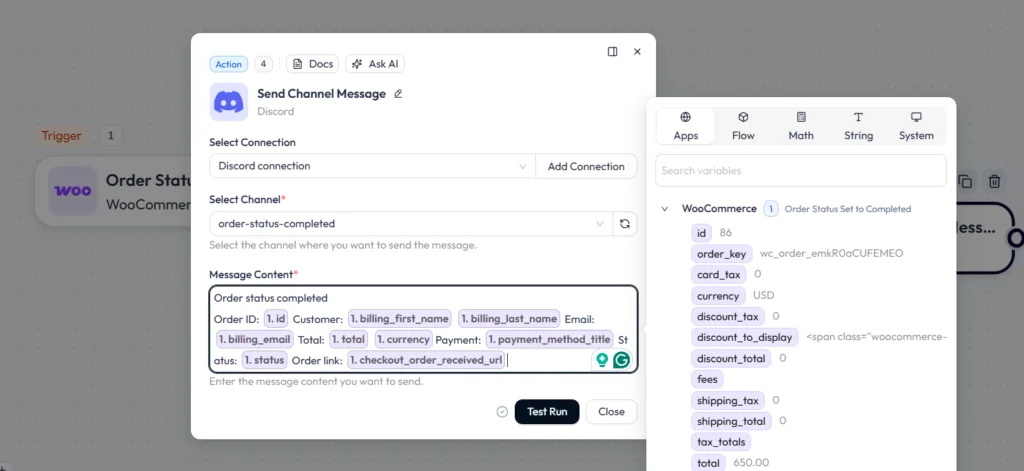
Keep each field on its own line. Discord renders line breaks cleanly on both desktop and mobile. A single run-on line with all fields is unreadable on phones.
Klik op Testrun on the Discord action, then change a test WooCommerce order status to Completed.
Open your Discord channel and confirm that the message shows the correct order ID, customer name, total, currency, payment method, and order link.
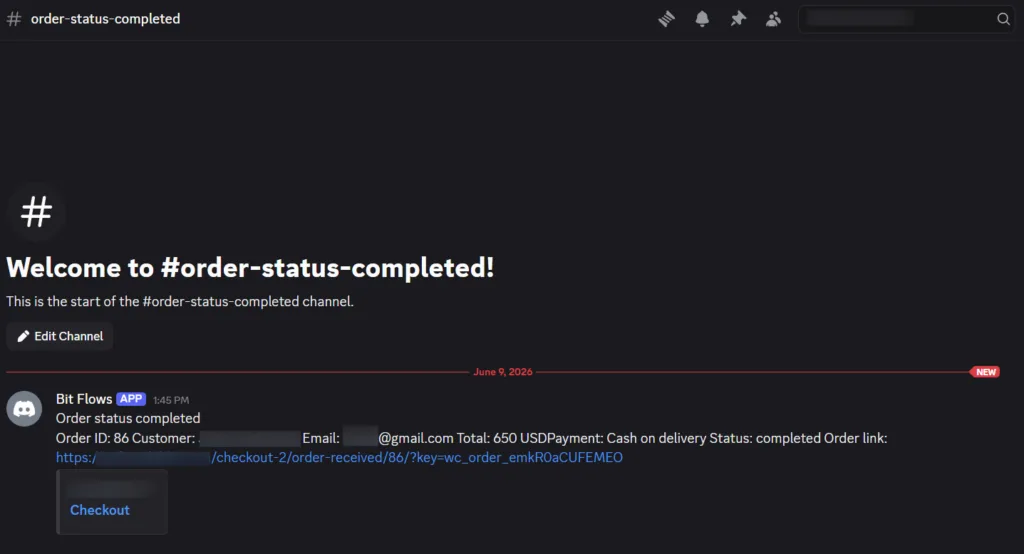
After that, open Bit Flows logs and check whether the WooCommerce trigger ran, the condition returned true, and the Discord message was sent successfully.
If the message does not appear, check the Discord connection, channel permission, condition result, mapped fields, and logs to find where the workflow stopped.
The completed order alert is the main workflow in this guide. But once Discord is connected with Bit Flows, you can send other WooCommerce updates to Discord too.
Some workflows start from a WooCommerce event. Others may use a schedule, fetched order data, or a WordPress comment trigger, depending on what you want to send.
Here are two practical WooCommerce Discord integration ideas you can add after the main completed order workflow.
This workflow differs from the completed order alert in that it does not send a message for every order. Instead, it sends a short sales summary to Discord at a fixed time, such as every day or every week.
Workflow idea:
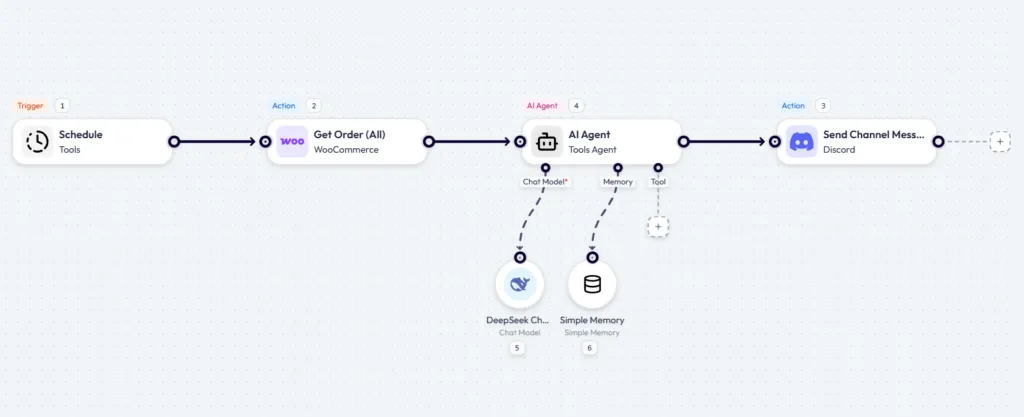
Before the AI Agent step runs, make sure the workflow has WooCommerce order data from the selected time range. Then use the AI Agent to turn that order data into a clear Discord-ready summary.
In de AI-agent step, tell it to calculate the report from the WooCommerce order data.
Use a prompt like this:
You are given WooCommerce order data.
Calculate:
1. Total number of orders
2. Total sales amount using the order "total" field
3. Average order value
4. Currency
5. Count orders by status
Only include orders with status "processing" or "completed".
Do not include on-hold, cancelled, failed, refunded, or pending orders.
Return the result in this format:
WooCommerce Sales Report
Total Orders: [total_orders]
Total Sales: [currency] [total_sales]
Average Order Value: [currency] [average_order_value]
Completed Orders: [completed_count]
Processing Orders: [processing_count]Then, in Discord Send Channel Message, map the AI Agent output as the message.
Use this when your store owner, admin, or sales team wants a daily view of store performance without opening WooCommerce reports manually.
This workflow helps your team see new product feedback faster.
WooCommerce product reviews are handled through WordPress comments with review data, so build this flow using a WordPress comment-related trigger and filter it for product reviews.
Workflow idea:
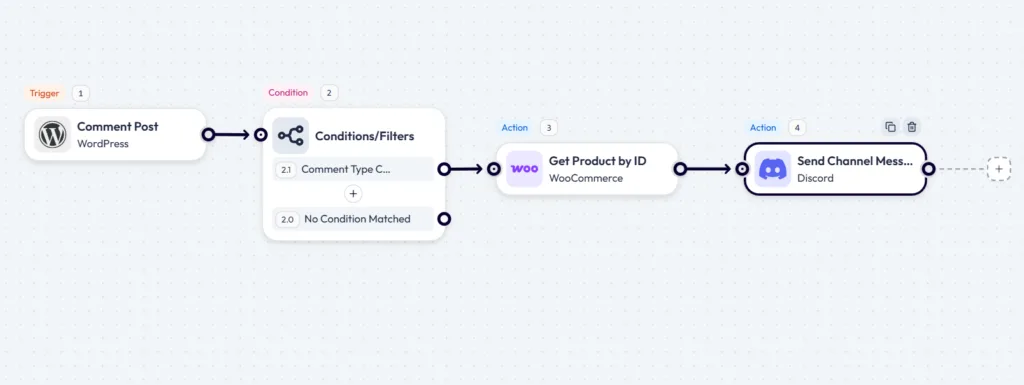
The Discord message can include the product name, reviewer name, rating, review message, and product link. Use this when your support, product, or marketing team wants to see customer feedback in Discord instead of checking product reviews manually.
You can also add a condition based on rating. For example, send low ratings to #support-alerts and positive reviews to #customer-feedback. Before publishing, capture a real product review response in Bit Flows and confirm the exact field names for product name, rating, review text, and product URL.
For completed orders, the team no longer needs to refresh WooCommerce just to see what is ready to process. Once an order reaches completed status, Bit Flows sends the update to #order-status-completed with the order ID, customer name, total, and payment method.
For sales tracking, the store owner or admin does not have to open WooCommerce reports every day to check basic numbers. A daily or weekly sales summary can appear in #daily-sales with total sales, order count, average order value, and order status counts.
For product reviews, feedback does not have to sit unnoticed inside the WordPress or WooCommerce review area. New reviews can appear in #product-reviews, so the support, product, or marketing team can see customer feedback faster and act when a review needs attention.
Do not mix a completed-order alert with a sales summary. A completed-order alert sends one message per order. A sales summary should run on a schedule and include grouped numbers such as total sales, order count, and top products.
Keep the Condition node in the flow. It confirms the order status, review type, rating, or product rule before Bit Flows sends the Discord message. Avoid sending every WooCommerce update to the same Discord channel. Use clear channels like #order-status-completed, #sales-report, #product-reviews, and #support-alerts.
Do not map too many fields into the message. Discord alerts should be short enough to scan. Add only the details your team needs, such as order ID, customer name, total, payment method, rating, review text, and link. Check the bot’s permission inside the selected Discord channel. If the connection is saved but the message does not appear, channel permissions are among the first things to check.
Finally, do not stop after the Test Run. Test the full workflow with a real WooCommerce status change or a real product review submission, then check the logs.
Start with the workflow that removes the most repeated manual check from your team. If your team checks WooCommerce for completed orders, build the completed order alert first. If your team wants sales visibility, add the sales summary flow. If customer feedback is easy to miss, add the product review alert.
Build one flow, test it with real data, and check the logs. Once the trigger, condition, field mapping, and Discord message work correctly, expand the same setup.
After that, you can add more actions only when needed. For example, you can log completed orders in Google Sheets, send low-rated reviews to a support channel, notify the admin by email, or route different WooCommerce updates to different Discord channels. That is the safest way to build WooCommerce Discord integrations with Bit Flows: start with one clear alert, confirm it works, then grow the workflow around your team’s real process.
Yes, Bit Flows can send WooCommerce completed order details to Discord when an order status changes to completed.
Gebruik Order Status Set to Completed when you only want Discord alerts after an order reaches completed status.
Yes, a condition helps confirm the order status, review type, rating, or product rule before Bit Flows sends the Discord message.
Include order ID, customer name, email, total, currency, payment method, order status, and order link.
Yes, use separate flows or Router logic to send completed orders, sales summaries, product reviews, refunds, and failed payments to different Discord channels.
Check the Discord connection, bot permission for the selected channel, condition result, mapped fields, message content, and Bit Flows logs.
Yes, after the Discord alert works, you can add Google Sheets logging, CRM updates, internal emails, Telegram alerts, or delayed follow-ups.
Yes, you can send a daily or weekly WooCommerce sales summary to Discord, but confirm the exact fetch and calculation setup before publishing the workflow.
Yes, product review alerts can be sent to Discord by using a WordPress comment or review-based trigger and filtering the response for WooCommerce product reviews.




 NL
NL  EN
EN  DE
DE  ES
ES  IT
IT