Bit Flows MCP Server lets MCP-compatible AI clients connect directly to the Bit Flows automation layer on your WordPress site. Once you approve a client, it can inspect flows, create and update automation structures, run permitted flows, check logs, browse apps and actions, work with webhooks, tags, settings, and custom apps, and use other Bit Flows tools within the permissions you grant.
If you are looking for a WordPress MCP server for workflow automation, this is the practical role Bit Flows fills. It does not expose every part of WordPress as a general remote-admin API. It exposes the Bit Flows automation system running inside WordPress.
In this guide, I use ChatGPT as the connection example. The same Bit Flows MCP Server can be used with other compatible AI clients; only the client-side setup screen changes.
MCP, or Model Context Protocol, is a standard that lets an AI client discover and use tools provided by another system. Here, WordPress runs Bit Flows, Bit Flows acts as the MCP server, and an external AI client acts as the MCP client.
AI client → Bit Flows MCP Server → flows, apps, logs, webhooks, and automation tools in WordPress
That is different from asking an AI assistant to explain how to build a workflow. After you approve the MCP connection, the client can call the actual Bit Flows tools exposed by your site and work with the real automation setup.
Bit Flows introduced MCP Server support in version 1.28.0. It is a Bit Flows Pro feature and remains disabled until a WordPress administrator enables AI client access.
Bit Flows supports MCP in both directions, but the two features solve different problems.
If your goal is to let ChatGPT, Claude, Cursor or another compatible AI client work with your Bit Flows setup, you want the Server MCP.
Bit Flows is not limited to ChatGPT. It can work with MCP-compatible clients such as ChatGPT, Claude and Cursor, plus other clients that support the connection method Bit Flows exposes. The WordPress-side process stays the same; only the client-side setup screen changes.
Client support varies. If your preferred AI tool does not show an option to add a custom MCP server, check that product’s current plan, workspace permissions and MCP support.
The WordPress-side process is the same for compatible clients. Below I use ChatGPT as the hands-on example because that is the client used in this walkthrough.
Nella dashboard di WordPress, andare su Bit Flows → MCP Server. Turn on Enable AI client access. This activates the MCP Server controls and allows external MCP-compatible clients to start the connection process.

After enabling AI client access, Bit Flows shows the supported AI client/setup options along with the MCP Server controls. The client-side steps differ by app; this walkthrough uses ChatGPT.

Under Server URL, use the copy control next to the MCP endpoint. The URL follows this format: https://your-site.com/wp-json/bit-pi/v1/mcp. Use the URL copied from your own Bit Flows screen when configuring the AI client.

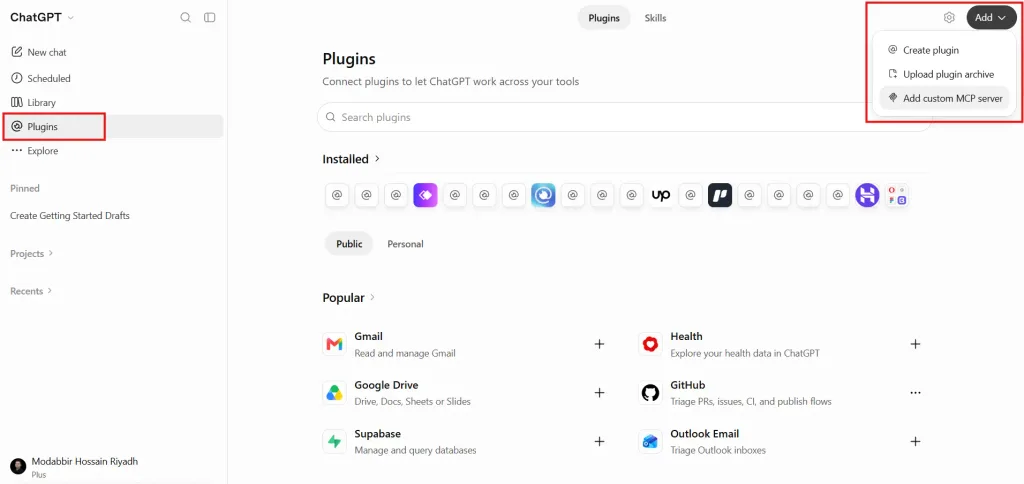
For this walkthrough, open Plugins in ChatGPT. Click the Aggiungere button, then choose Add custom MCP server.
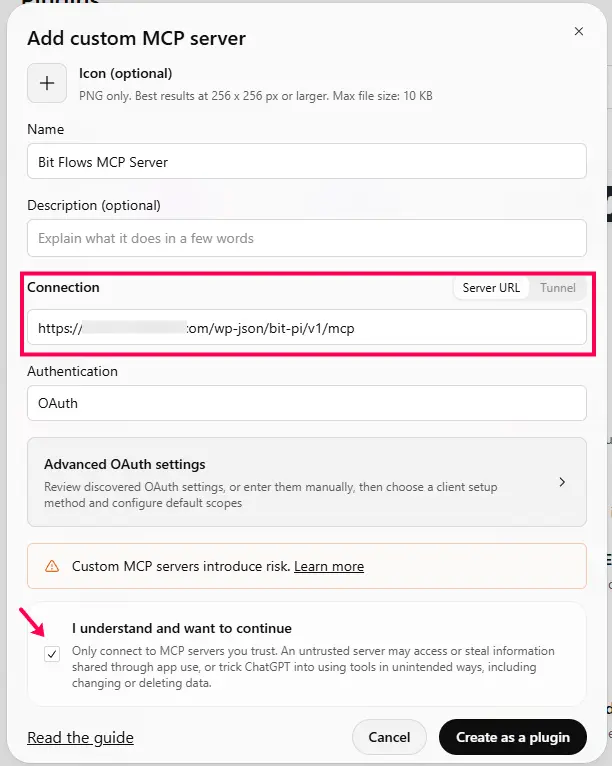
In the setup form, enter a name such as Bit Flows MCP Server. Keep Server URL selected under Connection, paste the Bit Flows MCP Server URL you copied in Step 02, and keep Authentication set to OAuth. Review the warning, check I understand and want to continue, poi clicca Create as a plugin.
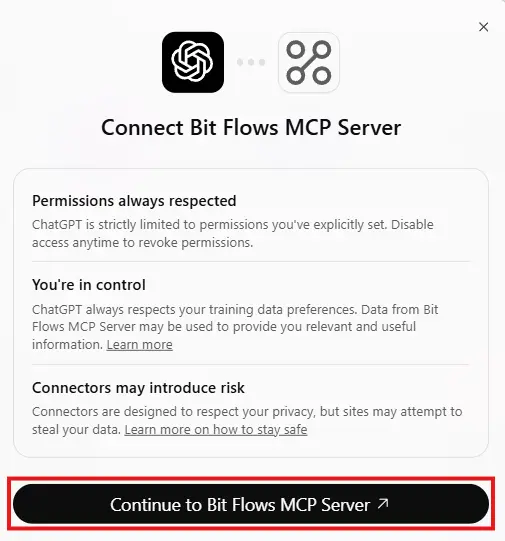
Once the plugin is created, ChatGPT starts the authorization flow. The next step happens on your WordPress site, where you approve what the client is allowed to access.
After you click Create as a plugin, ChatGPT opens the Bit Flows authorization screen on your WordPress site. If WordPress asks you to sign in, use an administrator account in the same browser.
Bit Flows then shows the access request for the connected client. Choose the permission level you want before approving it:
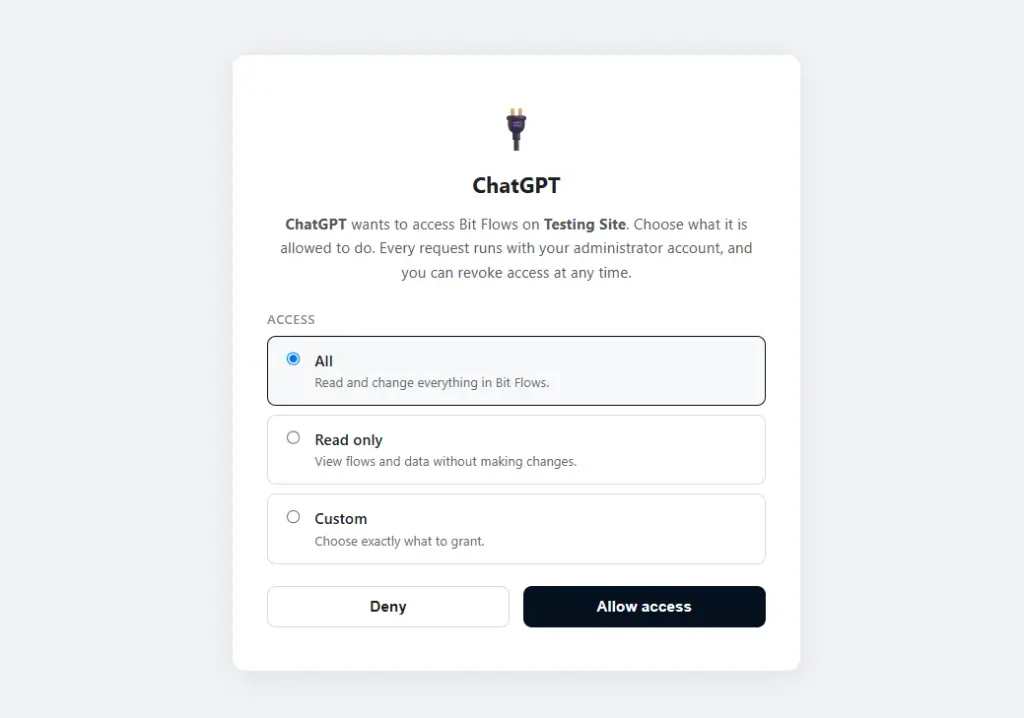
For an initial test, Read only is the safest choice. Use Custom when you want to allow specific write actions without granting everything. After you approve the request, return to ChatGPT; the Bit Flows MCP Server plugin should appear connected and ready to use.
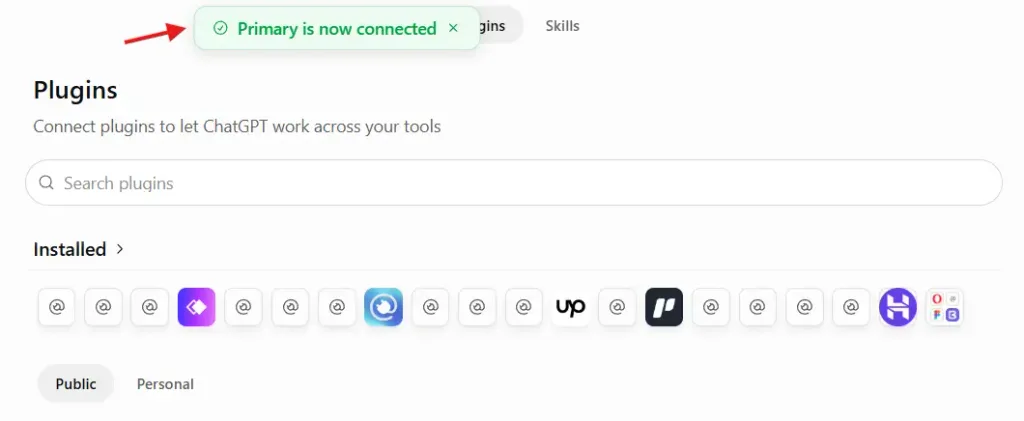
Start with a read-only request: “List the Bit Flows automations on my WordPress site and show which ones are active.” If the client returns the actual flows from the site, the WordPress MCP connection is working.
Once the connection is working, try a few practical requests to confirm what the AI client can read and do inside Bit Flows.
First, ask the client to verify that it can access the connected Bit Flows MCP Server and discover the available tools.
Prompt: “Can you access my Bit Flows MCP Server? Check the available Bit Flows tools and briefly tell me what you can access.”
The response should confirm the connection and summarize the Bit Flows capabilities available under the permissions you approved.

Next, test a real write task by asking the client to create a workflow directly in Bit Flows.
Before this test: If you connected the client with Read only access in Step 04, re-authorize it with Manage flows permission under Custom access, or use Tutti access. Creating a workflow requires write permission.
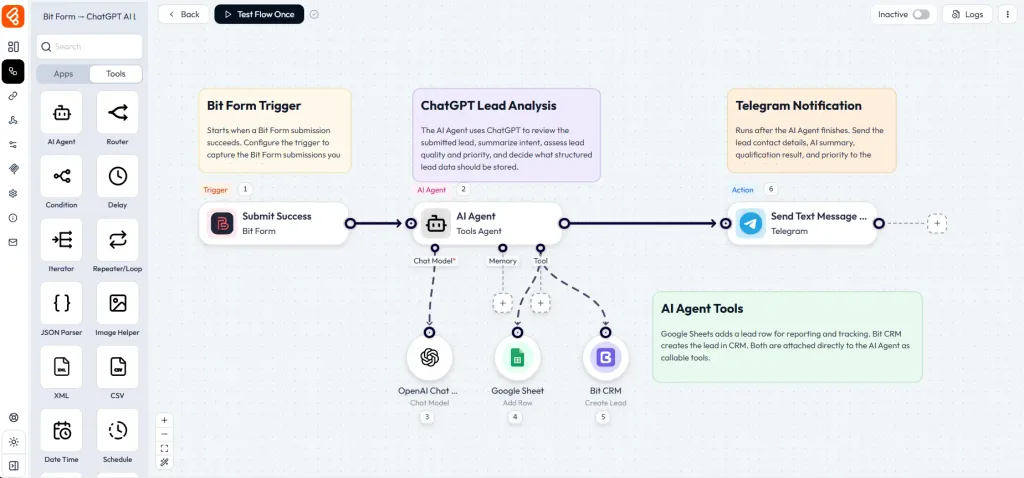
Prompt: “Create a multi-step Bit Flows workflow that captures any Bit Form submission, uses an AI Agent with OpenAI as the chat model to analyze the lead, adds Google Sheets and Bit CRM as tools inside the AI Agent, then adds Telegram as the next action after the AI Agent. Use the Sticky Note to explain what the workflow does.”
If the client has the required permissions, it can create the flow structure for you. Review the generated workflow in the visual builder, complete any connection-dependent fields, test it, and activate it when ready. My AI Client built this workflow when I shared the prompt.
Finally, use the MCP connection for a quick operational overview of your current automations.
Prompt: “List my currently active Bit Flows workflows, then summarize the recent execution logs. Highlight failed runs, errors, or anything that needs attention.”
This shows how the same MCP connection can be used not only to build automations, but also to inspect active flows and review recent execution activity from the AI client.

The MCP connection is not an all-or-nothing switch. Bit Flows exposes separate permissions for different operations, including:
OAuth is the recommended connection method. You approve the client through your own WordPress site and choose its permissions. Each request runs with the administrator account that approved it, and Bit Flows rechecks those administrator rights. If that account loses administrator access, the MCP client can no longer operate with that authorization.
For clients that cannot complete the browser-based OAuth flow, Bit Flows also supports an access token. The token carries full administrator access to the Bit Flows MCP tools and skips the normal approval screen. Bit Flows shows it only once, so treat it like a password and revoke or regenerate it immediately if exposed.
You can also revoke an approved client at any time from Bit Flows → MCP Server → Connected clients. That area shows the approved client, who authorized it, its status, granted permissions, and last use. Once revoked, the client must be authorized again before it can use the server.

Bit Flows exposes tools for the main parts of its automation system. What a connected client can actually use depends on the permissions you approve.
Once connected, you can work in plain English instead of opening every flow, log or integration screen manually. Useful tasks include:
For write tasks, Bit Flows still keeps important control with the site owner. A new flow created through the MCP Server starts switched off. You can review it in the visual builder, select the correct app connections, complete account-dependent fields, test it and then activate it.
Bit Flows is a strong fit when your goal is to let an AI client work with Automazione del flusso di lavoro di WordPress rather than administer every part of WordPress. A connected client can work with the real Bit Flows environment, discover available automation tools, inspect flow structures and use execution logs for debugging.
Its scope is intentionally narrower than unrestricted WordPress administration. Bit Flows MCP Server does not provide general access to WordPress core, themes, every plugin, hosting or server files. A client can see connection names and status, but Bit Flows does not return stored connection secrets.
When a client creates a flow, you may still need to select the correct connection and complete fields that depend on live account data. That controlled scope is what makes Bit Flows a practical MCP server for WordPress automation: WordPress remains the host, Bit Flows exposes the automation tools, and you decide which actions each client is allowed to perform.
The Bit Flows MCP Server gives compatible AI clients a controlled way to work with the automation system running on your WordPress site. They can inspect flows, help build new ones, run approved automations, search the app catalogue, inspect logs, manage webhooks and use other Bit Flows tools without exposing saved connection secrets.
ChatGPT is only one example. The bigger value is that Bit Flows gives MCP-compatible clients a permission-controlled interface to WordPress automation while keeping the scope inside Bit Flows rather than opening unrestricted access to the entire WordPress site.
A WordPress MCP server is a service running in or alongside WordPress that exposes approved tools to an MCP-compatible AI client. With Bit Flows, those tools focus on workflow automation, including flows, apps, logs, webhooks, tags, settings and custom apps.
Bit Flows can work with compatible MCP clients such as ChatGPT, Claude and Cursor, plus other clients that support the required MCP connection. The exact setup UI varies by client.
Yes, when you grant the required write permissions. The client can create a flow structure, triggers, actions and node connections. New flows created through MCP remain switched off so you can review connections and account-dependent fields before activation.
Yes, if the client has the Run flows permission. Bit Flows can execute a flow with supplied trigger data through its MCP tools.
No. The client can read connection names and connection status, but Bit Flows does not expose stored connection secrets.
No. The MCP Server is a Bit Flows Pro feature and remains disabled until an administrator enables AI client access.
No. The server exposes Bit Flows automation capabilities. It is not unrestricted access to WordPress core, themes, every plugin, hosting or server files.
Yes. You can approve a client with read-only access or choose a custom set of individual read and write permissions.
Yes. Connected OAuth clients and access tokens can be revoked from the Bit Flows MCP Server settings.







 IT
IT  EN
EN  DE
DE  ES
ES  NL
NL  PT
PT  JA
JA