A new user registering on your WordPress site should trigger an immediate action, but if that notification is buried inside your dashboard, it’s incredibly easy to miss. Relying on manual checks slows down approvals and frustrates new members.
WordPress records the registration, but it does not put that update where your team is already working. If your team uses Discord for daily communication, it makes more sense to send the registration alert there.
A WordPress Discord integration closes that gap. With Bit Flows, you can connect WordPress to Discord and send a channel message whenever a new user registers. In this guide, you will build a simple workflow using the WordPress: User Register trigger and the Discord: Nachrichten in Kanälen senden Aktion.
By the end, your team will receive a Discord alert with the new user’s name, username, email, and role, without manually checking the WordPress dashboard.
You can send WordPress user registration alerts to Discord by creating a Bit Flows workflow with this structure:
WordPress: User Register → Discord: Send Channel Message
Use this when you want your admin, content, support, or moderation team to see new WordPress registrations in a Discord channel without opening the WordPress dashboard.
Basic setup:
This workflow sends a message to a Discord channel every time a new user is registered on your WordPress site.
The trigger is Benutzerregistrierung, which starts the workflow when WordPress creates a new user account. The action is Nachricht an Kanal senden, which sends the alert into a selected Discord channel. Bit Flows lists Benutzerregistrierung under WordPress trigger events and Nachricht an Kanal senden under Discord action events.
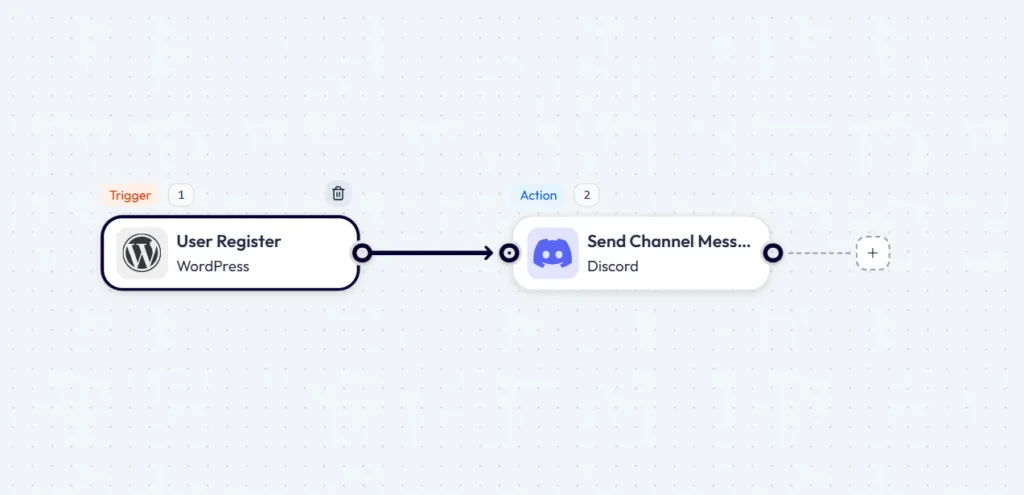
This is enough for most teams. It tells them who registered, which role the user received, and where to review the account.
Before building the workflow, prepare these:
For the test user, WordPress lets admins add new users from the Users → Add New screen, or you can use the user registration form.
Start by creating a dedicated Discord channel for new WordPress user alerts.
Avoid sending these alerts to #general. Team updates, casual messages, and other notifications can bury the alert quickly. A separate channel keeps registration activity easy to review later. Choose a name your team can understand without opening the workflow.
Open Bit Flows and create a new workflow. In the Flow Builder, choose WordPress as the trigger app, then select Benutzerregistrierung as the trigger event.
This trigger runs only when a new WordPress user account is created. That keeps the automation focused. Your team gets alerts for new registrations, not every small WordPress activity.
After selecting the trigger, you are ready to capture sample user data for mapping.
Klicken Sie auf Antwort anhören inside the WordPress trigger setup.
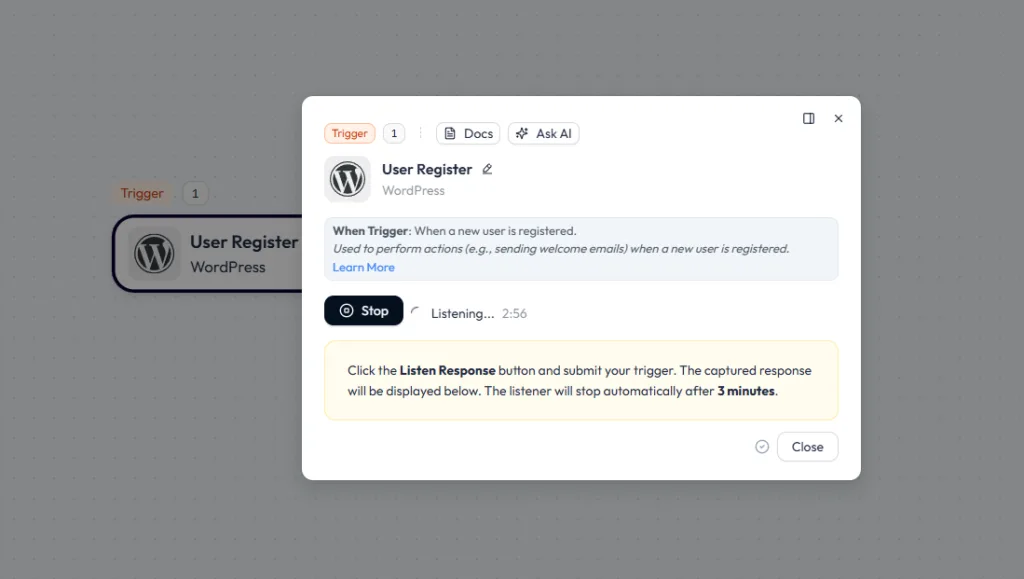
Bit Flows will now wait for a real user registration event. Keep this popup open, then create a test user from your WordPress dashboard.
This step matters because Bit Flows needs sample data before you can map fields like name, email, username, and role into the Discord message.
Go to your WordPress dashboard and open: Users → Add New. Fill in the test user details. Use sample data.
This is for an example. You can use the user registration form of your website.
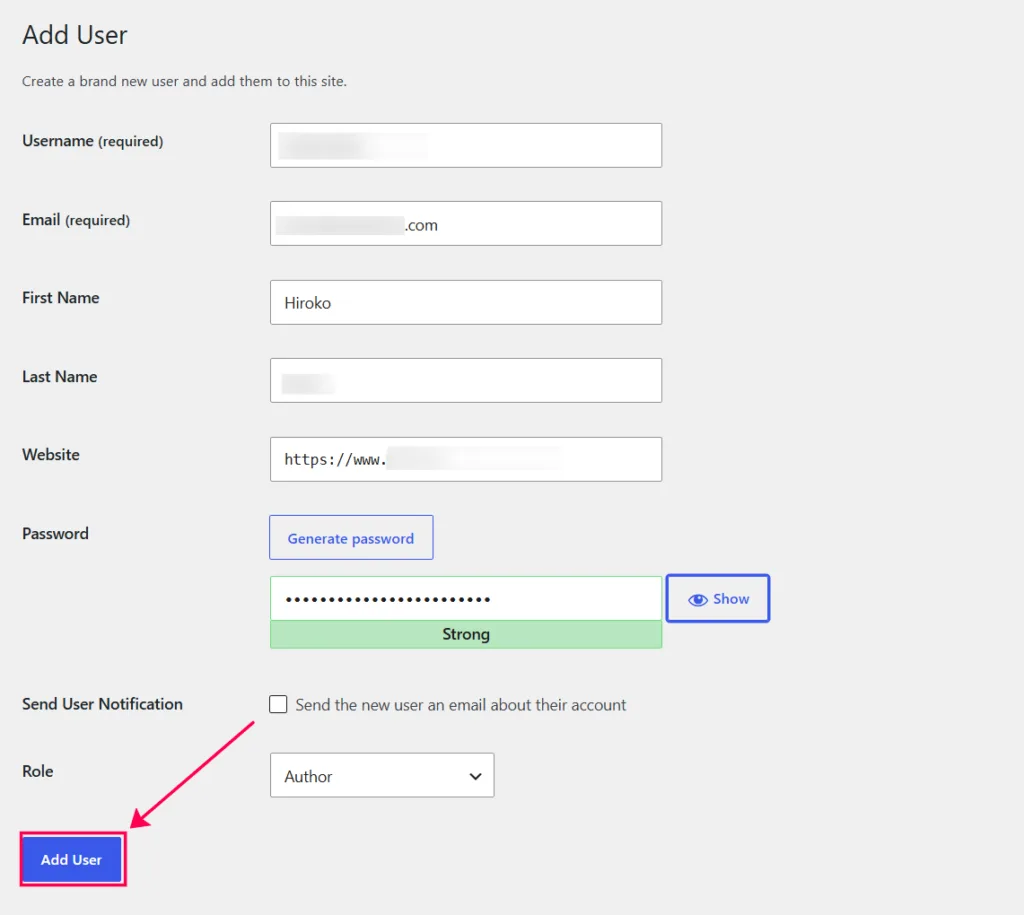
For testing, you can uncheck Send the new user an email about their account if you do not want WordPress to send an email. Then click Add User.
Use a unique email address for each test. WordPress does not allow two users to use the same email address.
Return to Bit Flows after creating the test user. You should see the trigger response captured successfully. The captured response gives you the fields you can use later in the Discord message.

For this workflow, these fields are enough for a clean registration alert. They tell your team who registered and which role WordPress assigned.
Do not send password-related fields to Discord. Even during testing, chat channels are not the right place for sensitive account data.
After Bit Flows captures the WordPress user data, connect Discord so the workflow can send the registration alert to your server.
Click the plus (+) icon after the WordPress trigger, choose Diskord, then select Nachricht an Kanal senden.
This action posts an automated message into a selected Discord channel.
To get the Discord credentials, open the Discord Entwicklerportal and create or open your application. In the OAuth2 tab, copy the Kunden-ID und Geheimnis des Kunden von der Client information section. Then paste the Rückruf-URL from Bit Flows into the Redirects field in Discord. Discord’s OAuth2 documentation confirms that a developer application is needed to retrieve the client ID and client secret.
For the full setup reference, use the official Bit Flows Discord action guide.
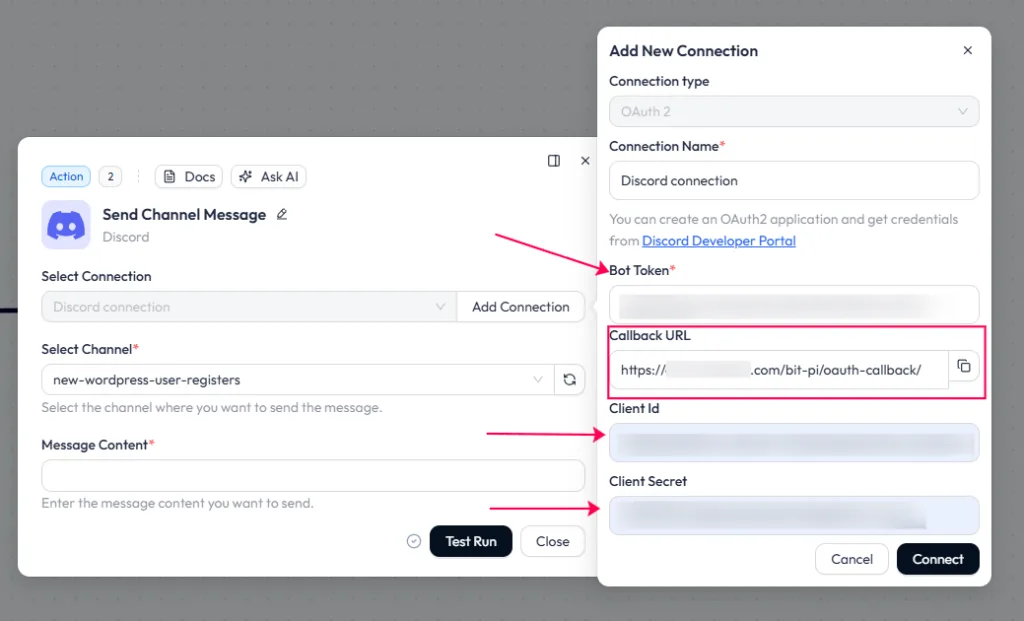
Next, open the Bot section of the same Discord application and copy the Bot Token. Paste the Bot Token, Kunden-IDund Geheimnis des Kunden into Bit Flows, then click Verbinden Sie.
After saving the Discord connection, select the channel where the alert should appear. A dedicated channel like #new-wordpress-user-registers works better than #general because your team can review registration alerts without searching through regular chat.
In der Message Content field, write the alert and insert the WordPress fields from the captured response.
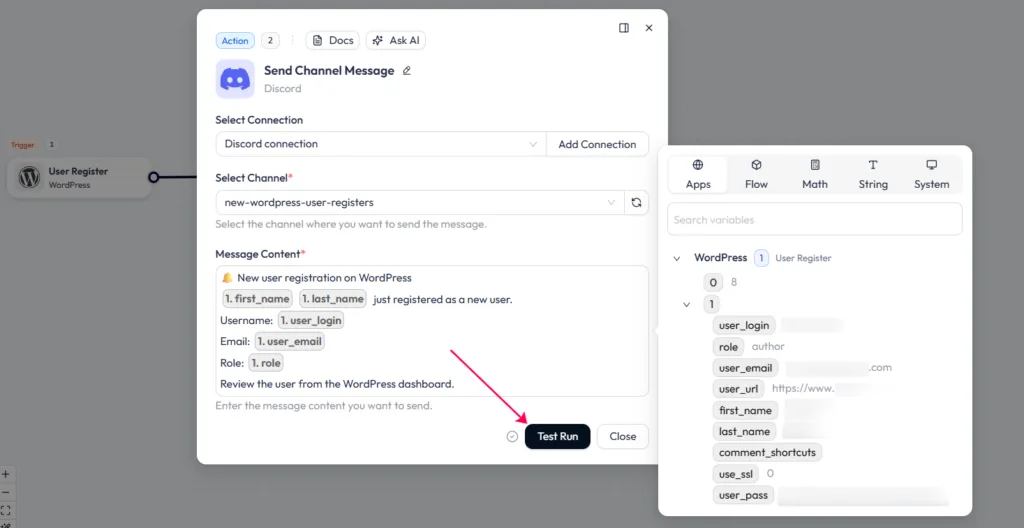
Avoid mapping password-related fields into Discord, even if they appear in the captured response.
After mapping the message content, click Testlauf inside the Discord action.
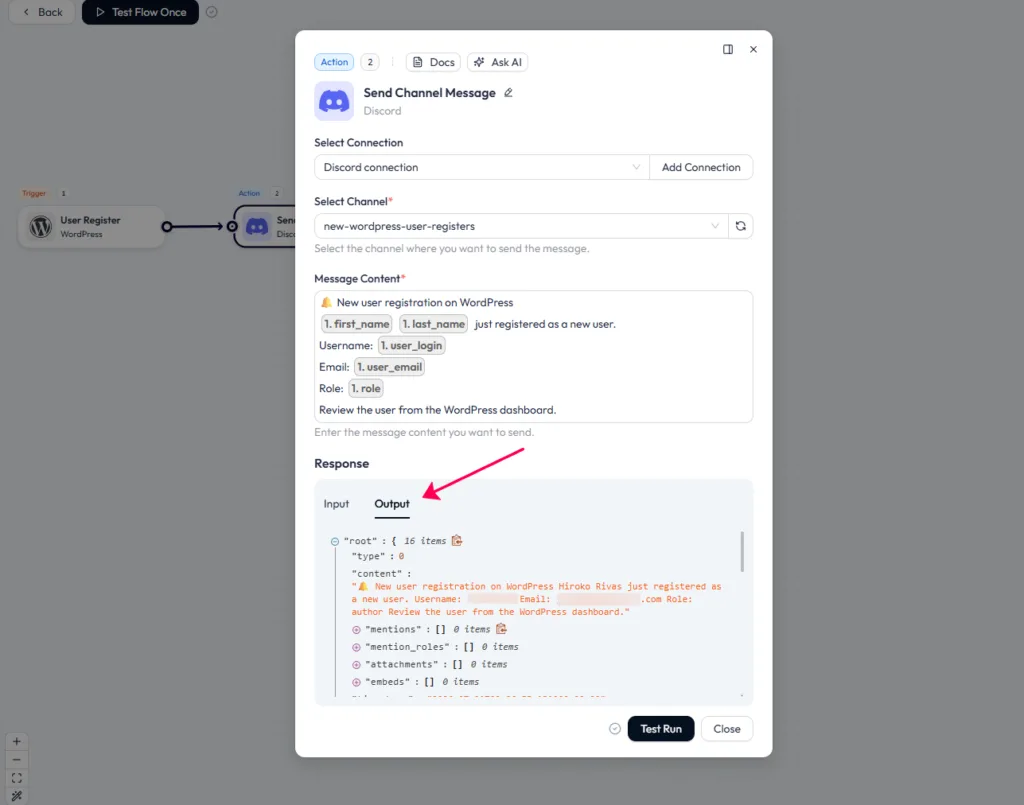
This checks whether Bit Flows can send the mapped WordPress user details to the selected Discord channel.
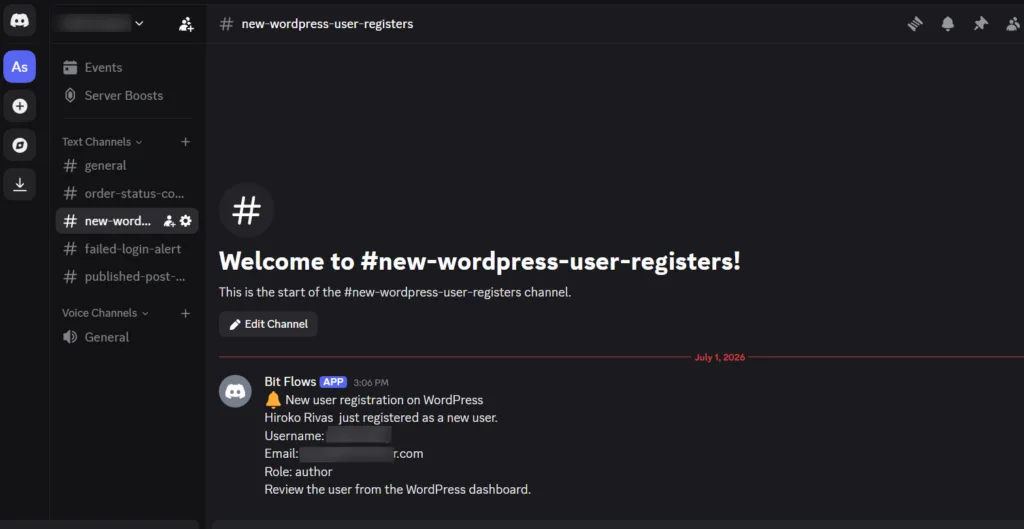
Open the Discord channel and confirm that the alert appears with the correct name, username, email, and role. If the message looks clean and readable, the Discord action is working.
Next, test the full workflow once. Go back to the Bit Flows canvas, click Durchfluss einmal testen, and create another test user from Users → Add New in WordPress.
When the new user is created, Bit Flows should capture the registration response and send the alert to Discord automatically. This confirms the full workflow is working from trigger to action.
Once both tests work, save and activate the workflow. From now on, every new WordPress user registration can send a Discord alert to your selected channel automatically.
A new user registration is small, but it can matter a lot depending on the site.
On a normal blog, the alert helps the admin notice new subscribers. On a contributor site, it helps the editor notice new authors. On a membership or client portal, it helps the team review who joined and whether the role looks correct.
The real value is not just the notification. The value is that your team does not need to keep checking WordPress for activity that Discord can surface automatically.
You can also use the same WordPress Discord setup to notify your team when a post status changes.
Verwenden Sie WordPress: On Post Status Update as the trigger and Discord: Nachrichten in Kanälen senden as the action. This works well when your team wants to know when a post moves from draft, pending, or scheduled to published.
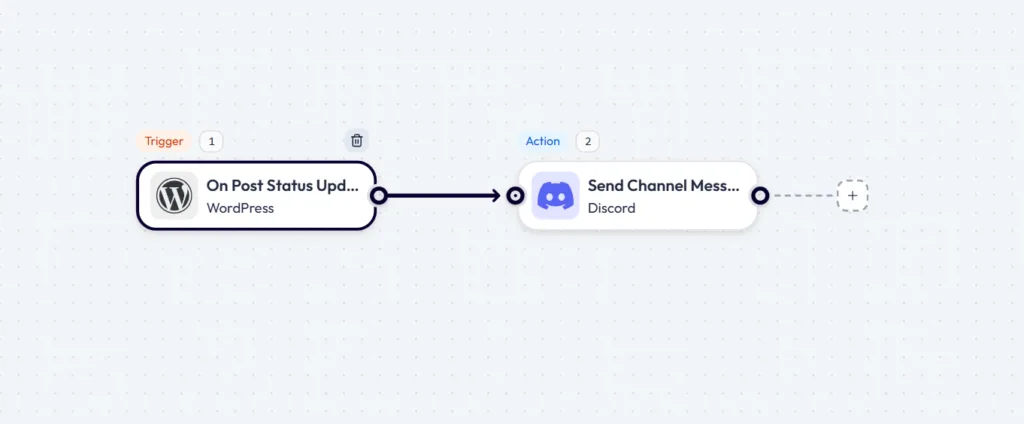
A status-based trigger is cleaner than a general post update alert because writers may update a post several times while editing. If every small edit sends a Discord message, the channel can become noisy fast.
Choose a dedicated Discord channel such as #published-post-updates so content updates stay separate from user registration alerts, failed login alerts, or general team messages.
Use this message in Message Content:
WordPress post status updated
Post: {{post_title}}
Status: {{post_status}}
Author: {{post_author}}
Updated at: {{post_modified_date}}
View post: {{post_url}}
Review in WordPress: {{post_admin_url}}
After writing the message, map the fields from the captured Bit Flows response. The exact field names may vary based on the WordPress trigger response, so always use the fields shown after Antwort anhören instead of guessing them.
Use this flow when you want admins to notice failed login activity faster.
WordPress: WP Login Failed → Discord: Send Channel Message
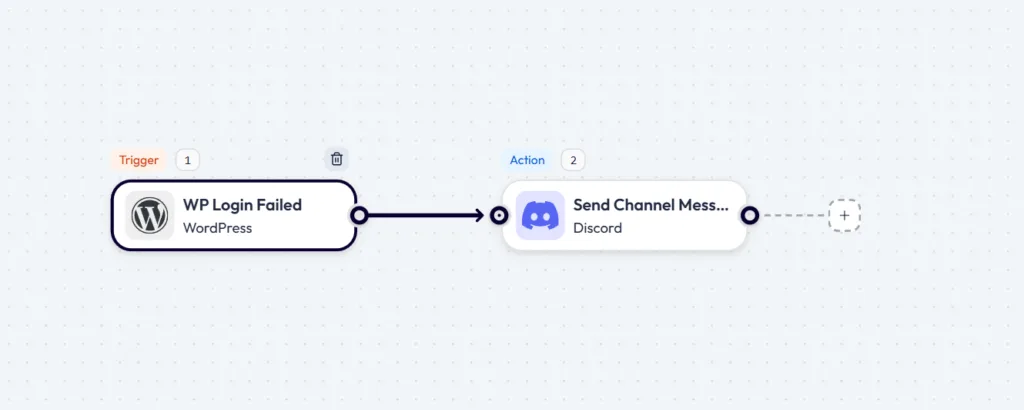
Suggested Discord channel:
#failed-login-alerts
Suggested message:
⚠️ Failed WordPress login attempt
Username or email used: {{user_login}}
Time: {{event_time}}
Check the login activity if this happens repeatedly.
This is useful for agency sites, membership sites, and client portals where login activity needs closer attention.
Bit Flows’ WordPress trigger list includes events such as Comment Post, Benutzerregistrierungund WP Login Failed, so these are practical follow-up flows for the same article.
If Bit Flows does not capture a response, click Antwort anhören again and create a new test user after the listener starts. If the Discord channel does not appear, check whether the Discord connection has access to that server and channel, then refresh the channel list.
If Testlauf fails, review the required Discord fields: Select Connection, Select Channelund Message Content. If the message sends but some user details are blank, capture a fresh WordPress response and remap the fields from the latest data.
If the alert goes to the wrong channel, select the correct Discord channel and test again. If duplicate alerts appear, check whether you ran the action test and the full workflow test more than once.
You have now connected WordPress with Discord using Bit Flows.
From here, every new WordPress user registration can trigger a Discord channel message automatically. This keeps your team aware of new accounts without asking someone to check the WordPress dashboard manually.
Start with the user registration alert first. Once it works, expand the same setup to comment alerts, failed login alerts, post status updates, or other WordPress events your team needs to watch.
Ja, WordPress kann automatisch Benachrichtigungen an Discord senden, wenn Bit Flows einen WordPress-Trigger verbindet, wie zum Beispiel Benutzerregistrierung, mit dem Discord Nachricht an Kanal senden Aktion.
Der beste Auslöser ist Benutzerregistrierung weil er nur ausgeführt wird, wenn ein neues WordPress-Benutzerkonto erstellt wird, wodurch die Discord-Benachrichtigung fokussiert und relevant bleibt.
Ja, Sie benötigen eine Discord-Anwendung mit einem Bot-Token, einer Client-ID und einem Client-Secret aus dem Discord-Entwicklerportal, um die Bit Flows-Discord-Verbindung herzustellen.
Für die meisten Teams sollte die Discord-Benachrichtigung den Namen des Benutzers, den Benutzernamen, die E-Mail-Adresse und die Rolle enthalten, damit Administratoren das Konto schnell überprüfen können.
Bit Flows may not capture the response if the test user was created before clicking Antwort anhören, so start the listener first and then create a new user.
Use a dedicated channel like #new-wordpress-user-registers or #published-post-updates so alerts stay easy to find and do not get buried in #general.




 DE
DE  EN
EN  ES
ES  NL
NL  IT
IT  PT
PT  JA
JA